ET Ducky - The Only RMM Platform With Automated Root Cause Analysis
ET Ducky correlates Windows ETW events on the endpoint, filters out PII and proprietary data, then delivers root cause analysis with kernel event logs as evidence. Deploy remote agents to diagnose any issue from a single dashboard through alerting, ticketing, and script automations.
Free tier available • No credit card required


How ET Ducky Works
From deployment to diagnosis in four steps — no query language to learn, no raw logs to read.
Deploy
Install the lightweight agent as a Windows Service or run the free desktop app. Agents auto-register with your organization and appear on your dashboard within seconds.
Monitor
Agents collect ETW events using 30+ kernel and user-mode providers, reporting CPU, memory, disk, and network health every 30 seconds.
Diagnose
Ask questions in plain English through live sessions. The on-agent correlation engine builds context from raw events, filters PII, and sends only sanitized findings to AI — achieving 99.6% bandwidth reduction.
Resolve
Get a clear “what happened / why / what to do next” summary with specific remediation steps. Execute approved scripts, transfer files, or take remote desktop control — all from one dashboard.
Every RMM Can Tell You What. ET Ducky Tells You Why.
Traditional monitoring agents poll WMI counters and forward Event Log entries. Neither captures the kernel event stream that shows what actually caused the problem.
“CPU exceeded 90% on SERVER-12.”
Open a remote session and start guessing.
“CPU exceeded 90% on SERVER-12 because the .NET garbage collector ran a full Gen 2 collection lasting 4.2 seconds, triggered by WorkerService.exe exceeding its 2 GB heap limit.”
Fix the root cause, not the symptom.
ETW is the Windows kernel’s own telemetry infrastructure. ET Ducky processes it locally on the agent with 99.6% bandwidth reduction before anything leaves the machine.
See the Platform
A single browser-based dashboard for fleet health, AI diagnostics, remote desktop, and more.
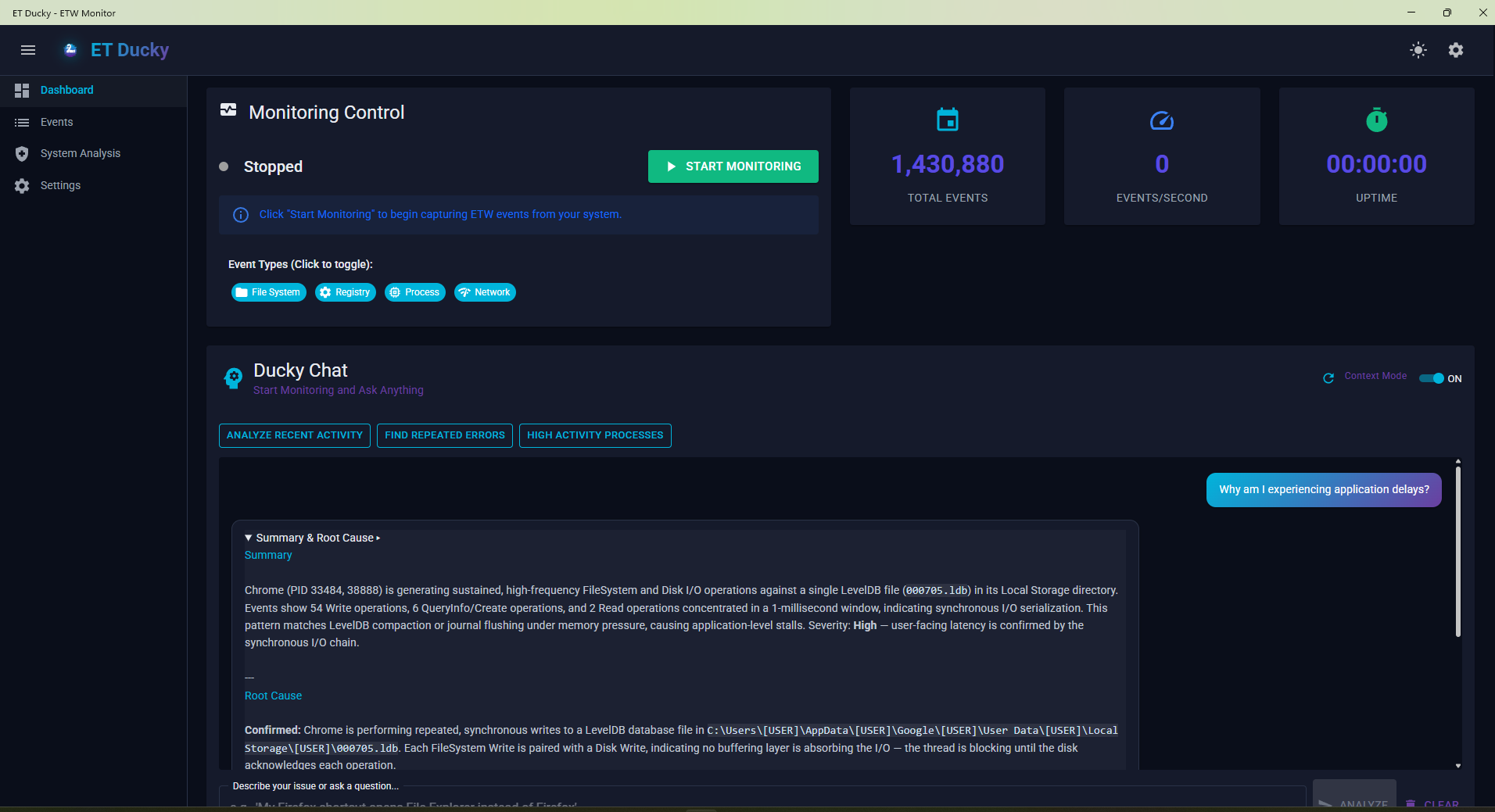
Desktop App
Free local ETW monitoring with interactive AI troubleshooting. Ask questions in plain English and get root cause analysis in seconds.
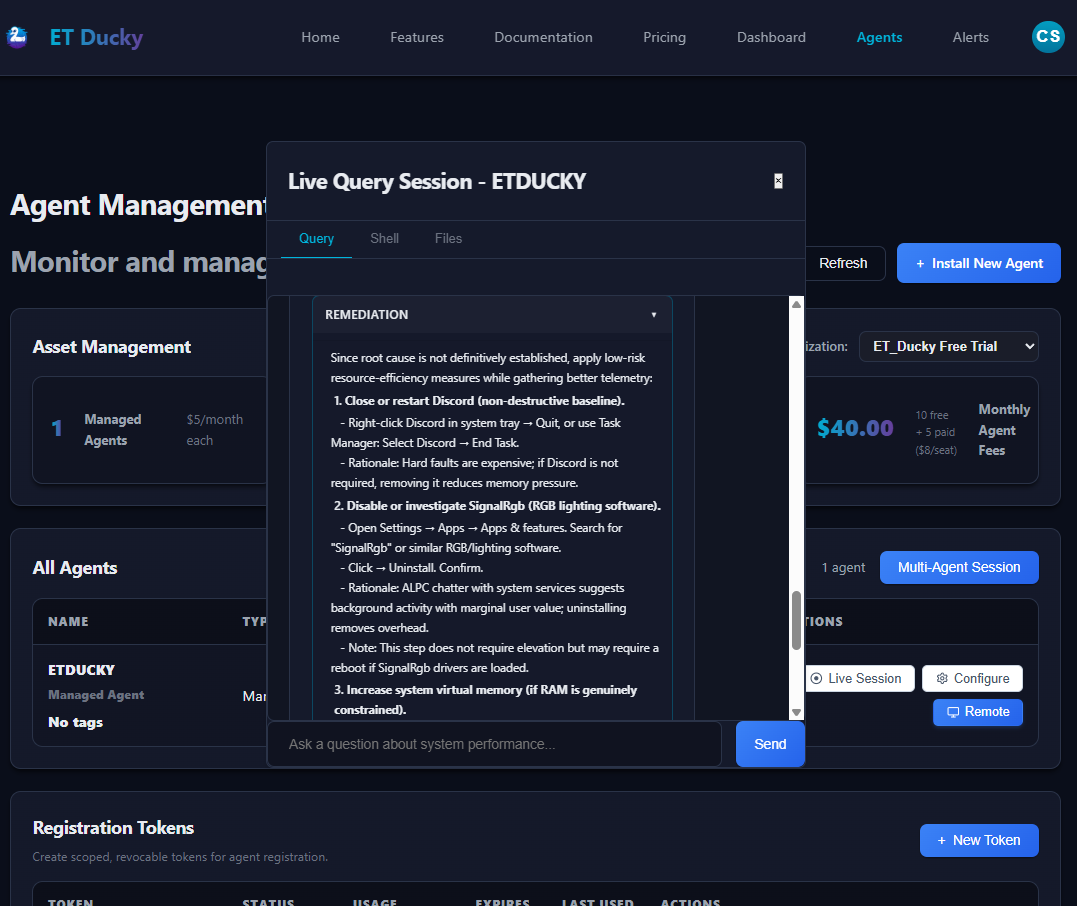
Live Sessions
Real-time interactive diagnostics with three integrated tabs: AI queries, approved script execution (PowerShell/CMD), and bidirectional file transfer.
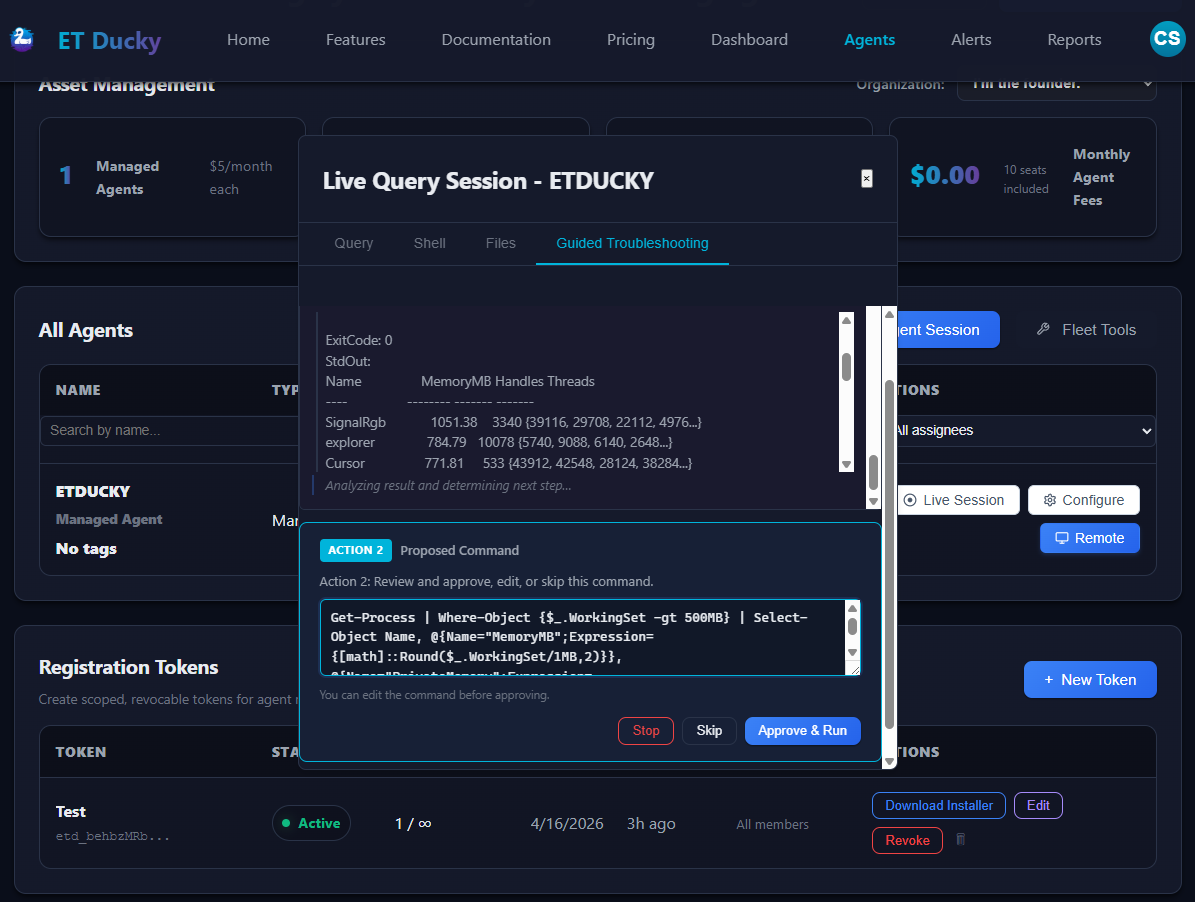
Guided Troubleshooting
ETW correlation is used to procure troubleshooting steps that can be approved by organization members for automatic implementation.
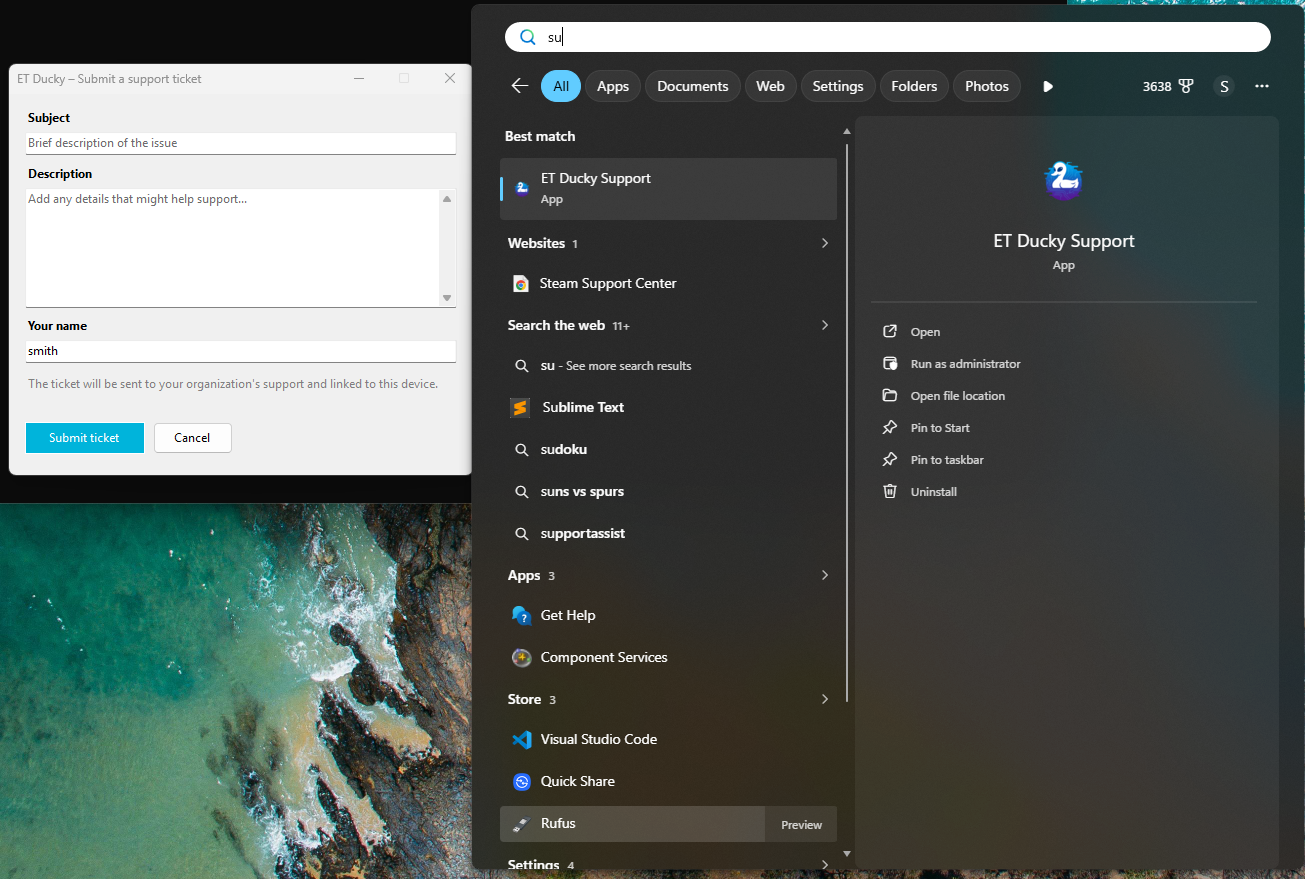
Agent-Side Support Requests
Users on agent hosts can request support using the support shortcut.
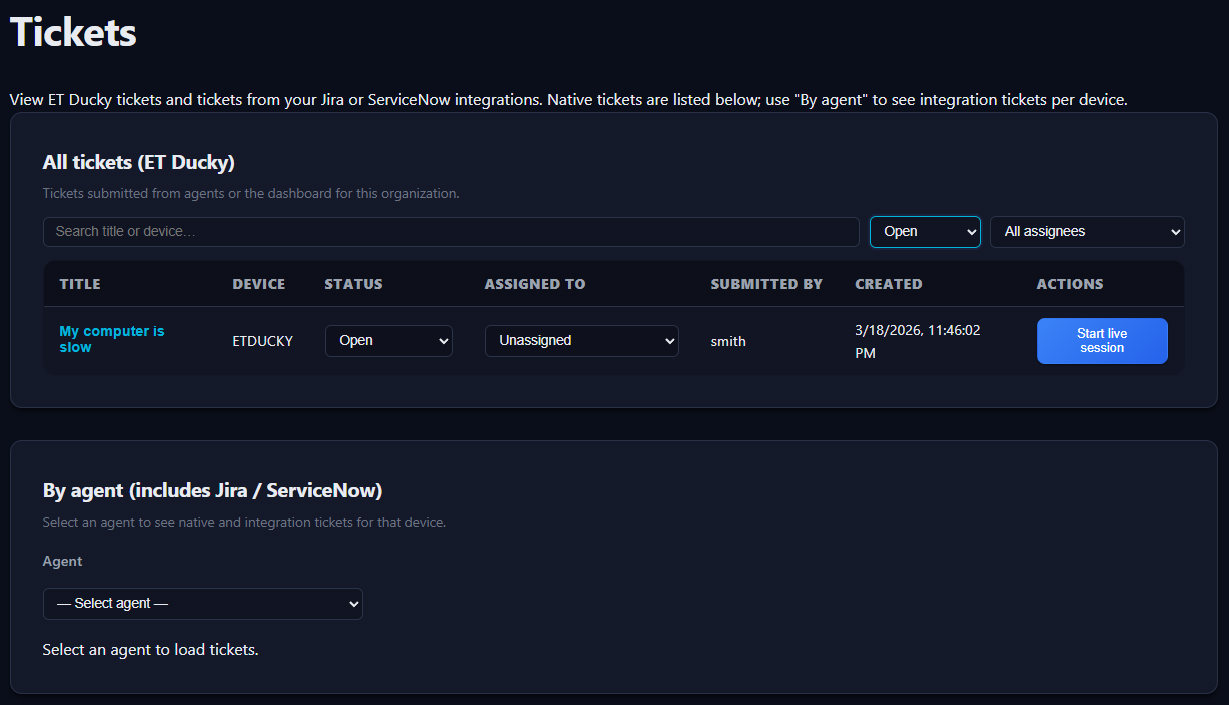
Ticket Queue
Technicians can view and work tickets by launching live sessions directly from the ticket page.
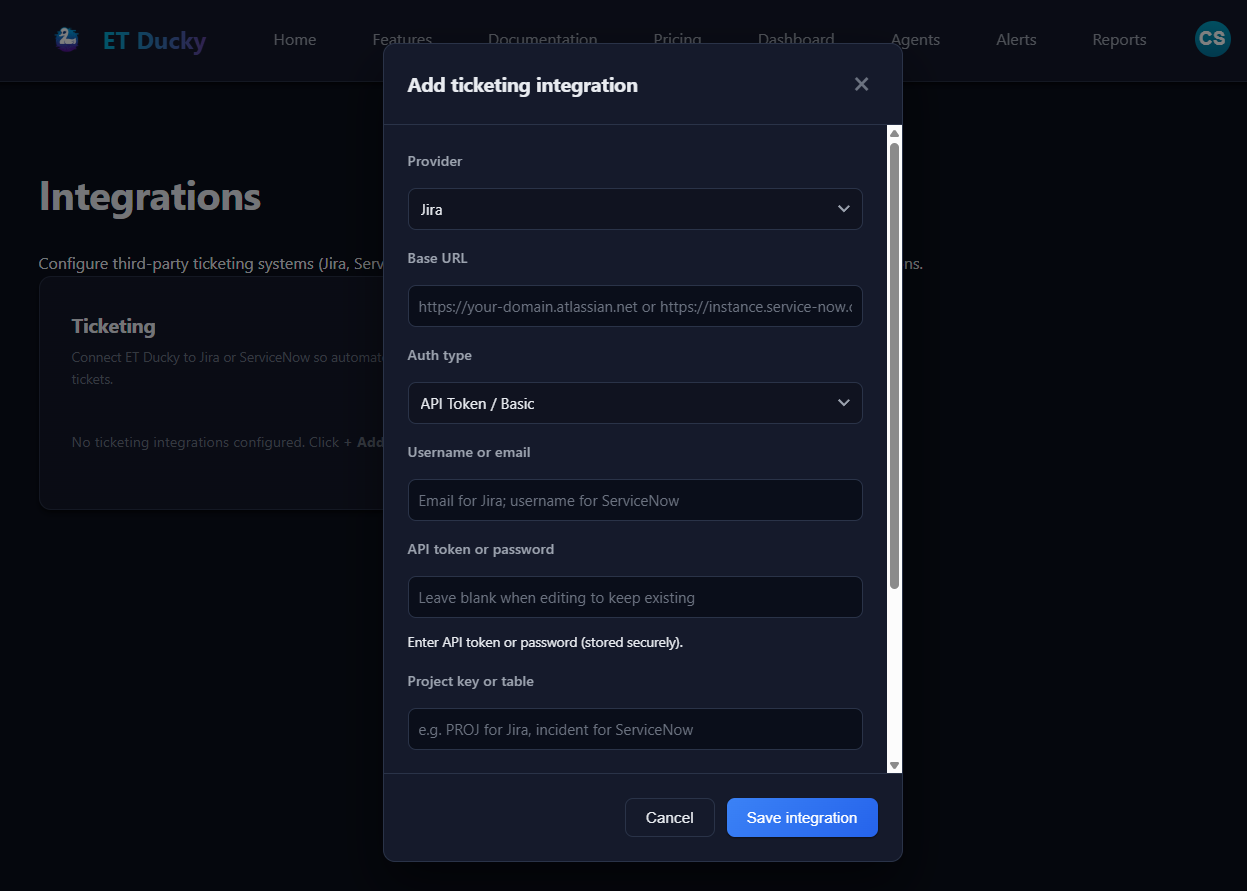
Integrations
Connect ET Ducky to your 3rd Party Ticket System to import issues and export results.
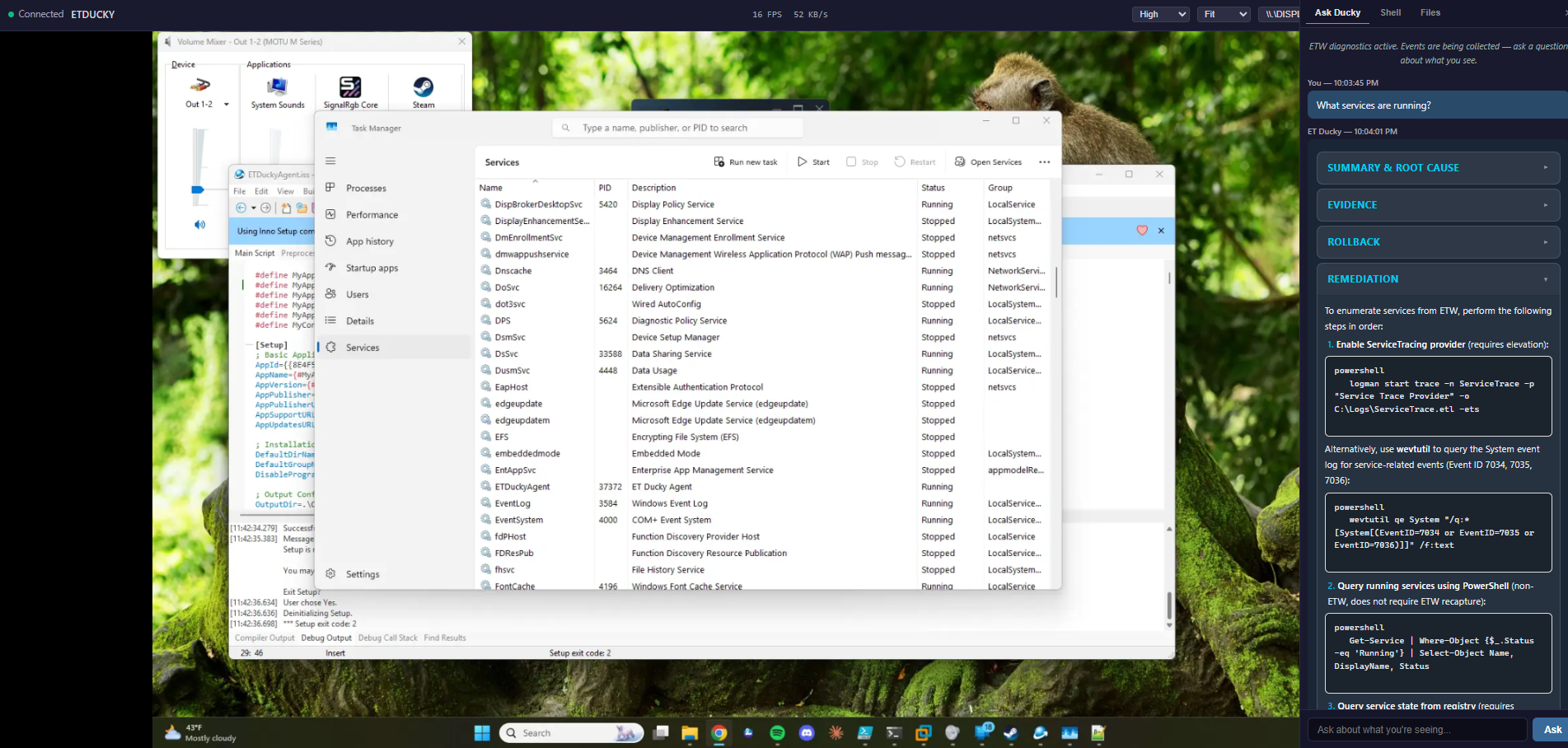
Remote Desktop
Browser-based remote control with GPU-accelerated capture. No VPN, no firewall rules — connect to any online agent with one click.
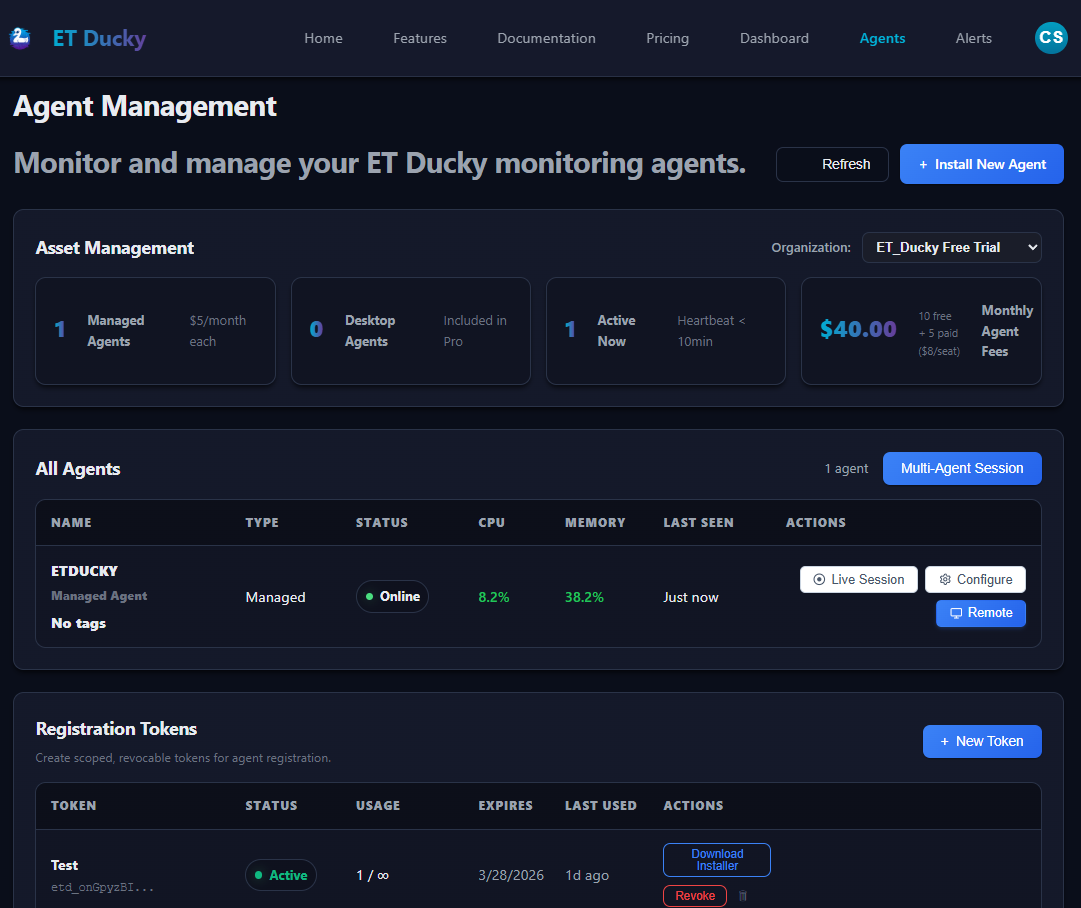
Fleet Dashboard
Centralized health monitoring for all your Windows endpoints with real-time status, CPU/memory metrics, and alert management.
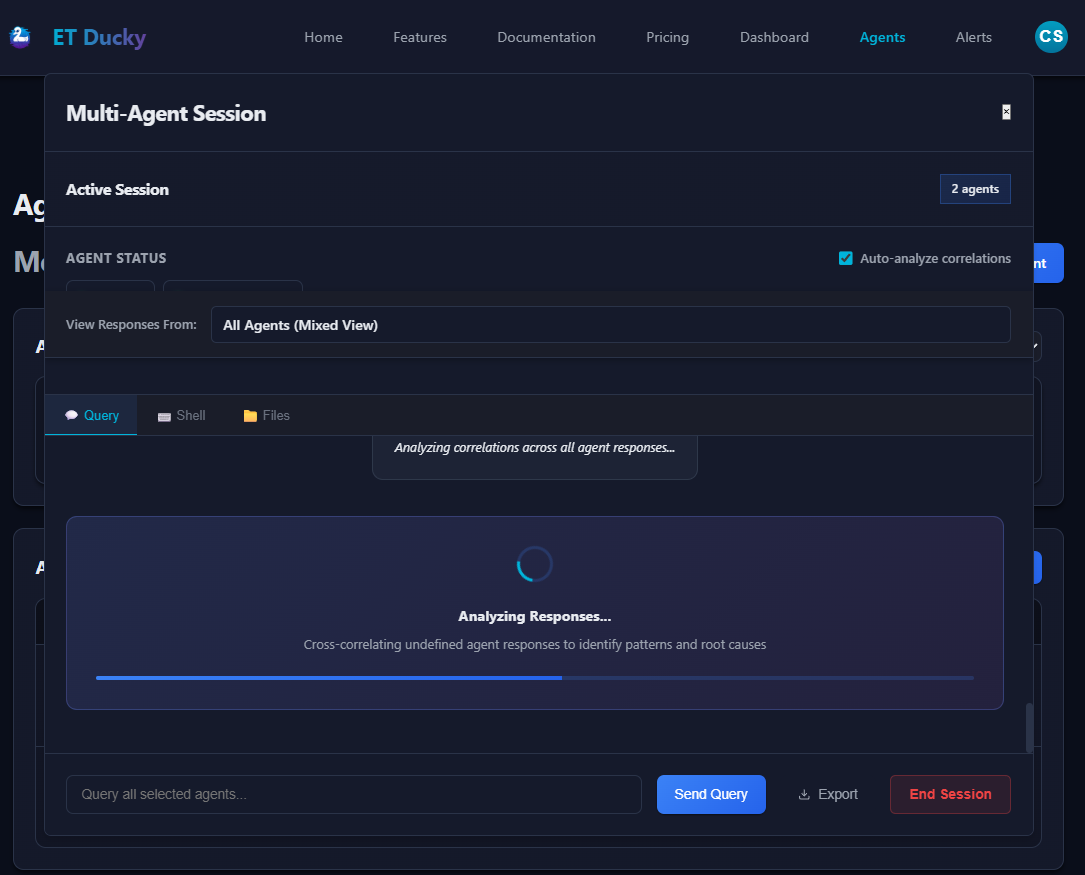
Multi-Agent Analysis
Query multiple agents simultaneously and run cross-correlation to trace distributed issues, compare fleet health, and find outliers.
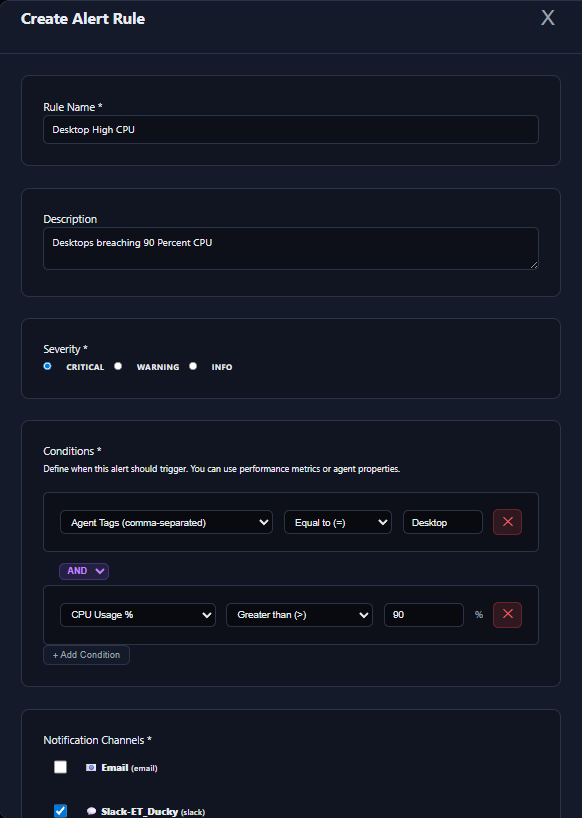
Alert System
Rule-based alerting on health metrics with automated AI root cause analysis. Get notified with the "Why?" via email, webhook, Slack, or Teams when thresholds are breached.
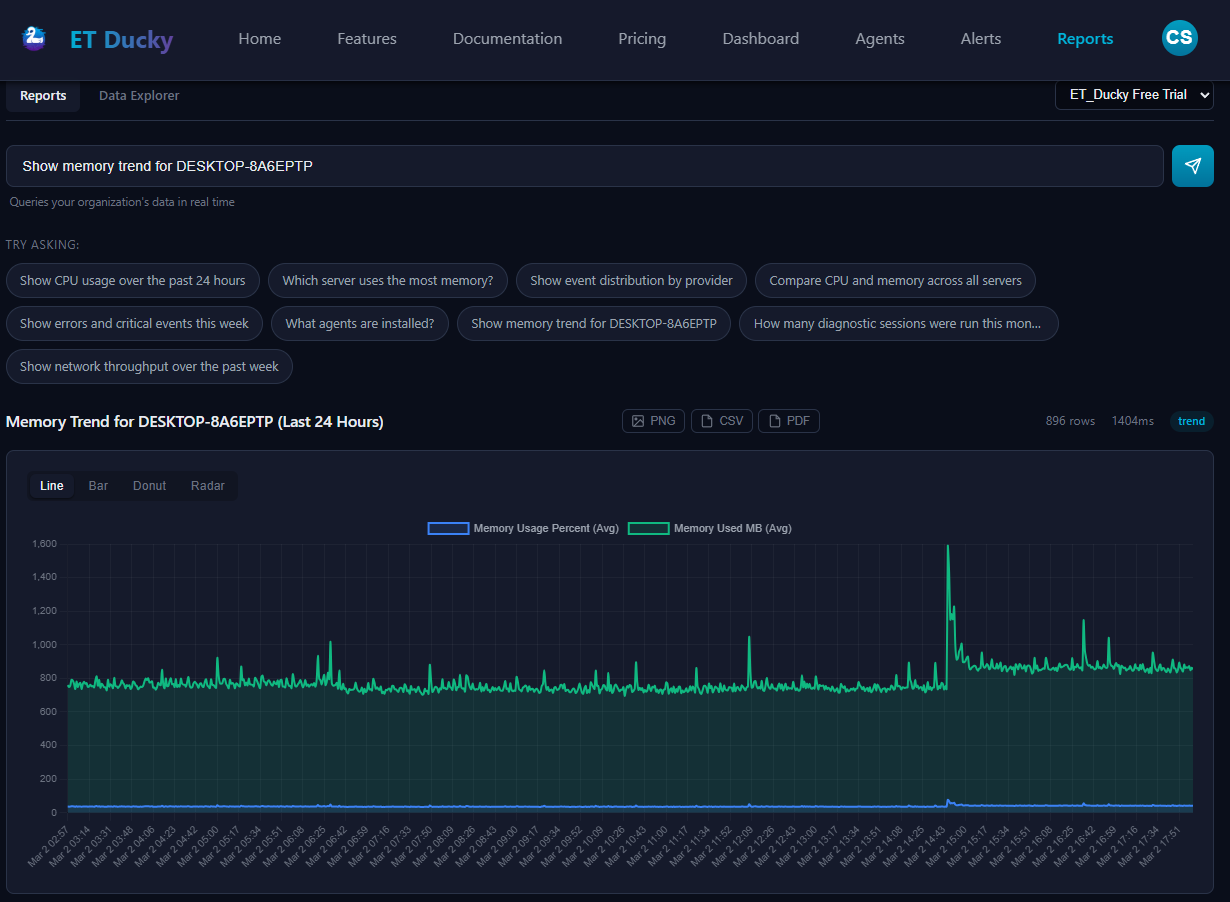
Smart Reports
Ask questions in plain English and get instant chart visualizations. Query CPU trends, compare servers, track events — no query language needed.
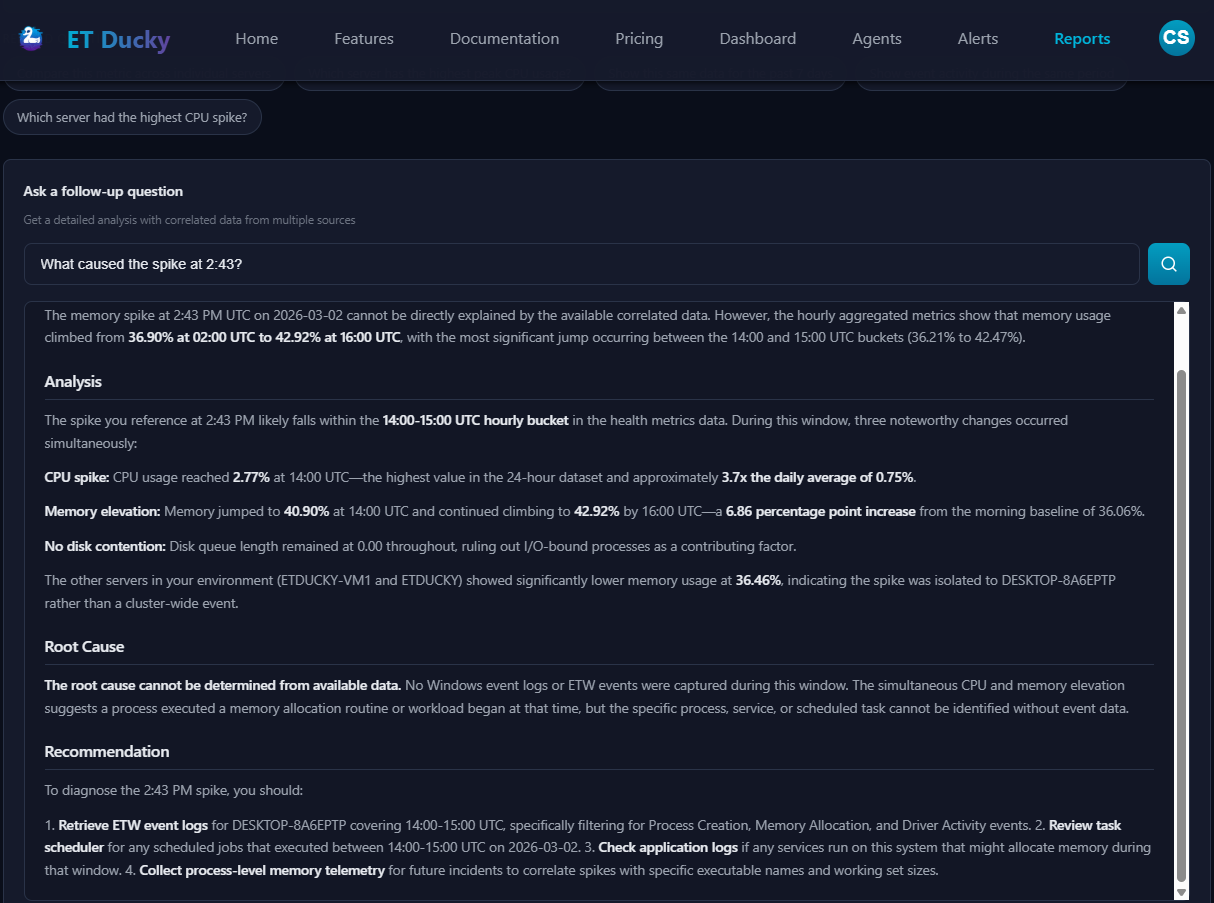
AI Follow-Up Analysis
Ask deeper questions about any chart and receive streaming AI analysis with cross-source correlation across health metrics, events, and fleet data.
What Is ET Ducky?
ET Ducky is an AI-powered Windows diagnostics platform that uses Event Tracing for Windows (ETW) to perform real-time root cause analysis. Unlike general-purpose monitoring tools that aggregate metrics and logs across heterogeneous environments and leave you with a high level view, ET Ducky captures kernel-level events directly on the Windows endpoint, then correlates them against your query so that any question you ask gets an answer centered around the variables of the target system or systems.
The on-agent correlation engine processes raw ETW events locally, filters out personally identifiable information (PII) and proprietary data before anything leaves the machine, then delivers a structured diagnostic summary to Claude AI from Anthropic. The result is a plain-language “what happened / why / what to do next” explanation. Raw event streams are not shipped off of agent hosts. Only relevant ETW logs with identifying information filtered out are sent for analysis.
Who Uses ET Ducky?
ET Ducky is built for IT professionals, system administrators, managed service providers (MSPs), and enterprise operations teams who manage Windows infrastructure. Whether you’re troubleshooting a single workstation or monitoring a fleet of servers, ET Ducky turns hours of event log analysis into seconds of AI-powered diagnosis.
How Is ET Ducky Different From Datadog, New Relic, or RMM Tools?
General observability platforms like Datadog, New Relic, and Dynatrace focus on application performance monitoring (APM), infrastructure metrics, and log aggregation across cloud-native stacks. They provide breadth across Linux, containers, and distributed services. ET Ducky provides low level troubleshooting on Windows, capturing kernel process creation, file system I/O, registry modifications, network connections, service lifecycle events, and more through 30+ configurable ETW providers. High level views are available through the natural language report builder, where you simply describe the data you want to have visualized, and follow up with questions about inflection points.
RMM tools like ConnectWise, Datto, and NinjaRMM surface high-level health metrics (CPU, memory, disk) and provide remote access, but they don’t explain why issues occur. ET Ducky goes deeper: it correlates low-level kernel events, identifies causal chains, and uses AI to generate specific remediation steps.
Core Capabilities
- On-Agent ETW Correlation: Captures and correlates Windows ETW events locally. Raw telemetry never leaves the endpoint. The correlation engine produces structured diagnostic summaries instead of shipping raw events.
- AI Root Cause Analysis: Processes correlated findings through Claude AI to generate plain-language explanations with specific remediation steps.
- Live Query Sessions: Real-time interactive troubleshooting with AI diagnostics, approved script execution (PowerShell/CMD), and bidirectional file transfer in a three-tab interface.
- Browser-Based Remote Desktop: Full remote control with GPU-accelerated capture, multi-monitor support, and clipboard sync — no VPN or firewall rules required.
- Multi-Agent Cross-Correlation: Query multiple agents simultaneously and compare findings across your fleet to trace distributed issues.
- Intelligent Alerting: Rule-based alerts on health metrics with automated AI root cause analysis when thresholds are breached.
- Fleet Management: Centralized dashboard for agent deployment, tagging, health monitoring, remote configuration, and team management with organization-based access control.
Frequently Asked Questions
What is ET Ducky?▸
ET Ducky is an AI-powered Windows diagnostics platform that uses Event Tracing for Windows (ETW) to perform real-time root cause analysis. It correlates kernel events directly on the endpoint, filters out PII before data leaves the machine, and delivers plain-language explanations of what went wrong and how to fix it.
How much does ET Ducky cost?▸
ET Ducky offers a Free tier (bring your own API key for unlimited queries), Professional at $39/month (1,000 AI queries), Business at $99/month (5,000 queries), and Enterprise at $249/month (50,000 queries). All paid plans include 20 free managed agent seats per user. Additional agent seats cost $5/month each with volume discounts down to $2/agent at scale. No credit card is required for the free tier.
How is ET Ducky different from Datadog or other monitoring tools?▸
Unlike general observability platforms that focus on APM, metrics, and log aggregation, ET Ducky specializes in Windows kernel-level diagnostics using ETW — the same telemetry source Microsoft engineers use internally. It provides deeper root cause analysis than RMM tools by correlating low-level kernel events and using AI to explain exactly what happened and why, with specific remediation steps.
Does ET Ducky send my data to the cloud?▸
Raw ETW events never leave the machine. The on-agent correlation engine filters out PII and proprietary information, then produces a structured diagnostic summary. Only this sanitized, reduced summary is sent to AI for analysis — achieving 99.6% bandwidth reduction while keeping sensitive data local. Self-hosted deployment options are also available for organizations that need full on-premises control.
What Windows versions does ET Ducky support?▸
ET Ducky supports Windows 10, Windows 11, and Windows Server 2016 and later. The desktop app runs in user mode on any supported version. Managed agents run as a Windows Service under the Local System account with auto-start capability, supporting both workstation and server environments.
Can I try ET Ducky for free?▸
Yes. The free tier includes the full desktop app with unlimited local ETW monitoring and interactive troubleshooting. Bring your own API key from Anthropic, OpenAI, or Microsoft Copilot for unlimited AI queries at zero subscription cost. No credit card required.
What deployment options are available?▸
ET Ducky offers three deployment models: Cloud Hosted (shared multi-tenant, included with all subscriptions), Cloud Hosted Dedicated (single-tenant infrastructure with tiered pricing for 100–9,999 agents), and Self-Hosted (on-premises deployment with perpetual or annual licensing). All options include the full feature set including live sessions, remote desktop, multi-agent analysis, and alerting.
About ET Ducky
Built by Windows engineers who spent years diagnosing the hard way.
Deep Windows Expertise
ET Ducky was created by experienced Windows systems engineers with backgrounds in MECM, Intune, enterprise infrastructure management, and PowerShell automation. The platform was born from the realization that technology has revealed a path to optimize the process of kernel log correlation.
Why ETW?
Event Tracing for Windows is the deepest diagnostic telemetry available on the Windows platform — the same data source Microsoft’s kernel team uses to debug Windows itself. Most monitoring tools only surface performance counters and event logs. ET Ducky goes deeper.
Privacy by Design
Every piece of telemetry is processed on-agent first. PII filtering and proprietary data scrubbing happen before any data reaches the cloud. Organizations retain full control over what leaves their endpoints. Self-hosted deployment is available for teams that need complete on-premises control.
Our Mission
Make Windows root cause analysis accessible to every IT professional from solo administrators troubleshooting a single workstation to enterprise operations teams managing thousands of endpoints. Diagnosis is streamlined to the max because admins describe the problem and automation finds the solution.
Documentation
Complete guide to ET Ducky Cloud Platform
Features
Comprehensive Windows monitoring, diagnostics, and fleet management
Core Platform
Cloud Dashboard
A single-page web application at etducky.com providing centralized visibility into your entire Windows infrastructure. Sign in with Clerk authentication (OAuth, SAML 2.0 SSO, or SCIM directory sync) and access everything from any browser.
- Real-Time Agent Fleet View — Monitor all deployed agents with online/offline status, CPU/memory usage, and color-coded health indicators refreshing every 30 seconds
- Organization Switcher — Manage multiple organizations seamlessly; switch between them to view different agent fleets, alert rules, and team members
- Dashboard Summary Cards — At-a-glance subscription status, query usage with progress bars, agent seat utilization with contributor breakdown, and quick action buttons
- Enterprise SSO & Provisioning — SAML 2.0 single sign-on and SCIM directory sync for automated user lifecycle management across your organization
- Client-Side Routing — SPA with browser history integration for fast navigation between Dashboard, Agents, Alerts, Team, and Settings pages
AI-Powered Diagnostics
Every diagnostic workflow is powered by Claude AI from Anthropic. Ask questions in plain English and receive expert-level root cause analysis.
- Natural Language Queries — No query syntax to learn; ask questions like “Why is SQL Server failing to start?” or “What’s causing high CPU right now?”
- Local Correlation Engine — Agents process raw ETW events locally, filtering out PII and proprietary data before building a structured query—only sanitized diagnostic findings are sent to AI
- Context-Aware Responses — AI understands the full system context including running processes, services, network state, and recent changes
- Actionable Recommendations — Every response includes specific remediation steps, not just diagnosis
- Conversation History — Up to 10 turns of context for follow-up questions within a session
Two Agent Types
Managed Agents — Full Power
- Windows Service running as Local System with auto-start
- Full ETW event collection with 30+ configurable providers
- Live Sessions with AI queries, approved script execution, and file transfers
- Browser-based Remote Desktop with screen capture, input injection, and clipboard sync
- Remote configuration push, alert evaluation, multi-agent correlation
- Starting at $5/agent/month with volume discounts down to $2/agent
Desktop Agents — Free & Lightweight
- User-mode application starting with login session
- ~30–50 MB RAM, <1% CPU — zero cost, unlimited deployment
Flexible Pricing
- BYOK (Free) — Bring your own Anthropic API key for unlimited AI queries at zero subscription cost
- Professional ($39/mo) — 1,000 queries/month with 20 free agent seats per subscribed user
- Business ($99/mo) — 5,000 queries/month for growing teams
- Enterprise ($249/mo) — 50,000 queries/month with premium support
- Volume Discounts — Agent seat pricing drops from $5 to $2/seat as you scale
- Annual Billing — Save 15% on subscriptions and agent seats
- Organization Quota Pooling — All team members share the same query pool and agent seats
Demo Videos
Watch ET Ducky in action — from desktop diagnostics to agent deployment and pricing overview.
Monitoring & Health
Real-Time Health Metrics
Every agent reports health metrics every 30 seconds, displayed in the Agents table and agent Properties modal with automatic color-coded thresholds.
- CPU Usage — System-wide utilization with green/yellow/red indicators (<60% / 60–85% / >85%)
- Memory Usage — Physical memory utilization with same color thresholds
- Disk Space — All mounted volumes with usage percentages and free space remaining
- Network — Bytes sent/received and active connection counts
- Process List & Service Status — Running processes and Windows service states (toggleable via Remote Configuration)
ETW Event Collection
30+ configurable Event Tracing for Windows providers across kernel, user-mode, and performance categories.
Kernel Providers
- File System I/O, File System Initialization, Process & Thread, Image Load, Registry, Network TCP/IP, Network UDP, Memory Management, Driver Operations, Object Handles, Process Counters
User-Mode Providers
- .NET Runtime, .NET Exceptions, DNS Client, WinHTTP, TCP/IP, Windows Error Reporting, Shell Core, LDAP Client, Group Policy, Windows Firewall, SQL Server, PowerShell, Task Scheduler, Certificate Services, Print Service
Performance & Diagnostics
- Performance Counters, Diagnostic Policy Service, Timer Events, Wait Analysis
Three Collection Modes
| Mode | ETW Events | CPU Impact | RAM | Use Case |
|---|---|---|---|---|
| Health Only | None | <1% | ~50 MB | Always-on production monitoring |
| On-Demand | Configured providers (timed) | 5–10% | 50–150 MB | Targeted troubleshooting |
| Full Monitoring | All enabled (continuous) | 8–15% | 100–200 MB | Critical incident investigation |
Live Sessions automatically start and stop collection. On-Demand mode auto-returns to Health Only when the timer expires.
Data Retention
- Raw Metrics: 30 days of detailed data points
- Aggregated Data: 90 days of hourly averages
- Long-Term Trends: 1 year of daily summaries
- Interactive time-series charts with zoom, multi-agent comparison, and CSV export
Live Sessions
Three-Tab Diagnostic Modal
Start a live session with any online agent to open a real-time diagnostic modal with three powerful tabs, connected via Server-Sent Events (SSE).
Query Tab — AI-Powered Diagnostics
- Chat-style interface for natural language questions about the agent’s state
- Agent collects ETW events, correlates locally (filtering PII and proprietary data), and sends structured findings to Claude AI
- Responses include diagnostic findings, root cause analysis, and actionable recommendations
- Up to 10 turns of conversation context for follow-up questions
- Press Enter to send, Shift+Enter for new line
Shell Tab — Approved Script Execution
- Script-Only Execution — ad-hoc commands are disabled; all commands must reference an administrator-approved script from the organization’s script repository
- Script Approval Workflow — when a script is created or edited, a review ticket is automatically generated for ET Ducky administrators. Scripts remain in “pending review” status until approved. Rejected scripts display the rejection reason.
- Tamper Detection — approved scripts are SHA-256 hashed at approval time; any modification resets the script to pending review and requires re-approval
- Script Dropdown — browse approved scripts by category with one-click execution; unapproved scripts are visible but disabled
- Script Manager — create, edit, and organize scripts with categories and descriptions; system/global scripts are pre-approved
- PowerShell / CMD support — scripts can target either execution engine
- Terminal-style output with exit codes, stdout, and stderr
- Rate limited to 30 commands per user per organization per hour
Files Tab — Bidirectional Transfers
- Push File: Upload from browser to agent with destination path; prompts for destination path before uploading
- Pull File: Request a file from the agent by source path; a Download button appears on completion to save it locally
- 1 MB chunk transfers with integrity verification
- Real-time progress bars; max 2 concurrent transfers
- Broadcast Push: Select Push to All Selected in the target dropdown to distribute a file to all selected agents simultaneously; each agent receives its own transfer
- Transfer history is automatically cleared when the session modal is closed
Session Lifecycle
- Start: Click Live Session → ETW collection starts automatically → SSE stream connects → three-tab modal opens
- During: Query AI, execute commands, transfer files — all in parallel
- End: Click End Session → ETW stops → agent returns to previous mode
- One active session per agent at a time
Remote Desktop
Browser-Based Remote Control
Take full remote control of any online agent directly from the ET Ducky dashboard — no VNC, no RDP client, no firewall rules. Connect with one click and interact with the agent’s desktop as if you were sitting in front of it.
- One-Click Connect — Click “Remote” on any online agent row to launch a fullscreen remote desktop session
- GPU-Accelerated Capture — DXGI Desktop Duplication API for high-performance screen capture with dirty-region tracking; automatic GDI+ fallback for RDP sessions or older GPUs
- WebP & JPEG Encoding — Adaptive encoding via SkiaSharp with configurable quality (Low / Medium / High / Ultra); dirty regions sent individually to minimize bandwidth
- Full Input Control — Mouse movement, clicks, scroll, and full keyboard injection via Win32 SendInput API with proper modifier key tracking
- Bidirectional Clipboard Sync — Copy text on either end and paste on the other; uses Windows AddClipboardFormatListener for instant change detection
- Smart Cursor Rendering — Agent detects cursor shape changes (pointer, text, resize, wait, etc.) and sends CSS cursor names; custom application cursors sent as PNG images
- Multi-Monitor Support — Display selector in the toolbar when the agent has multiple monitors; switch between displays mid-session
Viewer Interface
The remote desktop viewer is a fullscreen modal with a collapsible toolbar providing real-time session controls and performance readouts.
- Canvas Renderer — Hardware-accelerated HTML5 Canvas with offscreen compositing for dirty-region rendering at native resolution
- Scale Modes — Fit (maintain aspect ratio), Stretch (fill viewport), or Native (1:1 pixel mapping with scrolling)
- Quality Slider — Adjust encoding quality on the fly; changes take effect immediately
- Keyboard Grab — Toggle to capture all keyboard shortcuts (Ctrl+Tab, Alt+F4, etc.) and forward them to the remote system instead of the local browser
- Fullscreen Mode — True browser fullscreen for an immersive remote experience
- Live Stats — Real-time FPS counter and bandwidth readout (KB/s or MB/s) in the toolbar
- Connection Status — Color-coded indicator: amber (connecting), green (connected), red (disconnected)
Architecture & Performance
Remote desktop uses a WebSocket relay through the ET Ducky server. The server never decodes frame data — it forwards binary frames from agent to browser with zero processing overhead.
- Data Flow: Agent captures screen → encodes to WebP/JPEG → sends binary frames over WebSocket → server relays unchanged → browser decodes on Canvas
- Input Flow: Browser captures mouse/keyboard → sends JSON input messages → server relays → agent injects via SendInput
- Latency: <50 ms on LAN, <150 ms on WAN
- Frame Rate: 1–5 FPS idle, 15–30 FPS during active interaction, adaptive to bandwidth
- Bandwidth: 0.5–2 Mbps (low quality) to 2–5 Mbps (high quality at 1080p)
- Security: WSS (TLS-encrypted WebSocket), Clerk JWT authentication for browser, Agent ID + Org Key for agents, 15-minute idle timeout
- Limits: 2 concurrent remote desktop sessions per organization
Multi-Agent Analysis
Fleet-Wide Diagnostics
Query multiple agents simultaneously to diagnose distributed issues, compare fleet health, and identify outliers.
- Agent Selection Grid — Visual grid showing all org agents; online agents have checkboxes, offline agents are grayed out
- Select All / Deselect All buttons for quick selection
- Environment Filter — Show only Production, Staging, or Development agents
- Parallel Query Distribution — Questions sent to all selected agents simultaneously
- Agent Status Sidebar — Real-time status per agent: green (responding), yellow (waiting), red (failed)
- Agent View Selector — Filter chat by specific agent or view all responses together
- Skip Waiting Agents — Proceed without slow or unresponsive agents
Cross-Correlation Engine
After agents respond, trigger cloud-side analysis that compares findings across your fleet:
- Common Patterns — Issues appearing across multiple systems
- Outlier Behavior — Agents behaving differently from the rest
- Shared Root Causes — Underlying issues affecting multiple systems simultaneously
- Environmental Correlations — Patterns tied to specific environments or configurations
- Auto-Correlate Toggle — Automatically run correlation after each query round
- Export Results — Download the full transcript with all queries, responses, and analyses
Query Cost: 1 query per agent per question + 1 per device for correlation. Example: querying 5 agents with correlation = 10 queries.
Fleet Tools
Fleet Tools is a unified multi-agent operations modal for executing approved scripts and transferring files across many agents at once, without opening individual sessions.
Agent Selection & Filtering
- Visual agent grid with online/offline status indicators and tag display
- Select individual agents or use Select All / Deselect All for quick bulk selection
- Filter builder with AND/OR logic across Agent Name, Environment, Tags, Agent Type, and Status fields
Shell Tab
- Broadcast PowerShell or CMD commands to all selected agents simultaneously, or target a single agent
- Run As SYSTEM toggle for elevated execution
- Live output console with color-coded stdout, stderr, and system messages per agent
Files Tab
- Pull: Request a file from a specific agent by path; Download button appears on completion
- Push: Upload a file to a specific agent, or select Push to All Selected to broadcast to all agents simultaneously — the file is read once and distributed in parallel
- Transfer history is automatically cleared when Fleet Tools is closed
Common Scenarios
- Distributed App Failures: Select web, app, and database tier agents to trace requests across tiers
- Load Balancer Issues: Compare identical servers in a pool to find the problematic one
- Active Directory: Correlate authentication events across domain controllers
- Security Incidents: Track lateral movement and coordinated attack patterns
- Performance Comparison: Identify outlier servers with degraded metrics
Alert System
Intelligent Monitoring
Automated alert system with AI-powered analysis monitors your infrastructure 24/7. The Alerts page provides a three-tab interface with auto-refresh every 30 seconds.
Alert History
- Stat cards for Critical, Warning, Info, Active Total, and Resolved Today counts
- Filter by status (Active/Acknowledged/Resolved) and severity (Critical/Warning/Info)
- Alert cards with severity badge, time since triggered, rule name, agent name, and AI Analysis badge
- Actions: Acknowledge, Resolve, View Details (with AI root cause analysis)
Alert Rule Builder
- 11 Available Metrics: CPU %, Memory %, Disk %, Network Bytes Sent/Received, Active Connections, Agent Name/ID/Type/Tags/OS
- 10 Operators: > ≥ < ≤ = != contains not_contains starts_with ends_with
- AND/OR Condition Logic — Combine multiple conditions in a single rule
- Duration Requirements — e.g., “CPU > 90% for 300 seconds” to avoid alerting on brief spikes
- Severity Levels: Critical, Warning, Info
- Enable/Disable Toggle without deleting rules
Notification Channels
- Email, Slack, Microsoft Teams, Custom Webhooks
- Test notifications to verify channel configuration
- Enable/disable toggle, reusable across multiple rules
AI-Powered Alert Analysis
Every triggered alert receives automatic Claude AI analysis including:
- Root cause identification and impact assessment
- Immediate mitigation steps and long-term prevention recommendations
- Confidence level for the analysis
- Results cached 24 hours — similar alerts get instant insights
Automations
Event-Driven Automation Engine
Define rules that fire automatically when events happen across your fleet. Combine triggers, actions, and target scopes to build workflows that respond to infrastructure changes without manual intervention.
Trigger Types
- Alert Fired — Runs when an alert rule triggers, with optional severity filter (Critical, Warning, Info)
- New Agent Enrolled — Runs when a new agent registers with the organization
- Agent Went Offline / Came Online — Runs on connectivity state changes
- Scheduled (Cron) — Runs on a recurring UTC schedule using standard 5-field cron expressions
- Manual — Triggered on demand from the Automations page via the Run Now button
Action Types
- Run Org Script — Execute a script from the shared org script repository on target agents via the same SSE command channel used by Fleet Shell
- Fire Webhook — Send HTTP requests (POST/PUT/GET) with custom headers and a JSON body template supporting variables like {{agentName}}, {{ruleName}}, {{triggerType}}
- Send Notification — Notify org admins via email or fan out through configured alert webhook channels
- Create Ticket — Automatically create an ET Ducky native ticket with a customizable summary template
Target Scopes
- Triggering Agent — The specific agent that caused the event
- All Agents — Every active agent in the organization
- Tagged — Only agents matching a specific tag (integrates with the Agent Tags system)
Org Script Repository
The Automations page shares the same script library used by Live Sessions and Fleet Tools. Scripts are stored at the organization level with categories (Diagnostics, Maintenance, Security, Inventory, Compliance, Imported, Custom), and support PowerShell and CMD. System scripts are read-only; custom scripts can be created, edited, and deleted from any entry point.
Run Troubleshooting
Ticket-Driven Automated Diagnostics
Run automated troubleshooting for an agent using a linked ticket (ET Ducky, Jira, or ServiceNow) or a free-text description of the issue. The system starts a short live session, generates targeted ETW queries from the ticket or description, collects agent responses, and produces a consolidated report with optional push-back to the ticket.
- From the Agents page — Open an agent’s details and click Run Troubleshooting next to Begin Query Session
- From the Tickets page — Click Start live session next to any ticket; the live session opens directly to the Guided Troubleshooting tab with that ticket pre-selected
- Ticket preview — When you select a ticket from the dropdown, a preview panel shows the ticket title, status, assignee, and full description so you have context before running
- Describe issue — No ticket? Type or paste the issue (e.g. “High CPU,” “Login failures,” “Disk full”)
- Run — AI proposes diagnostic actions one at a time; approve, edit, or skip each before it runs on the agent
- Apply to ticket — When the job completes, select a ticket (pre-set if one was linked), optionally change its status (In Progress, Resolved, Closed), and click Apply to ticket to push the summary and update the status in one action
Manual vs. Run Troubleshooting
Manual troubleshooting uses the existing Live Session: you open the four-tab modal (Query, Shell, Files, Guided Troubleshooting) and ask questions yourself. The Shell tab executes administrator-approved scripts from your organization’s script repository. Guided Troubleshooting (the fourth tab) is ticket-driven: you provide context and the system proposes and runs diagnostics with your approval at each step. Both use the same agent session and AI pipeline; choose manual for interactive exploration or Guided Troubleshooting for ticket-driven audits.
Smart Reports
Natural Language Query Interface
Ask questions about your fleet in plain English and get instant visualizations. Smart Reports translates natural language into database queries, generates interactive Chart.js visualizations, and provides contextual follow-up suggestions.
- Ask Anything — Type questions like “Show CPU usage over the past 24 hours” or “Which server has the highest memory usage?” and receive instant chart visualizations with data tables
- AI-Powered Query Planning — Claude translates your question into optimized database queries across health metrics, events, agents, and sessions
- Automatic Visualization — Results are rendered as line charts, bar charts, doughnut charts, stat cards, or tables based on the data shape. Switch between chart types with one click
- Contextual Follow-Ups — After each query, the system suggests relevant follow-up questions based on the data pattern (e.g., identifying the server with the highest spike, comparing across the fleet)
Follow-Up Analysis with Cross-Source Correlation
Ask deeper follow-up questions about any chart and receive a detailed AI-powered narrative analysis. The system automatically runs 2–5 correlation queries across multiple data sources before streaming a professional technical analysis.
- Multi-Source Correlation — When you ask “What was happening on that server when CPU spiked?”, the engine queries health metrics, event activity, top event providers, and fleet-wide comparisons
- Streaming Analysis — Claude’s narrative streams token-by-token via SSE with live markdown rendering, so you see results as they are generated
- Professional Reports — Analysis follows a structured format: Summary, Detailed Analysis, Root Cause, and Recommendations with specific timestamps and server names
- Export to PDF — Export charts, data tables, and analysis narratives together as a print-ready PDF report
Data Sources & Exports
- Health Metrics — CPU, memory, disk queue length, network throughput, and disk usage across all agents
- Events — ETW events by provider, severity level, event ID, and keyword with time-series bucketing
- Agents — Agent status, version, OS info, uptime, and registration details
- Export Options — PNG chart images, CSV data downloads, and PDF reports with charts + analysis
Fleet Management
Remote Configuration
Push configuration changes to agents without local access. Changes apply within 30 seconds via server-side polling.
- ETW Providers Tab: Level filter, 30+ kernel provider checkboxes, excluded paths
- Metrics Tab: Toggle CPU, memory, disk, process list, service status, event logs
- Performance Tab: Batch size and timeout tuning
- Server-side config overrides local AgentConfig.json automatically
Agent Tags
Organization-scoped, color-coded labels for categorizing agents by function, location, team, or any custom grouping.
- Create tags with name, description, and color at the organization level
- Assign/remove via Tag Modal with current and available tag sections
- Up to 3 tags shown inline on agent rows with “+N” overflow count
- Use tags in alert rule conditions (e.g., “agent_tags contains production”)
Team Management
Role-based access control with Clerk-powered organization membership.
| Capability | Administrator | Member |
|---|---|---|
| View agents, health, sessions, alerts | ✓ | ✓ |
| Start live sessions, configure agents | ✓ | ✓ |
| Remote desktop sessions | ✓ | ✓ |
| Invite/remove members | ✓ | ✗ |
| Manage billing & org settings | ✓ | ✗ |
- Invite members by email with role selection
- Pending invitations table with Revoke option
- All org members share query pool, agents, alerts, and seats
Subscription & Billing
- Stripe Integration — Secure checkout for subscriptions and agent seats
- Billing Portal — Self-service plan changes, invoice history, payment methods
- Agent Seat Purchase Modal — Interactive calculator with volume pricing breakdown and savings display
- Instant Upgrades with prorated billing; downgrades at next cycle
- Usage Monitoring — Real-time query and seat usage on Dashboard
Deployment Options
Agent Setup Wizard
Guided 3-step installation flow built into the dashboard:
- Create & Download — Create a registration token, then click Download to get a single-file installer with the token embedded. Optionally enable Public Download Link for a shareable URL, or check Sign for Production Use to EV code-sign the installer (up to 4 per organization)
- Run — Double-click the downloaded EXE on the target machine. No manual token entry or command-line arguments needed
- Verify —
sc query ETDuckyAgentconfirms the service is running
Bulk Deployment
For scripted or mass deployment, use the standalone installer with command-line flags:
- Public Download Link — Enable on any token to get a shareable URL. Deploy with a single CMD line:
curl.exe -L "https://etducky.com/api/agent-tokens/{id}/installer/public" -o installer.exe - PowerShell Remoting — Built-in template using
Get-ADComputerandInvoke-Commandfor AD-based mass deployment - SCCM/MECM — Silent install flag works with Configuration Manager task sequences
- Intune — Deploy as a Win32 app with the /SILENT /REG_TOKEN parameters
- GPO — Startup script deployment using the silent install command
Cloud Hosting Tiers
| Tier | Agents | Per Agent | Infra Fee | Highlights |
|---|---|---|---|---|
| Shared | 0–99 | $5/mo | $0 | Multi-tenant, instant setup |
| Dedicated T1 | 100–999 | $4/mo | $87/mo | Own subdomain, data isolation, SOC2/HIPAA |
| Dedicated T2 | 1K–9,999 | $3/mo | $194/mo | Load balanced, Redis cache, 90-day retention |
| Dedicated T3 | 10K+ | $2/mo | $666/mo | HA 99.9% SLA, auto-failover, 24/7 support |
Self-Hosted Option
- Custom Docker image and pre-configured agent installer for your infrastructure
- Annual licensing from $10K/year or perpetual from $35K one-time
- Full data sovereignty, air-gap support, and 80% cost savings at 5,000+ agents
- PostgreSQL + TimescaleDB with your own Anthropic API keys
Enterprise & Scale
Scale
- Architecture designed for 100,000+ agents
- Volume pricing dropping to $2/agent/month at 10K+ agents
- Automated tier migrations with zero downtime and no agent reconfiguration
- Dedicated infrastructure with load balancing, Redis caching, and HA database clusters
- Local correlation with PII filtering — minimal sensitive data exposure and low network overhead even at scale
Security
- Clerk Authentication — OAuth, SSO (SAML 2.0), SCIM provisioning, and MFA support for all user accounts
- Organization-Scoped Isolation — Each org's agents, data, and resources are completely isolated
- TLS 1.3 Encryption — All agent-to-cloud and browser-to-cloud communication encrypted, including WSS for remote desktop sessions
- Local Event Processing — ETW events correlated on-agent before transmission; minimal data leaves the system
- Compliance Ready — SOC2 and HIPAA compliance on Dedicated Tier 1 and above
- Self-Hosted Option — Complete data sovereignty for air-gapped and regulated environments
Support
| Tier | Response Time | Channels |
|---|---|---|
| Professional | 24 hours | |
| Business | 8 hours | Priority email |
| Enterprise | 2 hours | Dedicated contact, phone |
| Self-Hosted Premium | 4 hours | 24/7, dedicated Slack |
| Self-Hosted Enterprise | 1 hour | Dedicated CSM, on-site visits |
Integration Ready
- Notification Webhooks — Connect alerts to any ITSM, automation, or monitoring tool via custom HTTP webhooks
- Slack & Microsoft Teams — Native webhook integration for team chat notifications
- Email Notifications — Direct delivery to individuals or distribution lists
- Stripe Billing — Self-service subscription management with billing portal
- Active Directory — Bulk deployment via AD-based PowerShell remoting
- SCCM/MECM, Intune, GPO — Compatible with all major enterprise deployment tools
Getting Started
What is ET Ducky?
ET Ducky is a cloud-based Windows monitoring and diagnostics platform powered by Event Tracing for Windows (ETW). Deploy lightweight agents across your infrastructure, then monitor, diagnose, and troubleshoot issues from a centralized web dashboard with AI-powered analysis from Claude by Anthropic.
Key Features
- Agent-Based Architecture — Deploy managed agents (Windows Service) or free desktop agents across unlimited systems
- Cloud Dashboard — Single-page application at etducky.com with real-time monitoring, accessible from any browser
- Real-Time Health Metrics — CPU, memory, disk, and network monitoring with color-coded thresholds and 30-second auto-refresh
- ETW Event Collection — 30+ configurable kernel and user-mode providers for file system, registry, process, network, and application events
- Live Query Sessions — Interactive three-tab modal with natural language AI queries, approved script execution, and bidirectional file transfers
- Browser-Based Remote Desktop — One-click screen sharing and remote control for any online agent, directly from the dashboard via WebSocket relay
- Multi-Agent Correlation — Query multiple agents simultaneously with cross-correlation analysis to identify fleet-wide patterns
- Intelligent Alert System — Rule-based alerts with 11 metrics, AND/OR condition logic, multi-channel notifications, and AI root cause analysis
- Remote Configuration — Push ETW provider settings, metrics toggles, and performance tuning to agents without local access
- Organization-Scoped Resources — Agent tags, alert rules, query quotas, and team members all scoped to your Clerk organization
- Multi-Organization Support — Switch between organizations seamlessly with the built-in organization switcher
- Data Explorer — Visual query builder for custom analysis of fleet telemetry across health metrics, events, correlations, and sessions with interactive charts and saved views
- Historical AI Analysis — Ask natural language questions about your fleet's historical data and receive AI-generated narrative insights with inline charts, follow-up chains, and analysis history
- Smart Reports — Natural language query interface that translates plain English questions into instant chart visualizations, with AI-powered follow-up analysis using cross-source data correlation
- Integrations & Ticketing — Connect Jira or ServiceNow for ticket-driven troubleshooting; use native ET Ducky tickets for organizations that prefer built-in ticketing. View all tickets (native and integration) from the Tickets page.
- Tickets — Fleet-wide view of ET Ducky tickets and, per agent, tickets from your Jira or ServiceNow integration. Create native tickets from the dashboard or from Run Troubleshooting.
- End-User Support Shortcut — Users on any agent-installed device can submit a support ticket without opening the full desktop app: use the ET Ducky Support shortcut (Desktop or Start Menu) to open a simple form that sends the ticket to your organization.
Quick Start Guide
- Create Your Account
- Visit etducky.com and click Sign Up
- Register with email or an OAuth provider (Google, GitHub, etc.) via Clerk authentication. Enterprise customers can configure SAML 2.0 SSO and SCIM directory sync for automated provisioning.
- Create your first organization — this becomes the scope for your agents, alerts, tags, and query pool. You can create additional organizations later from the Dashboard or Team page for separate clients or environments.
- Invite team members from the Team page if collaborating
- Choose a Subscription
- Start with BYOK (Bring Your Own Key) — free with your own Anthropic API key for unlimited queries
- Or select a paid tier: Professional ($39/mo, 1K queries), Business ($99/mo, 5K queries), or Enterprise ($249/mo, 50K queries)
- All paid plans include 20 free managed agent seats per subscribed user; additional seats start at $5/agent/month with volume discounts
- Organization admins can purchase subscriptions on behalf of team members from the Dashboard or Team page
- Desktop agents are always free and unlimited on every tier
- Deploy Your First Agent
- Navigate to the Agent Setup page from the navigation bar
- Create a Registration Token (admin-only) — click "+ New Token" and give it a name
- Click Download next to the token to get a pre-configured installer, or enable Public Download Link to get a shareable URL
- Run the downloaded
.exeon your target Windows machine — no manual token entry needed - Verify the agent service is running:
sc query ETDuckyAgent - The agent appears on your Agents page within seconds
- Configure Monitoring
- On the Agents page, click the Configure button for your agent
- Select ETW providers to enable (kernel and user-mode), toggle health metrics, and adjust performance tuning
- Save — the agent picks up the new configuration within 30 seconds via server polling
- Set Up Alerts
- Go to the Alerts page and switch to the Alert Rules tab
- Click Create Rule and define conditions using 11 available metrics with operators like >, <, contains, starts with
- Set up Notification Channels (Email, Slack, Microsoft Teams, or custom Webhooks) and assign them to your rules
- Start Diagnosing
- Click Live Session on any online agent to open the three-tab diagnostic modal
- Use the Query tab to ask natural language questions — the agent collects ETW events, runs local correlation, and sends structured prompts to AI
- Use the Shell tab for remote PowerShell/CMD execution
- Use the Files tab to push or pull files with real-time progress tracking
- Click Remote on any online agent to launch a browser-based remote desktop session for visual troubleshooting or hands-on configuration
- Optional: Integrations & Support
- Go to Integrations (user menu) to connect Jira or ServiceNow for ticket-driven Run Troubleshooting and push-to-ticket
- Use the Tickets page to view all ET Ducky tickets and, per agent, integration tickets
- End users can submit tickets from any agent machine via the ET Ducky Support shortcut (Desktop or Start Menu) without opening the full app
System Requirements
For Agent (Monitored Systems)
- OS: Windows 10/11, Windows Server 2016+
- Permissions: Administrator/SYSTEM privileges for managed agents; standard user privileges for desktop agents
- RAM: ~50 MB in Health Only mode; 50–200 MB during active ETW collection
- Disk: 100 MB for the agent binary and local event buffer
- Network: HTTPS outbound to etducky.com (port 443); SSE support for real-time connections
- .NET: .NET 10 Runtime (bundled with the installer)
For Dashboard (Your Browser)
- Browser: Chrome 120+, Firefox 121+, Edge 120+, Safari 17+ (latest versions recommended)
- Network: Stable internet connection for real-time features
- JavaScript: Must be enabled (the dashboard is a single-page application)
- EventSource: Must be supported for SSE-based live sessions, real-time updates, and remote desktop relay
Agents & Monitoring
Agent Types
Managed Agents (Starting at $5/month each)
Managed agents run as a Windows Service under the Local System account, starting automatically with Windows. They are the full-featured agent type designed for servers, production systems, and critical workstations.
- Deployment: Windows Service (runs as SYSTEM), auto-start with Windows
- Full ETW Event Collection with 30+ configurable kernel and user-mode providers
- Real-Time Health Metrics — CPU, memory, disk, network reported every 30 seconds
- Live Query Sessions with AI-powered diagnostics, approved script execution, and file transfers
- Browser-Based Remote Desktop — DXGI screen capture with WebSocket relay for one-click remote control from the dashboard
- Remote Configuration Management — push provider, metrics, and performance settings from the dashboard
- Alert Evaluation — health metrics evaluated against your alert rules on every heartbeat
- Multi-Agent Correlation — participate in cross-fleet diagnostic sessions
- Billing: $5/month per agent on shared infrastructure, with volume discounts at scale. 20 free per subscribed user on paid plans.
- Resource Usage: ~50 MB RAM in Health Only mode; 50–200 MB during active collection; 1–15% CPU depending on providers
Desktop Agents (Free, Unlimited)
Desktop agents run as a user-mode application that starts with the user session. They provide a lightweight footprint for on-demand diagnostic sessions.
- Deployment: User-mode application, starts with user login session
- Basic Status and Uptime Tracking with online/offline indicators
- On-Demand Diagnostics when you need deeper troubleshooting
- Billing: Free and unlimited on all tiers
- Resource Usage: ~30–50 MB RAM, <1% CPU
Collection Modes
Managed agents operate in one of three collection modes, controlled from the agent Properties modal or automatically via live sessions.
Health Only (Default)
- Data: CPU, memory, disk space, network statistics every 30 seconds
- ETW Events: None collected
- Resource Impact: <1% CPU, ~50 MB RAM, <100 MB total footprint
On-Demand Collection
- Data: Health metrics plus configured ETW providers for a time-limited window (5–60 minutes)
- Auto-Stop: Returns to Health Only when timer expires
- Resource Impact: 5–10% CPU, 50–150 MB RAM
Full Monitoring
- Data: Health metrics plus all enabled ETW providers running continuously until manually stopped
- Resource Impact: 8–15% CPU, 100–200 MB RAM
Tip: Live Sessions automatically start ETW collection when opened and stop it when ended.
ETW Event Providers
ET Ducky supports 30+ ETW providers organized into three categories. Enable them individually through Remote Configuration or via presets.
Kernel Providers
- File System I/O: File creation, deletion, read, write, rename
- File System Initialization: Volume mount, file system load
- Process & Thread: Process creation, termination, thread lifecycle
- Image Load: DLL and executable loading
- Registry: Key and value operations
- Network TCP/IP: TCP connection, send, receive
- Network UDP: UDP datagram events
- Memory Management: Page faults, memory allocation
- Driver Operations: Driver load and unload
- Object Handles: Handle creation and destruction
- Process Counters: Performance counter snapshots
User-Mode Providers
- .NET Runtime / .NET Exceptions: CLR events, JIT, GC, managed exception tracking
- DNS Client: DNS queries and responses
- WinHTTP: HTTP request and response events
- TCP/IP (User): User-mode network stack events
- Windows Error Reporting: Application crashes and hangs
- Shell Core: Windows Explorer and shell events
- LDAP Client: Active Directory queries
- Group Policy: Policy processing events
- Windows Firewall: Firewall rule evaluations
- SQL Server / PowerShell / Task Scheduler / Certificate Services / Print Service
Performance & Diagnostics
- Performance Counters: System-wide performance metrics
- Diagnostic Policy Service: Windows troubleshooting events
- Timer Events: High-precision timing
- Wait Analysis: Thread wait and contention tracking
Dashboard
Dashboard Overview
The ET Ducky dashboard is a single-page application (SPA) at etducky.com with client-side routing and browser history integration. Authentication is handled by Clerk, and the interface adapts based on your sign-in state.
Navigation Bar
The top navigation bar shows different items depending on whether you are signed in:
| Link | Visibility | Description |
|---|---|---|
| Home | Always | Landing page with feature overview and demo videos |
| Features | Always | Detailed feature showcase |
| Documentation | Always | This documentation (you are here) |
| Pricing | Always | Subscription tiers, agent pricing, and interactive calculator |
| Dashboard | Signed in | Organization selector, subscription status, usage stats, agent seats, and quick actions |
| Agents | Signed in | Agent fleet management, live sessions, and multi-agent queries |
| Alerts | Signed in | Alert history, rules, and notification channels |
| Reports | Signed in | Smart Reports, Data Explorer, and Historical AI Analysis |
| Team | Signed in | Organization members, invites, and role management |
| Integrations | Signed in | Configure Jira and ServiceNow ticketing integrations (org admin) |
| Tickets | Signed in | View ET Ducky tickets and integration tickets (Jira/ServiceNow) by agent |
| Settings | Signed in | Account info, API key (BYOK), and links to billing |
On mobile devices, the navigation collapses into a hamburger menu. Your user avatar appears on the right with a dropdown for Dashboard, Agents, Alerts, Reports, Team, Settings, Integrations, Tickets, and Sign Out.
Dashboard Home Page
After signing in, the Dashboard displays an organization selector and four summary cards:
Organization Selector
- If you belong to multiple organizations, a dropdown appears at the top of the Dashboard
- Switching organizations reloads all dashboard metrics for the selected org (subscription status, usage, agent seats)
- The + New Organization button lets you create additional organizations for different clients or environments
- Organizations scope all resources: agents, registration tokens, alerts, queries, tags, and team members
Subscription Status Card
- Shows your current tier name (Professional, Business, Enterprise, or Free Tier)
- Displays queries per month allocation and renewal date
- If no active subscription, shows an Upgrade Now button linking to Pricing
Usage Statistics Card
- Queries used vs. total allocation with visual progress bar
- Color-coded: green under 75%, yellow at 75–90%, red above 90%
Agent Seats Card
- Three-column grid: Total seats, Used seats, Available seats
- Progress bar with utilization percentage
- Breakdown of included (free) vs. purchased seats with per-seat rate
- Seat Contributors section showing per-member breakdown for multi-member orgs
- Warning banners when seats are nearly full or completely used
Quick Actions
- Manage Query Subscription — Opens Stripe billing portal for your query plan
- Manage Agent Subscription — Opens seat purchase modal or billing portal
- Manage Team Subscriptions — Opens a modal showing all organization members with their subscription status. Admins can purchase plans for unsubscribed members or cancel admin-purchased subscriptions. (Admin only; visible when you belong to an organization.)
- Download App — Downloads the agent installer
- View Documentation — Navigates here
Agents Page
The central hub for monitoring and managing your agent fleet.
Organization Switcher
If you belong to multiple organizations, a dropdown selector appears at the top. Switching organizations reloads all agent data for the selected org.
Statistics Bar
Four summary metrics above the agent table:
- Managed Agents: Count with per-agent cost ($5/mo on shared)
- Desktop Agents: Count (always free)
- Active Now: Agents with heartbeat within last 10 minutes
- Monthly Fees: Estimated total monthly cost for managed seats
Agent Table
| Column | Details |
|---|---|
| Server Name | Hostname with collection mode badge and color-coded tag pills (max 3 visible + overflow count) |
| Type | Managed or Desktop with icon |
| Status | Online (green dot) or Offline (red dot) with colored pill badge |
| CPU / Memory | Color-coded: green <60%, yellow 60–85%, red >85% |
| Last Seen | Relative timestamp (e.g., “2m ago”) |
| Actions | Live Session, Properties, Configure buttons |
The table auto-refreshes every 30 seconds. The Multi-Agent Session button above the table opens multi-agent sessions.
Agent Management
Agent Properties Modal
Click an agent name or Properties button to open the details modal with four sections:
1. Information Grid
- Server Name, Agent ID, Type, Status (with colored indicator), Last Heartbeat, Version, Environment, Mode, Tags
2. Health Metrics
- CPU and Memory usage cards with color-coded thresholds (green/yellow/red)
- Values from the latest health report (updated every 30 seconds)
3. Collection Control
- Start Full — begins continuous ETW collection
- On-Demand — starts time-limited collection
- Stop — ends all ETW collection, returns to Health Only
A status bar shows the current collection state and active provider count.
4. Interactive Query Session
- Current session ID and event count (if active)
- Begin Session / End Session buttons to control live sessions from properties
5. Delete Agent
- Requires two confirmations before proceeding
- Sends a silent uninstall command to the agent (
"C:\Program Files\ETDucky\Agent\uninstall\unins000.exe" /VERYSILENT) via the existing SSE shell channel - Modal closes immediately; a countdown toast shows the remaining time before database removal
- After 15 seconds, the agent record and all associated data are permanently deleted from the database
- The agent process self-terminates via the uninstaller; the subsequent heartbeat 401 is expected and benign
Remote Management
Collection Control
- Start Full/On-Demand/Stop buttons in Properties modal
- Agent picks up commands on next heartbeat (within 30 seconds)
- Live Sessions automatically start and stop collection
Configuration Push
- Changes in the Configure modal are saved server-side
- Agents poll for updates every 30 seconds
- Server-side config overrides local
AgentConfig.json - No agent restart required for most settings
Agent Tags
Organization-Scoped Labels
Agent tags are color-coded labels scoped to your organization. Use them to categorize agents by function, location, team, or any custom grouping.
Creating Tags
- Click the tag area on any agent row in the Agents page
- In the Tag Modal, click Create New Tag
- Enter a Name, optional Description, and pick a Color
- The tag is created at the organization level and available for all agents
Assigning & Removing Tags
- The Tag Modal shows Current Tags and Available Tags sections
- Click a tag in Available to assign it; click × on a Current tag to remove it
- Each tag shows its usage count across all agents
- Up to 3 tags shown inline on agent rows with “+N” overflow
Using Tags in Alert Rules
Use the agent_tags metric in alert rule conditions to target specific agent groups (e.g., “agent_tags contains production”).
Agent Setup Wizard
3-Step Installation Flow
The Agent Setup page provides a guided installation wizard. You must be signed in and belong to at least one organization.
Step 1: Create a Registration Token & Download Installer
- Organization admins can create scoped, revocable registration tokens
- Click + New Token, give it a name, optional max-agent limit, and expiry
- Click Download next to the token to get a pre-configured installer — a single
.exewith your token embedded - Optionally check Allow Public Download Link during creation to generate a shareable URL that anyone can use to download the installer without signing in — ideal for sending to end users or embedding in deployment scripts
- Check Sign for Production Use to EV code-sign the installer with the ET Ducky certificate. Signed installers show the verified publisher name (“ET Ducky LLC”) in the Windows UAC prompt and are trusted by SmartScreen. Each organization can have up to 4 signed production tokens at a time.
- You can re-download at any time for any active token. The token itself is shown once at creation for manual/scripted use
- If you belong to multiple organizations, a dropdown lets you select which org to deploy into
Security: Tokens are scoped to a single organization and can be revoked at any time. Use separate tokens for different environments.
Step 2: Run the Installer
Double-click the downloaded .exe on the target Windows machine. The installer runs silently — it will install the .NET 9.0 runtime if needed, register the agent with your organization using the embedded token, and start the ET Ducky Agent service. No command-line arguments or manual token entry required.
Step 3: Verify
sc query ETDuckyAgent
The agent should appear on your Agents page within seconds.
Manual Install (Advanced)
For scripted or bulk deployments, download the standalone installer from the Agent Setup page and provide the token on the command line:
.\ETDuckyAgentSetup.exe /SILENT /REG_TOKEN="etd_your_token_here"
This approach is recommended for MECM/SCCM, Intune, GPO, or PowerShell remoting deployments.
Bulk Deployment
For deploying to multiple machines, use the standalone installer with the /SILENT /REG_TOKEN flags. Download ETDuckyAgentSetup.exe from the Advanced section of the Agent Setup page, or directly from etducky.com/downloads.
Public Download Link (Simplest)
Enable Allow Public Download Link when creating a token to get a shareable URL. No sign-in required — send the link to end users or use it in scripts. The dashboard generates a ready-to-go CMD one-liner:
cmd /c "mkdir C:\Temp 2>NUL & curl.exe -L "https://etducky.com/api/agent-tokens/{id}/installer/public" -o C:\Temp\ETDucky_Setup.exe & C:\Temp\ETDucky_Setup.exe /VERYSILENT /NORESTART"
The public link respects all token controls: it stops working if the token is revoked, expired, or has reached its agent limit.
PowerShell Remoting with Active Directory
$computers = Get-ADComputer -Filter * -SearchBase "OU=Servers,DC=corp,DC=local" | Select -ExpandProperty Name
$token = "etd_your_token_here"

foreach ($computer in $computers) {
    Invoke-Command -ComputerName $computer -ScriptBlock {
        param($t)
        Start-Process "C:\Temp\ETDuckyAgentSetup.exe" -ArgumentList "/SILENT /REG_TOKEN=`"$t`"" -Wait
    } -ArgumentList $token
}
Enterprise Deployment Tools
The silent installer works with any deployment tool that supports command-line execution:
- MECM / SCCM: Create an Application or Package with the silent install command. Use a Device Collection to target machines. The
/SILENTflag ensures no user interaction is required. - Intune: Upload the installer as a Win32 app (.intunewin). Use the silent install command as the install command string. Set detection rules based on the
ETDuckyAgentservice or install directory. - Group Policy (GPO): Deploy via a Startup Script targeting computer accounts. Place the installer on a network share accessible by machine accounts.
Tip: Create a dedicated registration token with a high max-agent limit for bulk deployments. Use separate tokens per deployment wave for tracking and revocation control.
Live Sessions
Three-Tab Diagnostic Modal
Live Sessions provide real-time, interactive diagnostics with a single agent. Click Live Session on any online agent to open the modal, which automatically starts ETW collection and establishes an SSE (Server-Sent Events) connection.
Query Tab
Natural language chat interface for AI-powered diagnostics:
- Type questions in the input box and press Enter to send (Shift+Enter for new line)
- The agent collects ETW events, runs local correlation (filtering out PII and proprietary data), builds a structured prompt, and sends it to Cloud AI
- Responses include diagnostic findings, root cause analysis, and actionable recommendations
- Conversation history supports up to 10 turns of context
- Each question consumes 1 query from your organization pool
Shell Tab
Remote command-line interface for direct execution on the agent:
- Shell Type Toggle: Switch between PowerShell and CMD via dropdown
- Press Enter to execute; ↑/↓ arrow keys for command history
- Saved Scripts: Dropdown of pre-saved scripts with one-click execution. Script Manager to create, edit, delete.
- Terminal-style output with exit codes, stdout, and stderr
- Limits: 5-minute timeout per command, max 3 concurrent commands
- Runs under: Agent service account (Local System for managed agents)
Files Tab
Bidirectional file transfers between your browser and the agent:
- Push File: Upload from browser with a destination path on the agent
- Pull File: Download from agent by specifying a source path
- Transferred in 1 MB chunks with MD5 verification
- Real-time progress bars with percentage and byte count
- Completed pulls show a Download button
- Limits: Max 2 concurrent transfers; status refreshes every 5 seconds
Session Lifecycle
Starting
- Click Live Session on an online agent
- ETW collection initiates on the agent
- SSE connection establishes with
QueryResponse,QueryFailed, andSessionEndedevent handlers - Three-tab modal opens — ready for queries
Ending
- Click End Session
- ETW collection stops on the agent
- SSE stream closes; agent returns to previous mode
Only one live session per agent at a time. Session history is not retained after closing.
Effective Query Tips
- Be Specific: “Why can't user John access \\server\share?” beats “Why doesn't this work?”
- Include Context: Mention app names, file paths, service names, user accounts
- Start Broad, Then Narrow: Overview first, then drill down
- One Issue at a Time: Focus on a single problem for best correlation
- Processing Time: Most queries return in 3–10 seconds
Remote Desktop
Overview
ET Ducky’s browser-based remote desktop lets you view and control any online agent’s screen directly from the dashboard. No VPN, no VNC client, no RDP configuration, no firewall rules — just click “Remote” on any online agent and start working.
Remote desktop sessions run alongside existing features. You can have a live query session and a remote desktop session with the same agent simultaneously.
Starting a Session
- Navigate to the Agents page
- Click the Remote button on any online agent row (the button is disabled for offline agents)
- A fullscreen modal opens with a connecting overlay
- The server creates a session record and signals the agent via SSE
- The agent initializes screen capture and connects its WebSocket
- Once both sides are connected, frames begin streaming and the overlay disappears
Typical connect time: 1–3 seconds on LAN, 2–5 seconds on WAN.
Toolbar Controls
| Control | Description |
|---|---|
| Status Indicator | Color-coded dot: amber (connecting), green (connected), red (disconnected) |
| FPS / Bandwidth | Live readout of frames per second and data throughput |
| Quality | Dropdown: Low (30), Medium (50), High (70), Ultra (90). Adjusts encoding quality in real time |
| Scale Mode | Fit (maintain aspect ratio), Stretch (fill viewport), Native (1:1 pixels with scroll) |
| Display Selector | Appears when the agent has multiple monitors. Switch displays mid-session |
| Keyboard Grab | Toggle to capture browser shortcuts (Ctrl+Tab, Alt+F4, etc.) and send them to the remote system |
| Fullscreen | Enter true browser fullscreen for an immersive experience |
| Disconnect | End the session, release all resources, and close the modal |
Input & Clipboard
Mouse
- Mouse movement, left/middle/right click, and scroll wheel are all forwarded to the remote agent
- Coordinates are normalized (0.0–1.0) and translated to absolute screen coordinates on the agent via SendInput
- Mouse move events are throttled to 60/second to prevent overwhelming the connection
Keyboard
- All key presses are captured using browser
KeyboardEvent.codevalues and mapped to Windows virtual key codes - Modifier keys (Ctrl, Alt, Shift, Win) are tracked independently to prevent stuck-key issues
- Enable Keyboard Grab in the toolbar to intercept browser shortcuts and forward them to the remote system
- All held modifier keys are automatically released when a session ends
Clipboard
- Text clipboard syncs bidirectionally between browser and agent
- Agent monitors clipboard changes via
AddClipboardFormatListenerand pushes updates instantly - Browser clipboard access requires page focus (Clipboard API security requirement)
Performance & Limits
| Metric | Typical Value |
|---|---|
| Input latency | <50 ms LAN, <150 ms WAN |
| Frame rate (idle) | 1–5 FPS |
| Frame rate (active) | 15–30 FPS |
| Bandwidth (low quality) | 0.5–2 Mbps |
| Bandwidth (high quality, 1080p) | 2–5 Mbps |
| Capture method | DXGI Desktop Duplication (GPU-accelerated); GDI+ fallback for RDP sessions |
| Encoding | WebP (default) or JPEG; dirty-region encoding to minimize data |
| Max concurrent sessions | 2 per organization |
| Idle timeout | 15 minutes |
Adaptive quality: The encoder automatically reduces quality when bandwidth is constrained and increases it when headroom is available.
Troubleshooting
- Black screen after connecting: The agent may be in an RDP session where DXGI is unavailable. The agent automatically falls back to GDI+ capture, which may take an extra second.
- High latency or stuttering: Reduce quality to Low or Medium in the toolbar. Check network connectivity between the agent and the ET Ducky server.
- Keyboard shortcuts not working remotely: Enable Keyboard Grab in the toolbar to intercept browser shortcuts.
- Clipboard not syncing: Ensure the browser tab is focused. The Clipboard API requires page focus for security reasons.
- “Agent is not online” error: The agent must be online (green status) to start a remote desktop session. Check agent connectivity.
- “Maximum sessions” error: Your organization has 2 concurrent remote desktop sessions active. End one before starting another.
Multi-Agent Sessions
Cross-System Diagnostics
Query multiple agents simultaneously and correlate findings across your fleet for distributed application failures, load balancing issues, and fleet-wide problems.
Starting a Multi-Agent Session
- Click Multi-Agent Session on the Agents page
- Agent selection grid appears: online agents have checkboxes, offline agents are grayed out
- Select All / Deselect All buttons for quick selection
- Environment Filter dropdown: show only Production, Staging, or Development agents
- Click Start Session — ETW collection begins on all selected agents
Query Distribution & Responses
Queries distribute to all selected agents in parallel (1 query per agent per question).
Agent Status Sidebar
- Green — Responding / completed
- Yellow — Waiting for response
- Red — Failed or timed out
Use the Agent View Selector to filter chat by specific agent or view all. Skip Waiting Agents to proceed without slow responders.
Cross-Correlation Analysis
After agents respond, click Run Correlation for cloud-side analysis that compares findings across agents:
- Common Patterns: Issues appearing across multiple systems
- Outlier Behavior: Agents behaving differently from the fleet
- Shared Root Causes: Underlying issues affecting multiple systems
- Environmental Correlations: Patterns tied to specific environments
Auto-Correlate: Toggle to automatically run correlation after each query round.
Export Results: Download the full session transcript with all queries, responses, and correlations.
Query Cost
1 query per agent per question + 1 per device for correlation. Example: querying 5 agents with correlation = 10 queries.
Fleet Tools
Fleet Tools is a unified multi-agent operations modal for executing approved scripts and transferring files across many agents at once, without opening individual sessions.
Agent Selection & Filtering
- Visual agent grid with online/offline status indicators and tag display
- Select individual agents or use Select All / Deselect All for quick bulk selection
- Filter builder with AND/OR logic across Agent Name, Environment, Tags, Agent Type, and Status fields
Shell Tab
- Broadcast PowerShell or CMD commands to all selected agents simultaneously, or target a single agent
- Run As SYSTEM toggle for elevated execution
- Live output console with color-coded stdout, stderr, and system messages per agent
Files Tab
- Pull: Request a file from a specific agent by path; Download button appears on completion
- Push: Upload a file to a specific agent, or select Push to All Selected to broadcast to all agents simultaneously — the file is read once and distributed in parallel
- Transfer history is automatically cleared when Fleet Tools is closed
Common Scenarios
- Distributed App Failures: Select web, app, and database tier agents to trace requests and find the failing tier
- Load Balanced Services: Select all pool members to identify the problematic server and detect configuration drift
- Active Directory Issues: Correlate authentication events across domain controllers
- Security Incidents: Track lateral movement and coordinated attacks across systems
- Performance Comparison: Compare metrics across identical servers to find outliers
Alert System
Alerts Dashboard
The Alerts page has three tabs for managing monitoring rules, notifications, and alert history. Auto-refreshes every 30 seconds.
Tab 1: Alert History
- Stat Cards: Counts for Critical, Warning, Info, Active Total, and Resolved Today
- Filters: By status (All/Active/Acknowledged/Resolved) and severity (All/Critical/Warning/Info)
- Alert Cards: Severity badge, status badge, time since triggered, rule name, agent name, description, AI Analysis badge
| Alert Status | Available Actions |
|---|---|
| Active | Acknowledge, Resolve, View Details |
| Acknowledged | Resolve, View Details |
| Resolved | View Details |
View Details opens a modal with full alert info, triggering metrics, and AI root cause analysis with recommendations.
Tab 2: Alert Rules
Define conditions that trigger alerts. Click Create Rule to open the Rule Builder.
Rule Builder Fields
- Rule Name & Description
- Severity: Critical, Warning, or Info (radio buttons)
- Conditions: One or more conditions with AND/OR logic
- Notification Channels: Select channels to notify
- Enabled Toggle: On/off without deleting
Available Metrics (11 Total)
| Category | Metrics |
|---|---|
| Performance | CPU Usage %, Memory Usage %, Disk Usage %, Network Bytes Sent, Network Bytes Received, Active Connections |
| Agent Properties | Agent Name, Agent ID, Agent Type, Agent Tags, OS |
Condition Operators
| Numeric | String |
|---|---|
| > ≥ < ≤ = != | = != contains not_contains starts_with ends_with |
Each condition supports an optional Duration requirement (e.g., “CPU > 90% for 300 seconds”) to avoid alerting on brief spikes.
Saved rules display as cards with name, severity, evaluation interval, channel count, and edit/delete/toggle controls.
Tab 3: Notification Channels
Configure where alerts are delivered. Channels are reusable across multiple rules.
| Type | Configuration | Use Case |
|---|---|---|
| Recipient addresses, subject template | Individual notifications, reports | |
| Slack | Webhook URL | Team chat, DevOps channels |
| Microsoft Teams | Webhook URL | Enterprise collaboration |
| Webhook | Custom URL, HTTP method, headers | ITSM, automation, custom integrations |
- Test: Send a test notification to verify configuration
- Enable/Disable: Toggle without deleting
- Each channel card shows type icon, name, type label, and toggle switch
AI-Powered Alert Analysis
Every alert receives automatic Claude AI analysis including root cause, impact assessment, immediate actions, long-term recommendations, and confidence level. Analysis is cached for 24 hours — similar alerts reuse cached results.
Remote Configuration
Configuration Modal
Click Configure on any agent to open the Remote Configuration modal. Changes are stored server-side and delivered within 30 seconds. Server-side config always overrides the local AgentConfig.json.
ETW Providers Tab
- Level Filter: Minimum ETW level (Verbose, Informational, Warning, Error, Critical)
- Kernel Provider Checkboxes: 30+ individual providers to toggle
- Excluded Paths: File paths to exclude (one per line, supports wildcards)
Metrics Tab
Toggle which health metrics the agent collects: CPU Usage, Memory Usage, Disk Space, Process List, Service Status, Event Logs.
Performance Tab
- Batch Size: Events to batch before processing/sending
- Timeout: Max wait before sending a partial batch
Tip: Increase batch size for high-volume environments; decrease for time-sensitive diagnostics.
Configuration Presets
Standard (Baseline)
- File I/O, Process/Thread, Registry, Network, .NET Runtime, DNS
- 100–500 events/sec; 2–5% CPU, 50–100 MB RAM
Comprehensive
- All Standard plus Memory, Handles, Drivers, WER, Shell
- 500–2,000 events/sec; 5–10% CPU, 100–150 MB RAM
Maximum
- All providers; 5,000–10,000+ events/sec; 10–15% CPU, 150–200 MB RAM
- Short-term diagnostic sessions only
Team Management
Organization Overview
The Team page manages membership and access control. Info cards show Total Members, Administrators, and Pending Invites. Multi-org users see an Organization Switcher dropdown.
Members Table
Email, Role (Administrator/Member), Join Date, and Remove button (admin only).
Roles & Permissions
| Capability | Administrator | Member |
|---|---|---|
| View agents, health, sessions, alerts | ✓ | ✓ |
| Configure agents | ✓ | ✓ |
| Run live sessions and queries | ✓ | ✓ |
| Invite/remove members | ✓ | ✗ |
| Create/revoke registration tokens | ✓ | ✗ |
| Purchase subscriptions for members | ✓ | ✗ |
| Manage org settings & billing | ✓ | ✗ |
| Delete organization (creator only) | ✓* | ✗ |
* Only the user who originally created the organization can delete it, even if other users have the Administrator role.
Inviting Members
- Click Invite Member (admin only)
- Enter email and select role (Administrator or Member)
- Click Send Invite
- Invitation appears in Pending Invitations table with Revoke option
Shared Resources: All org members share the same query pool, agents, alert rules, notification channels, and agent seats.
Team Subscriptions
Organization admins can purchase query subscriptions on behalf of team members. This ensures every member has access to AI diagnostics without requiring each person to manage their own billing.
How It Works
- From the Dashboard, click Manage Team Subscriptions in Quick Actions
- A modal displays all organization members with their current subscription status
- For any unsubscribed member, click Buy Plan
- Select a tier (Professional, Business, or Enterprise) and click Proceed to Checkout
- Complete payment in Stripe — the subscription is created immediately for the target member
Subscription Ownership
- Admin-purchased: The admin who bought the subscription can cancel it. The subscription's billing is tied to the organization's Stripe customer. Shown with an “Admin-purchased” badge.
- Self-purchased: Members who buy their own subscription manage it through their personal Stripe billing portal. Shown with a “Self” badge. Admins cannot cancel self-purchased subscriptions.
Cancelling Admin-Purchased Subscriptions
Click the Cancel button next to any admin-purchased subscription. Cancellation takes effect immediately with prorated billing.
How Subscriptions Pool
Each subscribed member contributes their tier's query quota and 20 free agent seats to the organization pool. For example, if an admin purchases Professional for 3 members, the org gets 3,000 queries/month and 60 free agent seats.
Creating Organizations
Organizations are the fundamental scoping boundary in ET Ducky. Every resource — agents, registration tokens, alert rules, notification channels, queries, tags, and team members — belongs to exactly one organization.
When to Create Separate Organizations
- MSP / Multi-Client: Create one organization per client to keep agents, billing, and data fully isolated
- Environment Separation: Separate Production, Staging, and Development environments into distinct orgs for access control
- Business Units: Large enterprises can use orgs to give each team independent query pools and agent budgets
How to Create
- Click + New Organization on the Dashboard, Team page, or Agent Setup page
- Enter an organization name
- Click Create Organization — the new org is created via Clerk and set as your active org immediately
- Invite team members and set up subscriptions as needed
Multi-Org Users: Use the organization dropdown on the Dashboard, Agents, and Team pages to switch between organizations. All metrics, agents, and settings update to reflect the selected org.
Deleting Organizations
Only the original creator of an organization can delete it. Organization deletion is permanent and irreversible.
What Gets Deleted
- All agents registered to the organization
- All registration tokens
- All alert rules and notification channels
- All query history and usage data
- All team memberships and pending invitations
- All associated billing subscriptions
How to Delete
- Navigate to the Team page
- Select the organization you want to delete from the dropdown (if you have multiple)
- Click the red Delete Organization button in the Organization info card (visible to admins only)
- Type the organization name exactly as shown to confirm
- Click Delete Organization to proceed
Creator-Only: If you are an admin but not the creator of the organization, the deletion will be rejected by the server. Only the user who originally created the organization can delete it.
Registration Tokens
Registration tokens are the secure method for authenticating agent installations. Only organization admins can create and manage tokens.
Creating Tokens
- Navigate to the Agent Setup page
- Click + New Token
- Give it a descriptive name (e.g., “Production Servers”, “IT Team Deploy”)
- Optionally set a max agent limit and expiry date
- Check Allow Public Download Link to generate a shareable URL for the installer — no sign-in required for end users
- Check Sign for Production Use to EV code-sign the installer with the ET Ducky LLC certificate. Signed installers display the verified publisher in the Windows UAC prompt and avoid SmartScreen warnings. Each organization is limited to 4 signed production tokens at a time — revoke an existing production token to create a new one.
- Click Download to get a ready-to-run installer with the token embedded
One-click deployment: The Download button generates a self-contained installer pre-configured with your token. Run it on any Windows machine — no manual token entry or command-line arguments needed. You can re-download at any time for any active token.
Token Security
- Tokens are stored as SHA-256 hashes — the plaintext is never persisted
- An encrypted copy of the token is stored server-side to enable on-demand installer downloads
- Each token is scoped to a single organization
- Tokens can be revoked at any time to prevent further registrations and disable installer downloads
- Public download links return 404 for revoked, expired, or limit-reached tokens — no information is leaked about token existence
- Production (signed) installers are built and signed once at token creation, then cached on the server for instant downloads
- Use separate tokens per environment (production, staging, dev) for audit control
- Usage counters track how many agents each token has registered
Managing Tokens
The Agent Setup page lists all tokens for your organization with their prefix, name, usage count, status, and expiry. Use the Download button to get a pre-configured installer, Copy Link to copy the public download URL (if enabled), Revoke to disable a token, or Delete to remove it permanently.
Health Monitoring
Real-Time Metrics
Agents report health every 30 seconds. Metrics display in the agent table, properties modal, and feed alert rule evaluation.
- CPU: System-wide utilization %; color-coded green/yellow/red
- Memory: Physical memory %; same color coding
- Disk: All volumes with usage percentages and free space
- Network: Bytes sent/received, active connections
Data Retention
- Raw Metrics: 30 days of detailed data points
- Aggregated: 90 days of hourly averages
- Long-Term: 1 year of daily summaries
Interactive time-series charts with zoom, multi-agent comparison, and CSV export.
AI Diagnostics
How AI Analysis Works
- Your natural language query is sent to the agent
- Agent collects relevant ETW events based on query context
- Local correlation engine processes events, filtering out PII and proprietary information
- Correlated findings are packaged into a structured prompt with system context
- Prompt sent to Claude AI via CloudAPI
- AI responds with diagnostics, root cause, and recommendations
Example Queries
- “Why is the SQL Server service failing to start?”
- “What processes are accessing C:\ProgramData?”
- “Show me all failed authentication attempts in the last hour”
- “Why is the system slow right now?”
- “What changed before the application started crashing?”
Query Pool System
| Tier | Monthly Queries | Cost |
|---|---|---|
| Data Retention | Configurable duration that cloud-stored data (events, metrics, correlations, sessions) is kept before automatic purge. Free tier: 14 days. Paid add-on tiers extend to 90, 365, or 730 days. Billed per managed agent per month. | |
| BYOK | Unlimited | Free (your Anthropic key) |
| Professional | 1,000 | $39/mo |
| Business | 5,000 | $99/mo |
| Enterprise | 50,000 | $249/mo |
What Consumes Queries
- Live Session Question: 1 query
- Multi-Agent Question: 1 per agent per question
- Cross-Correlation: 1 additional per device
- Alert AI Analysis: 1 per alert (cached 24 hours)
Shared across all org members. Unused queries do not roll over.
Cloud Deployment Options
Overview
Fully-managed monitoring infrastructure with zero ops. Choose shared for small deployments or dedicated for enterprise needs.
- Zero infrastructure management
- Automatic updates and scaling
- 20 free agents per subscribed user on paid plans
- <1 hour to first agents online
Deployment Tiers
| Tier | Agents | Per Agent | Infra Fee | Key Features |
|---|---|---|---|---|
| Shared | 0–99 | $5/mo | $0 | Multi-tenant, etducky.com/dashboard |
| Dedicated T1 | 100–999 | $4/mo | $87/mo | Own subdomain, data isolation, SOC2/HIPAA |
| Dedicated T2 | 1K–9,999 | $3/mo | $194/mo | Load balanced, Redis cache, 90-day retention |
| Dedicated T3 | 10K+ | $2/mo | $666/mo | HA (99.9% SLA), failover, 24/7 support |
Infrastructure fees become negligible at scale. Tier migrations are automated with zero downtime.
Self-Hosted Deployment
Overview
For organizations with compliance, air-gap, or data sovereignty requirements. Run ET Ducky on your own infrastructure.
What You Get
- Custom Docker Image with embedded license
- Custom Agent Installer pre-configured for your server
- Docker Compose templates, PostgreSQL scripts, deployment guide
Requirements
- Linux Docker host (4+ vCPU, 8+ GB RAM, 100+ GB disk)
- PostgreSQL 13+ with TimescaleDB
- Anthropic Claude API key (required)
Licensing
Annual Subscription
| Agents | Annual | Setup | Year 1 |
|---|---|---|---|
| Up to 1K | $10K/yr | $2.5K | $12.5K |
| 1K–5K | $25K/yr | $2.5K | $27.5K |
| 5K–10K | $40K/yr | $2.5K | $42.5K |
| 10K–25K | $50K/yr | $2.5K | $52.5K |
Perpetual License
| Agents | One-Time | Maintenance (10%/yr) | Break-Even |
|---|---|---|---|
| Up to 1K | $35K | $3.5K/yr | 3.5 years |
| Up to 5K | $85K | $8.5K/yr | 3.4 years |
| Up to 10K | $140K | $14K/yr | 3.5 years |
| Up to 100K | $350K | $35K/yr | 3.5 years |
10-Year Comparison (5K agents): Cloud $3.02M | Annual $252K | Perpetual $170K
Out-of-Band Management
Overview
ET Ducky's Out-of-Band (OOB) management feature lets you monitor, power-cycle, and inventory hardware endpoints at the firmware level — independently of the Windows OS and the standard ET Ducky agent. OOB access works even when the machine is powered off, unresponsive, or has a crashed operating system.
OOB management is delivered through a Gateway — a lightweight Linux service (designed for Raspberry Pi) that sits on the same LAN as your managed hardware. The gateway scans the network for OOB-capable devices, maintains a cloud connection, and relays commands from the ET Ducky dashboard to the target hardware.
Supported Protocols
| Protocol | Hardware | Port | Notes |
|---|---|---|---|
| Intel AMT | Intel vPro business laptops and desktops | 16992 (plain), 16993 (TLS) | ThinkPad, EliteBook, Latitude, OptiPlex with vPro badge |
| DASH | AMD PRO processors with Broadcom or Realtek enterprise NICs | 623 | HP EliteDesk AMD, Dell OptiPlex AMD, Lenovo ThinkCentre AMD |
| IPMI | Server baseboard management controllers | 623 | Identify/reachability probe only in current release |
Note: Consumer hardware (gaming PCs, home desktops, consumer laptops) does not support AMT or DASH regardless of Intel/AMD CPU brand. OOB management requires business-class vPro or AMD PRO processors paired with enterprise-grade NICs.
Gateway Hardware Requirements
- Raspberry Pi 4 or newer (64-bit OS required)
- Wired Ethernet connection to the target LAN (recommended over Wi-Fi)
- Network access from the Pi to
etducky.comon TCP 443 - Same subnet as the OOB-capable devices you want to discover
Recommended OS: Raspberry Pi OS Lite 64-bit. The gateway service runs as a systemd unit under a dedicated etducky service account.
Provisioning a Gateway Token
Gateway tokens are separate from Windows agent registration tokens. They use the etd_gateway_ prefix and are tied to a dedicated Agent record with AgentType = gateway.
- Navigate to Agents → Install New Agent and select your organization.
- Click Create Token.
- Select Gateway as the token type (defaults to Windows Agent).
- Enter a name for the gateway (e.g. Site A – Pi Gateway).
- Click Create Token — the
etd_gateway_token is shown once only. Copy it immediately.
Gateway tokens do not have max-agent limits, expiry dates, or installer downloads. Each token provisions exactly one Pi gateway.
Deploying the Gateway
1. Build and package
From the repo root on a Windows build machine (requires .NET SDK):
.\ETDucky.Gateway\packaging\publish-gateway.ps1 `
  -Runtime linux-arm64 -Configuration Release `
  -Output .\ETDucky.Gateway\artifacts\gateway-linux-arm64

tar -czf .\ETDucky.Gateway\artifacts\ETDucky.Gateway.tar.gz `
  -C .\ETDucky.Gateway\artifacts\gateway-linux-arm64 .
2. Copy files to the Pi
scp .\ETDucky.Gateway\artifacts\ETDucky.Gateway.tar.gz [email protected]:/home/pi/
scp .\ETDucky.Gateway\install\setup.sh [email protected]:/home/pi/
scp .\ETDucky.Gateway\install\update.sh [email protected]:/home/pi/
scp .\ETDucky.Gateway\install\etducky-gateway.service [email protected]:/home/pi/
3. Install on the Pi
sed -i 's/\r//' setup.sh update.sh
chmod +x setup.sh update.sh
./setup.sh
./update.sh /home/pi/ETDucky.Gateway.tar.gz
4. Configure
sudo nano /opt/etducky-gateway/appsettings.json
Set Gateway:AgentToken to the etd_gateway_ token you provisioned from the dashboard.
5. Start
sudo systemctl start etducky-gateway.service
journalctl -u etducky-gateway.service -f
A healthy startup shows: config validation passing, WebSocket connected, heartbeat active, and a discovery scan starting.
Discovery
On startup the gateway immediately runs a discovery scan of the local network. By default it auto-detects the Pi's subnet and pings all host addresses. Live hosts are probed for AMT (ports 16992/16993) and DASH (port 623). Discovered devices appear in the Discovered / OOB tab on the Agents page.
| Setting | Default | Description |
|---|---|---|
ScanSubnets | ["auto"] | Auto-detect subnet from the Pi's network interface. Use ["192.168.1.0/24"] to specify explicitly. |
ScanIntervalMinutes | 15 | How often to run a full rediscovery sweep. |
DiscoveryEnrichWithAmtCredentials | true | When default AMT credentials are set, attempt a second-pass inventory to retrieve hostname, CPU, RAM, and serial number. |
AmtDefaultUsername | empty | Default AMT credential username for enrichment. |
AmtDefaultPassword | empty | Default AMT credential password. Never commit to source control. |
Updating the Gateway
After building and packaging a new version, copy the tarball to the Pi and run:
./update.sh /path/to/ETDucky.Gateway.tar.gz
The update script stops the service, extracts the package, sets the executable bit, fixes ownership, and restarts the service automatically.
Troubleshooting
| Symptom | Likely Cause | Fix |
|---|---|---|
| Service fails with Permission denied | Executable bit not set on binary | sudo chmod +x /opt/etducky-gateway/ETDucky.Gateway |
| WebSocket returns 401 | Token prefix mismatch or agent row missing | Ensure token starts with etd_gateway_ and was provisioned via the Gateway token type |
| Discovery finds 0 devices | No AMT/DASH hardware on subnet, or OOB not enabled in BIOS | Verify vPro/AMD PRO hardware is present and AMT/DASH is enabled in BIOS/MEBx |
| Gateway shows as Desktop Agent | Old frontend JS cached | Hard refresh (Ctrl+Shift+R). Gateway agents appear only in the Discovered / OOB tab. |
Pricing & Billing
Query Subscription Tiers
| Tier | Monthly | Queries | Free Agents (per subscribed user) |
|---|---|---|---|
| Data Retention | Configurable duration that cloud-stored data (events, metrics, correlations, sessions) is kept before automatic purge. Free tier: 14 days. Paid add-on tiers extend to 90, 365, or 730 days. Billed per managed agent per month. | ||
| BYOK | $0 | Unlimited (your key) | 0 |
| Professional | $39 | 1,000 | 20 per subscribed user |
| Business | $99 | 5,000 | 20 per subscribed user |
| Enterprise | $249 | 50,000 | 20 per subscribed user |
Agent Seat Pricing
| Count | Per Seat/Month | Notes |
|---|---|---|
| First 20 per subscribed user | Free | Included with paid plans (scales with number of subscribed users) |
| 11–100 | $5 | Standard rate |
| 101–999 | $4 | 20% discount |
| 1K–9,999 | $3 | 40% discount |
| 10K+ | $2 | 60% discount |
Annual billing: Save 15% on both query subscriptions and agent seats.
Subscription Management
Personal Subscriptions
- Upgrade: Immediate with prorated billing
- Downgrade: Takes effect at next billing cycle
- Cancel: Full access until period end; data retained 30 days
All billing via Stripe. Access your personal billing portal from Dashboard → Manage Query Subscription.
Team Subscriptions (Admin-Purchased)
Organization admins can purchase subscriptions for team members who don't have their own. This is useful for onboarding new staff or ensuring every team member has access to AI diagnostics.
- Purchase: Dashboard → Manage Team Subscriptions → click Buy Plan next to an unsubscribed member → choose tier → complete Stripe checkout
- Billing: Charged to the organization's Stripe customer account, managed by the admin who purchased it
- Cancel: Admins can cancel any admin-purchased subscription immediately with prorated billing. Self-purchased subscriptions can only be managed by the subscriber.
- Pooling: Each admin-purchased subscription contributes its tier's query quota and 20 free agent seats to the organization pool, just like self-purchased subscriptions
Integrations & Tickets
Overview
ET Ducky supports both native ticketing (ET Ducky tickets stored in your organization) and third-party integrations (Jira, ServiceNow). You can use one or both: create and view native tickets from the dashboard and Run Troubleshooting, and optionally connect Jira or ServiceNow so automated troubleshooting can link to and update external tickets. End users on any agent-installed machine can submit a support ticket without opening the full desktop app via the ET Ducky Support shortcut.
Integrations Page
Available from the user menu (avatar dropdown): Integrations. Only organization admins can add or edit integrations.
Ticketing (Jira, ServiceNow)
- Add integration — Choose provider (Jira or ServiceNow), enter base URL, credentials (API token or Basic), and optional project/table, host field, and query template.
- One active integration per organization — When you run troubleshooting or view tickets by agent, the active integration is used to list and update tickets.
- Credentials are stored securely; only metadata (URL, project) is shown in the UI.
- Use Edit to change settings; leave password/token blank to keep the existing credential.
Once configured, you can select tickets from the integration when using Run Troubleshooting and push the resulting report back to the ticket.
Tickets Page
Available from the top nav or user menu: Tickets. Shows two views:
All tickets (ET Ducky)
Lists all native ET Ducky tickets for the current organization: title, device (agent), status, assigned to, submitted by, and created date. Tickets appear here when created from the dashboard or when end users submit via the ET Ducky Support shortcut on an agent.
- Filter bar — Search by title or device name, filter by status (Open, In Progress, Resolved, Closed), or filter by assignee. Filters apply instantly without a network request.
- Inline status — Change a ticket’s status directly from the Status dropdown in the row; the change is saved immediately.
- Inline assignment — Assign a ticket to any org member from the Assigned to dropdown in the row.
- View notes — Click any ticket title to open the ticket detail modal, where you can read all notes and add new ones. Notes are appended in chronological order.
- Start live session — Click Start live session next to a ticket to open a live agent session. The session modal opens directly to the Guided Troubleshooting tab with that ticket pre-selected, ready to run diagnostics.
By agent (includes Jira / ServiceNow)
Select an agent from the dropdown to load tickets for that device. The list includes native ET Ducky tickets for that agent and, if an integration is configured, tickets from Jira or ServiceNow that match the agent (e.g. by host name). Columns: title, source (ETDucky/Jira/ServiceNow), status, updated, link (for integration tickets), and a Start live session button.
Native ET Ducky Tickets
- Create from dashboard — When running Guided Troubleshooting, you can create a new ET Ducky ticket (title, optional description) instead of linking to a Jira/ServiceNow ticket. The ticket is associated with the agent and appears on the Tickets page.
- Ticket notes — Click any ticket title on the Tickets page to open the detail modal. Add notes (e.g. steps taken, findings, follow-up actions) and view the full note history in chronological order. Notes also get added automatically when you push a troubleshooting summary to a native ticket.
- Status lifecycle — Update status directly from the Tickets page table (inline dropdown) or from the Guided Troubleshooting result step (select ticket and new status, then click Apply to ticket). Statuses: Open, In Progress, Resolved, Closed.
- Native tickets are permanent — Unlike ETW event data, native tickets are stored indefinitely with no automatic retention policy. They accumulate until you close or manually delete them.
- Reportable — Tickets and ticket notes are available as data sources in the Data Explorer and Smart Reports. Filter by status, group by device, or chart ticket volume over time. Built-in templates: “Ticket Status Breakdown” and “Tickets by Device.”
End-User Support Shortcut
Users on a machine where the ET Ducky agent is installed can submit a support ticket without opening the full desktop app or having dashboard access.
How it works
- The installer creates an ET Ducky Support shortcut on the Desktop and in the Start Menu (under the ET Ducky Agent folder).
- Launching the shortcut runs the agent with
--support: a small form opens (subject, description, optional name). Submitting the form sends the ticket to your organization via a local listener on the agent; the agent then forwards it to the cloud API using its own credentials. - No full desktop app UI and no technician login required. Tickets appear in the dashboard under Tickets (All tickets) and under the corresponding agent in By agent.
Security
The support listener runs only on 127.0.0.1; the agent bearer token is not exposed to the form. Only the organization that owns the agent receives the ticket.
Automations
Overview
The Automations page lets you define rules that fire when events happen across your fleet. Each rule combines a trigger (what starts it), an action (what it does), and a target scope (which agents it affects). Rules are scoped to the current organization and require an org admin role to create or edit.
Navigate to Automations in the top nav bar (visible when signed in). The page has three tabs: Rules, Org Scripts, and Run History.
Stats Overview
Four stat cards at the top of the page provide a real-time summary:
| Card | Description |
|---|---|
| Active Rules | Number of enabled automation rules |
| Runs (24h) | Total automation executions in the last 24 hours |
| Success Rate | Percentage of successful runs in the last 24 hours |
| Org Scripts | Total scripts in the organization script repository (including system scripts) |
Tab 1: Rules
Lists all automation rules for the organization. Each rule card shows the rule name, enabled/disabled status, trigger → action summary, and last run time. Actions: Edit, Delete, and Run Now (for manual trigger rules).
Creating a Rule
Click + New Rule to open the rule editor modal.
| Field | Description |
|---|---|
| Rule Name | Descriptive name (e.g. "Notify on critical alert", "Restart spooler on enrollment") |
| Trigger | What starts the rule. Options below. |
| Action | What the rule does when triggered. Options below. |
| Target Scope | Triggering Agent, All Agents, or agents matching a specific Tag |
| Enabled | Toggle on/off without deleting the rule |
Triggers
| Trigger | Fires When | Extra Options |
|---|---|---|
| Alert Fired | An alert rule triggers | Minimum severity filter (Critical, Warning, Info) |
| New Agent Enrolled | A new agent registers with the org | — |
| Agent Went Offline | An agent stops reporting | — |
| Agent Came Online | An agent reconnects | — |
| Scheduled | On a recurring UTC cron schedule | Cron expression (5-field, e.g. 0 */6 * * *) |
| Manual | Only when you click Run Now | — |
Actions
| Action | What It Does | Configuration |
|---|---|---|
| Run Org Script | Executes a script from the org repository on target agent(s) via SSE | Script picker (from Org Scripts tab), shell type (PowerShell/CMD) |
| Fire Webhook | Sends an HTTP request to an external URL | URL, method (POST/PUT/GET), custom headers (JSON), body template with {{variables}} |
| Send Notification | Notifies org admins or fans out via alert webhook channels | Channel (email or webhook), custom message template |
| Create Ticket | Creates a native ET Ducky ticket | Ticket summary template with {{variables}} |
Template Variables
Webhook body templates, notification messages, and ticket summaries support these placeholders:
{{ruleName}}— The automation rule name{{triggerType}}— The trigger that fired (e.g. alert_fired, agent_enrolled){{agentName}}/{{agentId}}— The triggering agent's name or ID{{alertName}}— The alert rule name (when trigger is alert_fired)
Tab 2: Org Scripts
View and manage the organization's shared script repository. This is the same script library used by Live Session's Shell tab (the "Select Script" dropdown) and Fleet Tools. Scripts created here appear everywhere, and vice versa.
Script Properties
| Field | Description |
|---|---|
| Name | Unique name within the org (e.g. restart-spooler.ps1) |
| Type | PowerShell or CMD |
| Category | Diagnostics, Maintenance, Security, Inventory, Compliance, Imported, or Custom |
| Description | Brief summary of what the script does |
| Content | The script body (supports parameters and {{placeholder}} substitution) |
System scripts are read-only and shared across all organizations. They provide common diagnostics (Get CPU and Memory Usage, Get Disk Space, Get Event Log Errors, etc.), inventory (Get Installed Software, Get Hardware Info), and maintenance tasks (Clear DNS Cache, Flush Print Queue). Custom scripts can be created, edited, and deleted by org admins.
Tab 3: Run History
A chronological log of all automation executions across all rules. Each entry shows:
| Column | Description |
|---|---|
| Rule | The automation rule that ran |
| Trigger | What triggered the execution |
| Action | What action was performed |
| Target | Agent ID, agent count, or scope description |
| Status | Success (green) or Failed (red) with error details |
| When | Relative timestamp |
Failed runs include error messages to help diagnose issues (e.g. "Script not found", "Webhook returned 403", "No valid agents found").
Automation Scheduler
Cron-based rules are evaluated by a background service that runs every 60 seconds. When a scheduled rule's next run time has passed, the rule is executed and the next run time is recalculated from the cron expression. Common patterns:
| Cron Expression | Schedule |
|---|---|
*/15 * * * * | Every 15 minutes |
0 */6 * * * | Every 6 hours |
0 8 * * 1-5 | 8:00 AM UTC, weekdays only |
0 3 * * * | 3:00 AM UTC daily (maintenance window) |
All times are evaluated in UTC. If a scheduled run fails, the next run time still advances so the scheduler doesn't retry the same failed execution repeatedly.
Example Workflows
Auto-remediate high CPU
Create an alert rule for CPU > 95% for 300 seconds. Create an automation rule with trigger "Alert Fired" (min severity: Critical), action "Run Org Script" (select a script that restarts the offending service), target "Triggering Agent".
Onboarding script for new agents
Create a script that configures Windows Update settings, installs monitoring prerequisites, or sets local policy. Create an automation rule with trigger "New Agent Enrolled", action "Run Org Script", target "Triggering Agent".
Slack notification on agent offline
Create an automation rule with trigger "Agent Went Offline", action "Fire Webhook" pointed at your Slack incoming webhook URL, with a body template like {"text": "Agent {{agentName}} went offline"}.
Daily fleet health report ticket
Create an automation rule with trigger "Scheduled" (0 8 * * 1-5), action "Create Ticket" with summary "[Auto] Daily fleet health check - {{triggerType}}", target "All Agents". Review the ticket each morning for overnight issues.
Troubleshooting Workflows
The ET Ducky Diagnostic Method
- Identify: What system? What problem? When?
- Prepare: Enable relevant ETW providers via Remote Configuration
- Capture: Start a Live Session (ETW starts automatically)
- Reproduce: Trigger the issue while ETW is collecting
- Query: Ask AI specific, targeted questions
- Analyze: Review root cause and recommendations
- Remediate: Apply fixes via Shell tab or manually
- Verify: Confirm resolution
- Monitor: Set up alert rules to detect recurrence
Common Scenarios
Application Not Starting
Live Session → Attempt to start app → Ask “Why did [app] fail to start?” → AI analyzes Process, File I/O, Registry events.
Performance Degradation
Check health metrics → Live Session → “What is causing high CPU?” → Use Shell tab to terminate problematic processes.
Service Start Failures
Live Session → Start service → “Why did [service] fail to start?” → AI analyzes dependencies and errors.
Multi-System Issues
Multi-Agent Session → Select all affected agents → “Trace this request through all tiers” → Run Correlation.
Guided Troubleshooting (Automated)
For ticket-driven or described-issue workflows, use the Guided Troubleshooting tab instead of opening a live session manually. ETW collection starts and stops automatically with the session.
-
Start from the Agents page — Click an agent to open its details modal, then click Run Troubleshooting. The live session opens to the Guided Troubleshooting tab.
Or start from the Tickets page — Click Start live session next to any ticket. The session opens directly to Guided Troubleshooting with that ticket already selected. - Optionally select a ticket from the dropdown. When a ticket is selected, a preview panel shows the title, status, assignee, and full description. You can also create a new native ET Ducky ticket using Open support ticket, or leave “No ticket” and describe the issue in the text area.
- Click Analyze & Suggest Actions. The AI proposes one diagnostic action at a time; approve (optionally editing the command), skip, or stop at each step. Nothing runs on the agent until you approve it.
- When the job completes, review the summary. If the run was linked to a ticket (integration or native ET Ducky), the result panel shows a ticket selector (pre-set to the linked ticket) and a status dropdown. Select a new status if appropriate, then click Apply to ticket to push the summary as a note and update the status in one action.
A configured Jira or ServiceNow integration is required only for selecting and pushing to integration tickets. Native ET Ducky tickets and “Describe issue” work without any ticketing integration.
Best Practices
Agent Deployment Strategy
Production Servers
- Managed agents in Health Only mode by default (<1% CPU, ~50 MB RAM)
- On-Demand for maintenance windows; Full Monitoring only during active incidents
- Standard (Baseline) provider configuration; alert rules for CPU, memory, disk
Dev/Test Systems
- Managed for AI diagnostics, desktop for basic visibility
- Comprehensive config for debugging sessions
User Workstations
- Desktop agents (free) fleet-wide; managed only for VIP/critical workstations
- On-Demand collection only when troubleshooting
Cost Optimization
- Desktop agents for non-critical systems (free, unlimited)
- Health Only mode when not troubleshooting
- Right-size subscription tier to actual query usage
- Consolidate agents in single org for volume discounts
- 15% savings with annual billing
- BYOK tier for heavy AI users
- Delete inactive agents promptly
Security
- Use registration tokens for all agent installations; never share tokens in plaintext outside secure channels
- Create separate tokens per environment (production, staging, dev) and per deployment wave
- Revoke tokens immediately when a deployment is complete or a token is compromised
- Set max-agent limits and expiry dates on tokens to limit blast radius
- Separate orgs for production vs. non-production
- Review team access regularly; remove departed employees and cancel their admin-purchased subscriptions
- Exclude sensitive paths from ETW collection
- Route critical alerts to security team channels
Alert Tips
- Use duration requirements to avoid false positives on brief spikes
- Test notification channels immediately after creation
- Multiple channels for critical alerts (email + Slack + webhook)
- Tag agents to target rules at specific groups
- Review rules monthly based on alert frequency
Getting Help
- Email: [email protected]
- Phone: 817-880-1336
- Status: status.etducky.com
Response Times: Professional 24hr | Business 8hr | Enterprise 2hr
Roadmap
Near-Term (3 months)
- Enhanced alert templates, alert analytics, agent group management, multi-agent timeline UI
Mid-Term (3–6 months)
- Mobile app with push notifications, extended retention, custom dashboards, AD auto-discovery, integration marketplace
Long-Term (6–12 months)
- ML anomaly detection, predictive alerting, automated remediation, Linux/macOS agents, Kubernetes monitoring, public API
Timelines subject to change based on customer feedback.
Keyboard Shortcuts
Quick Reference
| Context | Key | Action |
|---|---|---|
| Query Tab | Enter | Send query |
| Shift + Enter | New line | |
| Shell Tab | Enter | Execute command |
| ↑ / ↓ | Command history | |
| Multi-Agent | Enter | Send to all agents |
| Esc | End session | |
| Remote Desktop | All keys | Forwarded to remote agent (when Keyboard Grab is on) |
| Tab | Always captured and forwarded (prevents losing canvas focus) | |
| Team Invite | Enter | Send invite |
Data Retention
Overview
Data retention controls how long ET Ducky keeps your cloud-stored data — ETW events, event batches, health metrics, health records, correlation analyses, detected patterns, and live session data. All organizations start with 14-day retention at no cost. You can extend retention with the per-agent add-on.
Retention Tiers
| Tier | Retention | Price | Best For |
|---|---|---|---|
| Free (Default) | 14 days | $0 | Active troubleshooting |
| Extended | 90 days | $0.50/agent/month | Monthly trend analysis, short-term compliance |
| Annual | 365 days | $1.50/agent/month | Annual compliance, performance baselining |
| Maximum | 730 days | $2.50/agent/month | Audit requirements, long-term capacity planning |
Annual billing: Save 15% on retention costs, same as all other subscriptions.
How Billing Works
Per-Agent Pricing
Retention is billed per registered managed agent in your organization. Desktop agents that sync to the cloud are included. The quantity on your Stripe subscription updates automatically when agents are added or removed — no manual adjustments needed.
Example Costs
| Agents | Extended (90d) | Annual (365d) | Maximum (730d) |
|---|---|---|---|
| 10 | $5/mo | $15/mo | $25/mo |
| 50 | $25/mo | $75/mo | $125/mo |
| 200 | $100/mo | $300/mo | $500/mo |
What Gets Retained
All data types share the same retention window set by your tier:
- ETW Events & Event Batches — Raw diagnostic events from agents
- Agent Health Metrics & Records — CPU, memory, disk, and performance data
- Correlation Analyses & Detected Patterns — Multi-agent analysis results
- Live Sessions & Session Events — Interactive diagnostic session data
Data older than your retention window is permanently purged during the daily maintenance window (3:00 AM UTC).
Managing Retention
Purchase or Upgrade
From the Dashboard, use the Data Retention card or the Manage Data Retention button in Quick Actions. Select your desired tier and complete checkout via Stripe. Upgrades take effect immediately.
Downgrade or Cancel
Use Manage Billing / Cancel in the retention modal to open your Stripe billing portal. Downgrades and cancellations take effect at the end of the current billing period. After cancellation, retention reverts to the free 14-day default.
Custom Overrides
Enterprise customers can request per-data-type retention overrides (e.g., 365 days for events but 90 days for session data). Contact support to configure custom retention policies.
Self-Hosted Deployments
Data retention add-ons apply only to cloud-hosted (etducky.com) deployments. Self-hosted instances manage their own database storage and retention policies — there is no automatic purge service or per-agent billing for self-hosted data.
Data Explorer
Overview
Data Explorer gives you direct, flexible access to your organization's collected telemetry data. Build custom queries against health metrics, events, event batches, correlations, patterns, and live sessions without writing SQL. Results are displayed as interactive charts and sortable data tables.
Access Data Explorer from the Reports page by clicking the Data Explorer tab in the sub-navigation bar. Requires a paid subscription (Professional tier or higher).
Query Builder
The query builder has three tabs:
Templates
Pre-built queries for common scenarios. Click any template to populate the query builder with a ready-to-run configuration. Templates are organized by data source (health metrics, events, correlations, etc.) and cover use cases like CPU trends over time, top error providers, event volume by agent, and fleet health comparisons.
Custom Query
Build queries from scratch using the visual query builder:
- Data Source — Select which table to query: Agent Health Metrics, Events, Event Batches, Correlation Analyses, Detected Patterns, ETW Event Correlations, or Live Sessions
- Time Range — Choose preset ranges (1 hour to 30 days) or specify custom start/end dates
- Interval — Bucket results by time period (1 minute, 5 minutes, 1 hour, 1 day, 1 week) for trend visualization
- Group By — Aggregate results by a dimension. Available fields vary by data source and include: Agent ID, Server Name, Agent Type, Environment, OS Version, Agent Version, Provider Name, Event ID, Level, Status, Session Type, and more
- Metrics — Choose which numeric columns to aggregate. Supported aggregations: AVG, MIN, MAX, SUM, COUNT
- Filters — Narrow results with conditions. Operators include: equals, not equals, greater than, less than, LIKE (pattern matching), IN, and NOT IN
My Views
Save query configurations for quick re-use. Saved views store the full query definition (data source, time range, metrics, filters, group by) along with the preferred chart type. Shared views are visible to all members of your organization.
Chart Types
Results can be visualized as:
- Line Chart — Best for time-series trends (CPU over time, event counts by hour)
- Bar Chart — Best for comparisons (top agents by CPU, events by provider)
- Area Chart — Stacked area for cumulative trends
- Table — Raw data with sortable columns
Charts are rendered using Chart.js and support hover tooltips showing exact values. Switch between chart types at any time without re-running the query.
Virtual Columns via JOIN
Some data sources like Agent Health Metrics store only the Agent ID. The Data Explorer automatically joins to the Agents table to provide additional grouping and filtering options:
| Data Source | Additional Fields |
|---|---|
| Agent Health Metrics | Server Name, Agent Type, Environment, OS Version, Agent Version |
| Event Batches | Server Name, Agent Type |
| Live Sessions | Server Name |
| Events | Server Name, Agent Type (native) |
These fields are available for both grouping and filtering, enabling queries like "average CPU by Environment" or "event count grouped by Server Name."
Security
All queries are executed through a hardcoded allowlist in the QueryEngine. No arbitrary SQL is accepted. Organization scoping is injected server-side from the authenticated JWT — the client cannot override or access data from other organizations. All filter values use parameterized queries to prevent SQL injection.
Historical AI Analysis
Overview
Historical AI Analysis is a conversational interface that lets you ask natural language questions about your fleet's historical data. Powered by Claude, it translates your questions into database queries, analyzes the results, and provides narrative insights with optional inline charts.
Access it from the Reports page by clicking the AI Analysis tab. Requires a paid subscription (Professional tier or higher). Each analysis uses 1 AI query from your subscription pool.
How It Works
- Ask a question — Type a natural language question like "Which agents had the highest CPU usage last week?" or "What are the most common error events in the past 24 hours?"
- Query planning — Claude examines your question and your organization's data schema to determine which database queries are needed. It may run multiple queries to gather the information required for a complete answer.
- Streaming response — Results stream back in real-time via Server-Sent Events (SSE). You'll see the narrative text appear progressively as it's generated.
- Charts and follow-ups — If the data warrants visualization, an inline chart is automatically generated. Follow-up question suggestions appear at the bottom of each analysis to help you explore further.
Example Questions
- "Which agents had the highest CPU usage last week?"
- "What are the most common error events in the past 24 hours?"
- "How does this week's fleet health compare to last week?"
- "Show memory usage trends across all agents for the past month"
- "Are there agents that consistently have both high memory and high disk I/O?"
- "Which ETW providers generate the most events?"
- "How many diagnostic sessions were run last month?"
- "Which agents are most likely to need hardware upgrades based on current trends?"
The system has access to the same data sources as the Data Explorer: health metrics, events, event batches, correlation analyses, detected patterns, and live sessions.
Follow-Up Chains
Each analysis can lead to follow-up questions. When you ask a follow-up, the previous analysis context (your original question and a summary of the findings) is sent along with the new question. This enables deeper, multi-step exploration like:
- "Show me CPU trends for the past week" →
- "Which specific agents are driving the spikes?" →
- "What events were happening on AGENT-05 during the spike at 2 PM Tuesday?"
Analysis History
Switch to the History tab to view past analyses. Each entry shows the question asked, a summary of the findings, when it was run, and key metrics (data points analyzed, execution time). Click any history entry to reload the full analysis with its chart and follow-up suggestions. History is paginated with 10 entries per page.
Suggested Questions
When you first open AI Analysis, the system generates contextual question suggestions based on your organization's actual data. If you have active agents, it may suggest agent-specific questions. These suggestions update to reflect your fleet's current state.
Smart Reports
Smart Reports is a natural language query interface on the Reports page. It lets you ask questions about your organization’s monitoring data in plain English and receive instant chart visualizations with interactive data tables. After viewing results, you can ask follow-up questions that trigger AI-powered analysis with cross-source data correlation.
Access Smart Reports from the Reports page. The query bar is at the top of the page. Requires a paid subscription (Professional tier or higher). Each follow-up analysis uses 1 AI query from your subscription pool; the initial chart query does not consume AI credits.
Asking a Question
Type a question into the query bar and press Enter or click Send. The system translates your question into a structured database query, executes it, and renders the results as an interactive chart. Example questions:
- “Show CPU usage over the past 24 hours”
- “Which server has the highest memory usage?”
- “Show errors and critical events this week”
- “What agents are installed?”
- “Show network throughput over the past week”
Visualizations
Results are automatically rendered as the most appropriate chart type based on the data: line charts for time-series trends, bar charts for comparisons, doughnut charts for distributions, and stat cards for single values. You can switch between Line, Bar, Donut, and Radar chart types using the toggle buttons above the chart. A sortable data table is available below each chart.
Follow-Up Analysis
After any chart renders, an “Ask a follow-up question” input appears below the results. Type a deeper question about the current visualization, such as “What was happening on that server when CPU spiked?” The system then:
- Extracts context from the current chart (data source, time range, primary server, metric values)
- Runs 2–5 correlation queries across multiple data sources (health metrics during event windows, event activity during metric spikes, top event providers, fleet-wide comparisons)
- Sends all correlated data to Claude with a professional analysis prompt
- Streams the narrative analysis token-by-token with live markdown rendering
The analysis follows a structured format: Summary, Detailed Analysis, Root Cause (if identifiable), and Recommendations. Each analysis is persisted and included in PDF exports.
Exports
Three export options are available via buttons above the chart: PNG exports the chart image, CSV exports the raw data table, and PDF opens a print-ready report with the chart, data table, and any follow-up analysis narrative.
Contextual Follow-Up Suggestions
After each query, the system generates relevant follow-up question chips based on the data pattern. These are clickable shortcuts that run a new query immediately. For example, if your chart is grouped by server, suggestions might include “Show all metrics for [highest server]” or “What was happening on [server] when CPU spiked?”
Security
Overview
ET Ducky is built with security as a core design principle. Every layer of the platform — from agent authentication to data storage to AI processing — is engineered to protect your organization's data and minimize your attack surface. This page covers the security controls most relevant to IT administrators and security reviewers. For a comprehensive technical deep-dive, see the Security & Compliance Whitepaper.
Agent Authentication
Every agent is issued a unique, cryptographic bearer token during registration. This token is the agent's sole credential for all API communication.
| Property | Detail |
|---|---|
| Token Strength | 256-bit entropy (32 random bytes), generated server-side using a cryptographically secure random number generator |
| Server Storage | Only the SHA-256 hash of the token is stored. The plaintext token is never retained on the server. |
| Agent Storage | The token is saved to the agent's local configuration file, protected by NTFS file system permissions |
| Issued Once | The plaintext token is returned only during initial registration. It cannot be retrieved again. |
| Revocation | Administrators can instantly revoke an agent's access by deactivating it from the dashboard |
New agents are onboarded using registration tokens created by organization administrators. These are short-lived, usage-limited tokens used only during initial registration. Upon successful registration, the server issues a permanent bearer token to the agent and the registration token is consumed. Registration tokens can be revoked at any time from the dashboard. Agents use their bearer token for all subsequent API communication — no shared secrets or organization-wide credentials.
User Authentication
Dashboard authentication is handled entirely by Clerk, a dedicated identity provider. ET Ducky does not store passwords, manage sessions, or handle MFA directly.
- Multi-Factor Authentication (MFA) — Configurable via your organization's Clerk settings (TOTP, SMS, passkeys)
- Single Sign-On (SSO) — SAML and OIDC enterprise SSO supported through Clerk
- Session Management — Configurable session lifetime and idle timeout
- Role-Based Access — Admin and Member roles managed through Clerk Organizations
Encryption
| Layer | Standard | Detail |
|---|---|---|
| In Transit | TLS 1.2+ | All agent-to-cloud, dashboard-to-API, and WebSocket connections are encrypted |
| At Rest | AES-256 | Database encryption at rest with automated encrypted backups |
| Registration Tokens | AES-256-GCM | Encrypted before storage with keys managed as environment variables |
| Bearer Tokens | SHA-256 | Only hashes stored server-side; plaintext exists only on the agent |
| Installer Signing | EV Code Signing | Production installers are signed with an EV certificate issued to ET Ducky LLC, verified by Windows SmartScreen and UAC |
Multi-Tenant Isolation
ET Ducky enforces strict organization isolation at every level:
- Database-Level — Every query includes organization ID filtering. No API endpoint can return data from another organization.
- Agent-Level — Bearer tokens are scoped to a single agent within a single organization. A compromised token cannot access other agents or organizations.
- Billing-Level — Subscription quotas, agent seats, and data retention are pooled and enforced per organization.
- No Cross-Tenant Admin Access — There is no global admin view that spans organizations.
Data Collection & Privacy
ET Ducky collects system telemetry only. The platform does not collect personal user data, browsing history, keystrokes, file contents, or employee activity.
What Is Collected
- Health Metrics — CPU, memory, disk, and network utilization
- ETW Events — Windows kernel and user-mode trace events (process, file I/O, registry, network, services) — configurable per-agent, disabled by default
- System Identity — Hostname, OS version, agent version
What Is NOT Collected
- User credentials or passwords
- File contents or document data
- Browser history or keystrokes
- Email, chat, or personal communications
- Screenshots (remote desktop frames are relayed in real time and never stored server-side)
AI Data Handling
AI-powered features (root cause analysis, Smart Reports, alert enrichment) use Anthropic's Claude API. Key safeguards:
- User-Initiated Only — No telemetry is sent to AI providers automatically. Analysis is always triggered by a user action.
- Aggregated Data Only — Only summarized telemetry (CPU trends, event patterns, error summaries) is sent. No PII, credentials, or raw file data.
- No AI Training — Anthropic does not train on API data per their commercial terms of service.
- Server-Side Only — AI requests originate from the cloud API, never from the agent or browser.
Network Requirements
The ET Ducky agent requires only outbound HTTPS (TCP 443) to etducky.com. No inbound ports need to be opened on the endpoint.
- Works behind NAT, proxies, and standard corporate firewalls
- Agent never opens inbound listeners or accepts incoming connections
- All communication is agent-initiated over HTTPS
- If your firewall requires explicit allowlisting, allow outbound TCP 443 to
etducky.com
Incident Response
Compromised Agent Token
If an agent or its bearer token is suspected to be compromised:
- Deactivate the agent from the dashboard — immediately revokes all API access
- Investigate using the agent's historical telemetry for anomalous behavior
- Reinstall the agent with a fresh registration token to issue a new bearer token
Credential Rotation
All platform credentials are rotatable via their respective provider dashboards without application downtime.
Compliance
ET Ducky's security controls map to common compliance framework requirements:
| Control Area | Relevant Frameworks |
|---|---|
| Access Control (per-agent tokens, RBAC, org isolation) | SOC 2 CC6.1, ISO 27001 A.9, NIST AC |
| Encryption (TLS in transit, AES-256 at rest) | SOC 2 CC6.7, ISO 27001 A.10, NIST SC-8/SC-28 |
| Audit Logging (auth events, connections, alert evaluations) | SOC 2 CC7.2, ISO 27001 A.12.4, NIST AU |
| Data Minimization (system telemetry only, no PII, configurable retention) | GDPR Art. 5(1)(c), SOC 2 P6.1 |
| Secrets Management (environment variables, no hardcoded secrets) | SOC 2 CC6.1, NIST IA-5 |
For the full compliance matrix including vulnerability management, incident response, and third-party risk controls, see the Security & Compliance Whitepaper.
Shell Command Security
All shell commands sent to agents via Live Sessions, Fleet Tools, or Automations are evaluated by the Command Security Engine before they are queued. Commands are checked against hard-block patterns and a risk scoring system.
Hard Blocks
The following patterns are always rejected regardless of context or score:
| Category | Examples |
|---|---|
| Known malicious domains/IOCs | Commands referencing domains or IPs flagged in prior incidents |
| Executable downloads to disk | Invoke-WebRequest -OutFile *.exe/msi/zip, certutil -urlcache to executables |
| Remote access tool installation | ScreenConnect, AnyDesk, TeamViewer, RustDesk, ngrok, and similar by name |
| Hidden window execution | Start-Process -WindowStyle Hidden |
| Registry uninstall tampering | Modifying UninstallString or SystemComponent keys to hide software |
| Credential theft tools | mimikatz, sekurlsa, procdump targeting lsass |
| Encoded PowerShell | -EncodedCommand with Base64 payload ≥50 chars |
| Persistence via URL tasks | schtasks /create pointing to an HTTP URL |
| Destructive operations | format C: /Y, recursive deletion of C:\Windows |
Risk Scoring
Commands that pass hard-block checks are scored 0–100 based on risk indicators including external URLs, download utilities, temp directory usage, obfuscation patterns, and lateral movement techniques. Commands scoring 60 or above are blocked. Commands scoring 1–59 are allowed but logged as elevated risk. Commands scoring 0 pass silently.
Scripts stored in the organization's script library and approved by an ET Ducky admin bypass the score threshold. System scripts are always trusted.
Rate Limiting
Each user is limited to 30 shell commands per hour per organization to prevent automated abuse.
Gateway Token Security
Gateway tokens (etd_gateway_ prefix) follow the same cryptographic model as agent bearer tokens but are provisioned differently and scoped exclusively to gateway operations.
| Property | Detail |
|---|---|
| Token Strength | 256-bit entropy (32 random bytes) |
| Prefix | etd_gateway_ — distinct from agent tokens (etd_agent_) for auth middleware routing |
| Server Storage | SHA-256 hash only; plaintext never retained |
| Issued Once | Shown once at provisioning; rotate via dashboard if lost |
| Scope | Single gateway, single organization. Cannot be used for agent API endpoints. |
| Rotation | Admins can rotate the token from the token management page. Old token is immediately invalidated. |
Gateway tokens cannot execute shell commands, start live sessions, or access Windows health metrics. They are scoped exclusively to the gateway WebSocket connection, lease acquisition, and OOB relay credential consumption.

Glossary
Key Terms
| Term | Definition |
|---|---|
| Query | A natural language question sent to AI for analysis. Consumes from your org's monthly pool. |
| Live Session | Interactive diagnostic session with one agent via a three-tab modal (Query, Shell, Files). |
| Multi-Agent Session | Diagnostic session spanning multiple agents with parallel query distribution and cross-correlation. |
| Cross-Correlation | Cloud-side analysis comparing findings across agents for common patterns and shared root causes. |
| Alert Rule | Configurable condition(s) that trigger notifications when agent metrics meet specified thresholds. |
| Notification Channel | Delivery endpoint for alerts (Email, Slack, Teams, Webhook). Reusable across rules. |
| Agent Seat | Billing unit for managed agents. Each managed agent = 1 seat. Desktop agents are free. |
| Registration Token | A secure etd_... string created by org admins for authenticating agent installations. Stored as a SHA-256 hash; plaintext shown only once at creation. Scoped to one organization, revocable, with optional max-agent limits and expiry dates. |
| Admin-Purchased Subscription | A query subscription bought by an organization admin on behalf of a team member. Billed to the org, manageable by admins. Contributes to the org's query pool and agent seat count like a self-purchased subscription. |
| Data Retention | Configurable duration that cloud-stored data (events, metrics, correlations, sessions) is kept before automatic purge. Free tier: 14 days. Paid add-on tiers extend to 90, 365, or 730 days. Billed per managed agent per month. |
| BYOK | Bring Your Own Key — free tier using your own Anthropic API key for unlimited queries. |
| Data Explorer | Visual query builder for custom analysis of fleet telemetry data. Supports multiple data sources, time-series bucketing, grouping, filtering, and chart visualization. Accessible from the Reports sub-navigation. |
| Historical AI Analysis | Conversational AI interface for asking natural language questions about fleet data. Powered by Claude. Translates questions into database queries, streams narrative insights with inline charts, and supports follow-up chains for multi-step exploration. Uses 1 AI query per analysis. |
| Smart Reports | Natural language query interface on the Reports page. Translates plain English questions into instant chart visualizations with data tables. Supports follow-up analysis with cross-source correlation: the system runs 2–5 correlation queries across health metrics, events, and agents, then streams a Claude-powered narrative analysis with root cause identification and recommendations. |
| Organization | Clerk-managed entity scoping all resources: agents, registration tokens, tags, alert rules, notification channels, queries, members, and billing. Users can belong to multiple organizations and switch between them via dropdowns on the Dashboard, Agents, Team, Reports, Data Explorer, and AI Analysis pages. Created from the Dashboard, Team, or Agent Setup pages. |
| SSE | Server-Sent Events — a lightweight HTTP-based protocol for real-time server-to-client streaming. Used for live sessions, multi-agent queries, agent heartbeat events, and remote desktop relay. |
| Agent Tag | Organization-scoped, color-coded label for agent categorization. Usable in alert rule conditions. |
| Remote Desktop | Browser-based screen sharing and remote control for agents. Uses DXGI screen capture, WebSocket relay, and Canvas rendering. |
| DXGI | DirectX Graphics Infrastructure — GPU-accelerated screen capture API used by the remote desktop feature for high-performance, low-CPU frame capture with dirty-region tracking. |
| Dirty Region | A rectangular area of the screen that changed since the last frame. Only dirty regions are encoded and transmitted, significantly reducing bandwidth. |
| Integrations | Third-party ticketing connections (Jira, ServiceNow) configured per organization. One active integration per org is used for ticket selection and push-to-ticket in Run Troubleshooting and for viewing integration tickets on the Tickets page. |
| Tickets (ET Ducky) | Native tickets stored in your organization. Created from the dashboard (e.g. Run Troubleshooting) or submitted by end users via the ET Ducky Support shortcut. Viewable on the Tickets page alongside integration tickets when viewing by agent. |
| ET Ducky Support | Desktop and Start Menu shortcut that opens a simple support-ticket form. Runs the agent with --support; no full desktop app. Submissions are sent to the organization that owns the agent and appear on the Tickets page. |
| OOB Gateway | A Raspberry Pi running the ETDucky.Gateway service. Connects to the ET Ducky cloud over WebSocket, scans the local network for AMT/DASH/IPMI-capable devices, and relays out-of-band commands from the dashboard to target hardware. |
| Out-of-Band (OOB) Management | Hardware-level remote management that operates independently of the host operating system. Enables power control, inventory, and diagnostics even when the OS is unresponsive or the machine is powered off. |
| Intel AMT | Intel Active Management Technology — firmware-level remote management available on Intel vPro business processors. Communicates over WS-Management on ports 16992 (plain) and 16993 (TLS). Requires a vPro-capable CPU and must be enabled in BIOS/MEBx. |
| DASH | Desktop and mobile Architecture for System Hardware — AMD's equivalent to Intel AMT, available on AMD PRO processors with compatible Broadcom or Realtek enterprise NICs. Communicates over WS-Management on port 623. |
| IPMI | Intelligent Platform Management Interface — server BMC (Baseboard Management Controller) standard for out-of-band server management. ET Ducky supports IPMI identify and reachability probes on port 623. |
| Gateway Token | An etd_gateway_-prefixed bearer token issued to a single Raspberry Pi gateway. Provisioned from the token creation dialog by selecting the Gateway token type. Distinct from Windows agent tokens; cannot be used for agent API endpoints. |
| Command Security Engine | Server-side evaluation layer that checks all shell commands for hard-blocked patterns (malware droppers, RAT installers, credential theft tools, etc.) and risk-scores remaining commands before they are queued for agent execution. Commands scoring 60 or above are blocked. |
| Intel MEBx | Management Engine BIOS Extension — a firmware setup menu (typically accessed by pressing Ctrl+P during POST) used to enable and configure Intel AMT on vPro hardware. |
| Automation Rule | An org-scoped rule that combines a trigger (alert fired, agent enrolled/offline/online, cron schedule, or manual), an action (run script, webhook, notify, create ticket), and a target scope (triggering agent, all agents, or tagged agents). Rules execute automatically when their trigger condition is met. |
| Org Script | A named PowerShell or CMD script stored at the organization level. Shared across Live Sessions, Fleet Tools, and Automations. Organized by category (Diagnostics, Maintenance, Security, Inventory, Compliance, Imported, Custom). System scripts are read-only; custom scripts are editable by org admins. |
| Automation Scheduler | Background service that evaluates cron-based automation rules every 60 seconds. When a rule’s next scheduled run time has passed, it executes the rule and recalculates the next run from the cron expression. All times are UTC. |
Pricing
Query Subscriptions: The Foundation of ET Ducky
Query subscriptions power all diagnostic and analysis capabilities across ET Ducky. Whether you're troubleshooting on your desktop, monitoring remote agents, or analyzing alerts, every interaction uses queries from your subscription pool.
What Are Queries Used For?
Desktop Monitoring
Ask questions during local ETW monitoring sessions on your machine
Live Query Sessions
Interactive troubleshooting on single remote agents (1 query per session)
Multi-Agent Queries
Query multiple devices simultaneously (1 query per device)
Cross-Correlation
Analyze events across multiple agents with correlation (1 query per device)
Alert Analysis
Automated root cause analysis for triggered alerts (1 query per alert)
Free
Bring Your Own API Key
- Full ETW monitoring capabilities
- Local event correlation
- Use your own API key (Anthropic, OpenAI, Copilot supported)
- Desktop app and agent support
- Unlimited live sessions
- Organization support
- No query limits with your own key
Professional
1,000 Queries Per Month
- Everything in Free
- Cloud-based event processing
- No API key needed
- Desktop + agent + alert support
- Multi-agent query sessions
- Cross-correlation analysis
- Priority support
- Usage analytics dashboard
- 20 free agents per subscribed member
- Queries & agents pool across your org
Business
5,000 Queries Per Month
- Everything in Professional
- 5x query capacity
- Team collaboration tools
- Advanced event correlation
- Historical analytics
- Automated alert analysis
- Dedicated support channel
- 20 free agents per subscribed member
- Queries & agents pool across your org
Enterprise
50,000 Queries Per Month
- Everything in Business
- 50x query capacity
- Enterprise-scale monitoring
- Custom integrations
- Advanced multi-agent correlation
- SLA guarantee
- White-glove support
- 20 free agents per subscribed member
- Queries & agents pool across your org
- Organization-wide analytics
Organization Quota Pooling
When multiple users join an organization, their individual query quotas and free agent seats automatically combine into shared pools that any member can use across all use cases.
How It Works
- Each subscribed member contributes their query quota and 20 free managed agent seats to the organization
- Any member can use queries and agents from the shared pools
- Queries work across Desktop app, agents, multi-agent sessions, and alerts
- Example: 3 Professional users = 3,000 queries/month + 30 free managed agents for the entire organization
- Real-time quota tracking shows organization-wide usage for both queries and agent seats
Query Usage Examples
Understanding how queries are consumed helps you choose the right subscription tier:
| Use Case | Query Cost | Example |
|---|---|---|
| Desktop Monitoring | 1 query per question | "Why is this application crashing?" = 1 query |
| Single Agent Query | 1 query per session | Live troubleshooting on one server = 1 query |
| Multi-Agent Session | 1 query per device | Query 5 web servers simultaneously = 5 queries |
| Cross-Correlation | 1 query per device | Correlate events across 3 database servers = 3 queries |
| Alert Root Cause | 1 query per alert | Automated analysis of disk space alert = 1 query |
Desktop Application
The ET Ducky Desktop application is a free download that runs on Windows 10/11. It captures and correlates ETW events locally, then uses your query subscription to process diagnostic requests.
Key Features
- Local ETW event capture and correlation
- Real-time system monitoring
- Interactive troubleshooting sessions
- Shares query quota with agents and alerts
- No agent deployment required
- Works with Free tier (BYOK) or paid subscriptions
Perfect for developers, IT professionals, and power users who want to diagnose issues on their own machines without deploying infrastructure.
Frequently Asked Questions
What counts as a query?
Each request to process correlated ETW events through the ET Ducky API server counts as one query. This includes diagnostic requests from the Desktop app, live session queries from agents, multi-agent queries (1 per device), cross-correlation analysis (1 per device), and automated alert analysis.
Can I use queries with both the Desktop app and agents?
Yes. Your query subscription provides a shared pool that works with the Desktop application, all deployed agents, multi-agent queries, cross-correlation sessions, and automated alert analysis. All queries count against the same monthly quota regardless of source.
What happens if I exceed my quota?
Once your monthly quota is reached, cloud-based processing will be paused until the next billing cycle. You can upgrade at any time, or switch to BYOK mode with the Free tier.
Do queries reset monthly?
Yes. Your query quota resets at the start of each billing cycle. Unused queries do not roll over.
What about data retention?
All plans include 14-day data retention at no cost. You can extend retention to 90 days, 1 year, or 2 years with the Data Retention add-on, billed per managed agent per month. See the Data Retention tab for pricing details.
How does organization quota pooling work?
When multiple users join an organization, their individual query quotas and free agent seats combine into shared pools. For example, if 3 users each have Professional plans (1,000 queries each), the organization gets a pool of 3,000 queries and 30 free managed agents that any member can use for desktop monitoring, agent queries, multi-agent sessions, cross-correlation, or alert analysis.
Ready to Get Started?
Choose your query subscription to deploy your first twenty agents for free!
Agent Pricing
ET Ducky uses a simple per-agent model for managed agents (Windows Service). Desktop agents (the Windows app) are free and unlimited.
Managed Agents (Service)
- Shared / Entry: 10 agents free per subscribed user, then $5/agent/month
- Dedicated Tier 1 (100–999): $4/agent/month
- Dedicated Tier 2 (1,000–9,999): $3/agent/month
- Dedicated Tier 3 (10,000+): $2/agent/month
Desktop Agents (App)
- Price: Free (unlimited)
- Use case: Deep-dive troubleshooting and interactive sessions when you need it
What counts as a “Managed Agent”?
A managed agent is a Windows Service installed on servers or workstations that performs health monitoring, optional ETW collection, alert evaluation, and remote configuration.
Data retention add-on: Extend data retention beyond the default 14 days with per-agent pricing starting at $0.50/agent/month. See the Data Retention tab for full pricing.
Tip: Use the Calculator tab to estimate your monthly or annual total (platform + agents + hosting + retention).
Cloud Hosted Deployment
Fully-managed infrastructure by ET Ducky. Deploy agents, we handle everything else. Requires a query subscription to power diagnostics and analysis.
- Zero infrastructure management
- Automatic updates and scaling
- Built-in high availability
- AI processing included in query subscription
- Get started in under 1 hour
Note: Cloud hosted agents require both a query subscription (for diagnostics) and agent seats (for infrastructure). Query subscriptions are covered in the Query Subscriptions tab.
Agent Seat Pricing
10 agents per subscribed user are FREE! Pay only for agents beyond your free allowance. Org members without their own subscription do not add free agents.
Save 15% with annual billing
Infrastructure Tiers
Optional dedicated infrastructure for enhanced performance and isolation.
| Tier | Agent Range | Infrastructure Fee | What You Get |
|---|---|---|---|
| Shared | 0-99 agents | $0/month |
Shared multi-tenant infrastructure Standard support etducky.com access |
| Dedicated Tier 1 | 100-999 | +$87/month |
Your subdomain (yourcompany.etducky.com) Dedicated instance + database Priority support (24h) Optional upgrade at 100 agents |
| Dedicated Tier 2 | 1,000-9,999 | +$194/month |
Everything in Tier 1 plus: Load balanced (2 instances) Redis caching 90-day retention Recommended at 1,000 agents |
| Dedicated Tier 3 | 10,000+ | +$666/month |
Everything in Tier 2 plus: High availability (99.9% SLA) HA database (2-node) 24/7 support (4h response) Dedicated CSM Required at 10,000 agents |
Infrastructure fees are flat rates per tier and don't increase with agent count. At 5,000 agents, infrastructure is only 1.3% of your total bill.
Example Monthly Costs
Note: Add your query subscription cost separately
Infrastructure: $0 (shared)
Infrastructure: +$87 (Tier 1)
Infrastructure: +$194 (Tier 2)
Infrastructure: +$666 (Tier 3)
Ready to Get Started?
Start with a query subscription, then deploy 20 free agents per subscribed user
Choose Query SubscriptionSelf-Hosted Deployment
Run ET Ducky on your own infrastructure with complete control and data sovereignty. Queries use your own API keys - no query subscription needed.
- Your Infrastructure: Run on your own servers or cloud
- Your Database: Complete data control
- Your AI Keys: Use your own Anthropic/OpenAI API keys
- No Query Limits: Pay your AI provider directly, no ET Ducky query costs
- 80-90% Cost Savings: At scale vs cloud hosting
- Air-Gap Support: Works in isolated networks
- Compliance Ready: HIPAA, FedRAMP, SOC2
Annual Subscription License
Best for: 1-3 year deployments, operating expense (OpEx) budgets, evaluation periods
| Agent Tier | Annual License | Setup Fee | Year 1 Total |
|---|---|---|---|
| Up to 1,000 agents | $10,000/year | $2,500 | $12,500 |
| Up to 5,000 agents | $25,000/year | $2,500 | $27,500 |
| Up to 10,000 agents | $40,000/year | $2,500 | $42,500 |
| Up to 25,000 agents | $50,000/year | $2,500 | $52,500 |
What's Included
- Custom Docker image
- Custom agent installer
- Signed license key
- Quarterly updates
- Deployment guides
- Docker templates
- Database scripts
- Best practices
- Business hours
- Email/ticket support
- 24-hour response
- Annual renewal
Your Infrastructure Costs (Estimated)
In addition to the license fee, you'll need to budget for your own infrastructure and AI API usage.
| Component | 1,000 Agents | 5,000 Agents | 10,000 Agents |
|---|---|---|---|
| Docker Host | ~$50-100/month | ~$150-300/month | ~$300-500/month |
| PostgreSQL Database | ~$50-100/month | ~$100-200/month | ~$200-400/month |
| AI API Usage | ~$200-500/month | ~$500-1,500/month | ~$1,000-3,000/month |
| Total (Your Costs) | ~$300-700/month | ~$750-2,000/month | ~$1,500-3,900/month |
Actual costs vary based on cloud provider, region, and AI usage patterns. Self-hosted deployments use your own API keys, so you pay your AI provider directly based on your actual query usage.
Ready to Deploy Self-Hosted?
Contact our sales team to get started with self-hosted deployment
Contact SalesOr email [email protected]
Dashboard
Your Subscription
Usage This Month
Agent Seats
Data Retention
Quick Actions
Alert Monitoring
Real-time system monitoring and notifications
Settings
Appearance
Switch between light and dark.
Account
Integrations
Configure third-party ticketing systems (Jira, ServiceNow) for your organization. Only org admins can add or edit integrations.
Ticketing
Connect ET Ducky to Jira or ServiceNow so automated troubleshooting can link and update tickets.
Loading…
Script Repositories
Connect external script sources (GitHub, Azure Blob, HTTP) to import PowerShell and CMD scripts into your org's script repository.
Loading…
Automations
Define rules that fire when events happen across your fleet. Trigger scripts, webhooks, and notifications automatically.
Script Repository
PowerShell and CMD scripts stored at the org level. Shared with Live Session and Fleet Tools. Automation rules can reference these by name.
Run History
Recent automation executions across all rules.
Tickets
View ET Ducky tickets and tickets from your Jira or ServiceNow integrations. Native tickets are listed below; use "By agent" to see integration tickets per device.
All tickets (ET Ducky)
Tickets submitted from agents or the dashboard for this organization.
Loading…
By agent (includes Jira / ServiceNow)
Select an agent to see native and integration tickets for that device.
Select an agent to load tickets.
Agent Management
Monitor and manage your ET Ducky monitoring agents.
Asset Management
All Agents
OOB Audit Log
Recent out-of-band command history across discovered devices.
Loading organization details...
Team Management
Manage your organization members and invitations.
Organization
Team Members
Query Results
Generated SQL
Recent Queries
Reports
CPU & Memory
Disk I/O
Network Throughput
Disk Space
Event Volume
Top Providers
Event Severity
Fleet Overview
| Agent | Version | CPU | Memory | Disk Queue | Net Conns | Last Seen |
|---|---|---|---|---|---|---|
| Loading... | ||||||
Data Explorer
Historical AI Analysis
Ask anything about your fleet data
I can analyze your historical metrics, events, correlations, and sessions to find trends, anomalies, and actionable insights.
Privacy Policy
Last Updated: March 4, 2026
Overview
Purpose of This Policy
ET Ducky is a Windows endpoint monitoring and diagnostics platform that uses Event Tracing for Windows (ETW) and system health metrics to help IT teams troubleshoot issues. This policy explains what data the platform collects, how it is used, and the controls you have over your data.
Key Commitments
- System telemetry only — We collect system performance data and Windows diagnostic events. We do not collect personal user data, browsing history, keystrokes, file contents, or employee activity.
- We do not sell your data — Your organization's data is never sold, rented, or shared for advertising purposes.
- AI analysis is user-initiated — No data is sent to AI providers unless a user explicitly triggers an analysis from the dashboard.
- Organization isolation — Each organization's data is completely isolated. No other organization can access your agents, events, or metrics.
- You control retention — Choose how long cloud data is retained (14 days free, up to 730 days with paid tiers). Data beyond your retention window is permanently purged.
What We Collect
Account Data
Managed by our identity provider (Clerk). We do not store passwords directly.
- Email address
- Name (if provided)
- Organization membership and role (Admin or Member)
- Subscription status and plan tier
Agent System Data
Collected from endpoints running the ET Ducky agent:
- Health Metrics — CPU utilization, memory usage, disk space, network I/O, system uptime (collected every 60 seconds by default)
- System Identity — Hostname, OS version, agent version, IP address at time of connection
- ETW Events — Windows kernel and user-mode trace events (process creation, file I/O, network connections, registry activity, service state changes) — collected only when ETW collection is enabled for the agent
- Correlated Event Summaries — Aggregated and filtered event data produced by the agent's local correlation engine before transmission (typically 99%+ reduction from raw events)
What We Do NOT Collect
- User credentials or passwords
- File contents or document data
- Browser history, cookies, or keystrokes
- Email, chat messages, or personal communications
- Screenshots or screen recordings (remote desktop frames are relayed in real time and never stored server-side)
- Employee activity or productivity tracking data
ETW & Telemetry Data
How ETW Data Flows
ETW event collection is disabled by default. When enabled from the dashboard, the agent captures Windows trace events locally, runs them through a correlation engine that filters and aggregates the data, and transmits only the summarized results to the cloud API.
- Local Processing — Raw ETW events are processed on the endpoint. The correlation engine reduces data volume by approximately 99.95% before any data leaves the device.
- No PII Filtering Required — Because only aggregated summaries (event counts, patterns, timestamps, provider names) are transmitted, personal data is excluded by design.
- Configurable Providers — Administrators choose which ETW providers are active per agent, controlling exactly what categories of system events are monitored.
Health Metrics
Health metrics (CPU, memory, disk, network) are collected regardless of ETW status. These are system-level performance counters and do not contain personal or user-specific data.
AI Processing
How AI Analysis Works
ET Ducky uses Anthropic's Claude API for AI-powered root cause analysis, Smart Reports, and alert enrichment. Important safeguards:
- User-initiated only — Data is sent to AI providers only when a user explicitly requests analysis from the dashboard. There is no automatic or background AI processing of your data.
- Aggregated data only — AI prompts contain summarized telemetry: CPU/memory trends, event correlation summaries, error pattern descriptions. No PII, credentials, file contents, or raw user data is included.
- No AI training — Anthropic does not use API data for model training per their commercial terms of service.
- No data retention by AI provider — Anthropic does not retain prompt/response data beyond the request lifecycle per their data policy.
- Server-side only — All AI requests originate from the ET Ducky cloud API. The agent and browser never communicate directly with AI providers.
Storage & Security
Data Protection
- Encryption in Transit — All communications between agents, the dashboard, and the cloud API are encrypted with TLS 1.2 or higher
- Encryption at Rest — Database storage is encrypted with AES-256. Automated backups are also encrypted.
- Agent Authentication — Each agent authenticates with a unique 256-bit cryptographic bearer token. Only the SHA-256 hash is stored server-side; the plaintext token exists only on the agent.
- User Authentication — Dashboard access is authenticated via Clerk with support for MFA, SSO, and configurable session policies
- Organization Isolation — All data is scoped to your organization. Database queries enforce organization-level filtering on every request.
Data Sharing
We do not sell, rent, or share your data for advertising or marketing purposes.
We share data only with the following service providers, strictly as necessary for platform operation:
| Provider | Purpose | Data Shared |
|---|---|---|
| Clerk | User authentication & identity | Email, name, organization membership |
| Stripe | Payment processing | Billing email, subscription status |
| Anthropic | AI analysis (when user-initiated) | Aggregated telemetry summaries only |
| SendGrid | Alert email notifications | Recipient email, alert content |
| DigitalOcean | Infrastructure hosting | All platform data (encrypted at rest) |
All third-party providers maintain SOC 2 Type II or PCI DSS certification.
Your Choices
Controls Available to You
- ETW Collection — Enable or disable ETW event collection per agent from the dashboard. Disabled by default.
- ETW Providers — Choose which categories of Windows events to monitor via remote configuration
- AI Analysis — AI features are always opt-in. You decide when and whether to send data for AI analysis.
- Data Retention — Choose your retention tier (14 to 730 days). Data beyond your window is permanently purged.
- Agent Deactivation — Deactivate or delete agents from the dashboard at any time. Deactivation immediately revokes the agent's API access.
- Account Deletion — Request deletion of your account and all associated data by contacting [email protected]
Data Retention
Retention Policies
- Account data — Retained while your account is active. Deleted upon account closure.
- Agent telemetry & events — Retained according to your chosen retention tier (14 days free, 90/365/730 days with paid add-ons). Purged automatically during the daily maintenance window.
- AI analysis results — Stored as part of your session data and subject to the same retention policy as other telemetry.
- Audit logs — Authentication events, agent connections, and administrative actions are retained for operational security purposes.
Data Deletion
To request deletion of your organization's data, contact [email protected]. We will process deletion requests within 30 days in accordance with applicable privacy regulations (GDPR, CCPA).
Terms of Service
Last Updated: January 27, 2026
Overview
1. Acceptance of Terms
By accessing and using ET Ducky's website, cloud platform, desktop application, agent software, and related services (collectively, the "Service"), you accept and agree to be bound by these Terms of Service ("Terms"). If you do not agree to these Terms, do not use the Service.
2. Description of Service
ET Ducky provides Windows system monitoring and diagnostics solutions through multiple deployment models:
Cloud-Hosted Service
Fully-managed infrastructure where you deploy lightweight agents on Windows systems that report to our cloud platform. Includes:
- Real-time health monitoring (CPU, memory, disk, network)
- ETW event collection and analysis
- AI-powered diagnostics using Claude AI (Anthropic) and OpenAI
- Multi-agent correlation across systems
- Centralized web dashboard
- Automated alerting with AI analysis
Self-Hosted Annual License
License to run ET Ducky CloudAPI software on your own infrastructure with annual subscription and support. Includes:
- Custom Docker image and agent installer
- Quarterly software updates
- Business hours support
- Complete data sovereignty
Self-Hosted Perpetual License
One-time purchase license to run ET Ducky CloudAPI software on your own infrastructure. Includes:
- Own the software forever
- Optional annual maintenance (10%) for updates and support
- Complete control over infrastructure
- Air-gap deployment support
Desktop Application
Standalone Windows application for local ETW monitoring and analysis.
3. Modifications to Terms
We may modify these Terms at any time. Material changes will be communicated via:
- Email notification to your registered email
- Dashboard notification when you log in
- At least 30 days before effective date
Continued use of the Service after changes become effective constitutes acceptance of the modified Terms.
Accounts & Security
Account Registration
To use the Service, you must create an account by providing accurate and complete information. You agree to:
- Provide truthful, accurate, and complete registration information
- Update your information to keep it current
- Be at least 18 years old or have parental/guardian consent
- Have authority to bind your organization (if applicable)
Account Security
You are responsible for:
- Maintaining the confidentiality of your account credentials
- All activities that occur under your account
- Notifying us immediately of any unauthorized access
- Ensuring your team members comply with these Terms
- Using strong passwords and enabling two-factor authentication where available
Important: You may not share account credentials or allow unauthorized access to your account.
Organization Accounts
For organization accounts:
- Account owner has full control over team members and billing
- You can invite multiple users to your organization
- Each user must accept these Terms individually
- You are responsible for all activity by your team members
- Removing a team member immediately revokes their access
Pricing & Billing
Cloud-Hosted Service Pricing
Agent Seat Pricing
- 10 agents per subscribed user: FREE with any paid plan
- 11-99 agents: $5/agent/month ($4.25 annual)
- 100-999 agents: $4/agent/month ($3.40 annual)
- 1,000-9,999 agents: $3/agent/month ($2.55 annual)
- 10,000+ agents: $2/agent/month ($1.70 annual)
Infrastructure Fees (Optional Dedicated Tiers)
- Shared (0-99 agents): $0 - Shared multi-tenant infrastructure
- Tier 1 (100-999): +$87/month - Dedicated instance + subdomain
- Tier 2 (1,000-9,999): +$194/month - Load balanced + Redis caching
- Tier 3 (10,000+): +$666/month - High availability + 24/7 support
Billing Terms
- Billed monthly or annually (15% discount on annual)
- Billed in advance at start of billing period
- Agent count based on highest count during billing period
- Subscriptions renew automatically unless cancelled
Self-Hosted Licensing
Annual License
| Agent Tier | Annual License | Setup Fee |
|---|---|---|
| Up to 1,000 | $10,000/year | $2,500 |
| Up to 5,000 | $25,000/year | $2,500 |
| Up to 10,000 | $40,000/year | $2,500 |
| Up to 25,000 | $50,000/year | $2,500 |
Perpetual License
| Agent Tier | Perpetual License | Annual Maintenance |
|---|---|---|
| Up to 1,000 | $35,000 | $3,500 (10%) |
| Up to 5,000 | $85,000 | $8,500 (10%) |
| Up to 10,000 | $140,000 | $14,000 (10%) |
| Up to 50,000 | $250,000 | $25,000 (10%) |
| Up to 100,000 | $350,000 | $35,000 (10%) |
Payment Terms
- All payments processed through Stripe
- We accept major credit cards
- Enterprise customers may request invoice billing
- Failed payments may result in service suspension
- Past due accounts subject to late fees and collection
Price Changes
We reserve the right to modify pricing with 30 days' advance notice via email and dashboard notification. Continued use after price changes constitutes acceptance.
Cancellation and Refunds
Cloud Service
- Cancel anytime through your account dashboard
- Access continues until end of current billing period
- No refunds for partial months or unused queries
- Annual subscriptions: Prorated refund if cancelled within 30 days
Self-Hosted Licenses
- Annual: No refunds. License valid through paid period.
- Perpetual: No refunds after delivery of software and license key.
- Trial Period: 30-day evaluation licenses available upon request.
Acceptable Use Policy
Prohibited Activities
You agree NOT to:
Illegal or Unauthorized Use
- Use the Service for any illegal purpose or to violate any laws
- Monitor systems without proper authorization
- Access systems or data you don't have permission to monitor
- Violate privacy laws or regulations (GDPR, CCPA, etc.)
Technical Restrictions
- Reverse engineer, decompile, or disassemble the software
- Attempt to bypass license validation or usage limits
- Exceed licensed agent limits (self-hosted deployments)
- Share account credentials or licenses with unauthorized parties
- Interfere with or disrupt the Service or servers
- Attempt to gain unauthorized access to systems or data
Commercial Restrictions
- Use the Service to develop competing products or services
- Resell, sublicense, or transfer your license without written consent
- Provide service bureau or time-sharing services to third parties
- Use the Service on behalf of others without authorization
Abusive Behavior
- Upload malicious code, viruses, or harmful content
- Use the Service to spam, harass, or harm others
- Generate excessive load or abuse system resources
- Attempt to exploit security vulnerabilities
Authorized Monitoring
You represent and warrant that:
- You own or control all systems where agents are deployed
- You have obtained necessary permissions to monitor systems
- You have notified users if required by applicable law
- Your monitoring complies with all applicable laws and regulations
- You will not monitor personal devices without explicit consent
Consequences of Violations
Violations may result in:
- Immediate suspension or termination of your account
- Removal of content or data
- Legal action and reporting to authorities
- Liability for damages
- Permanent ban from the Service
Shell, Remote Access & Command Execution
ET Ducky provides approved script execution, file transfer, and remote desktop capabilities as tools for authorized system administration. All scripts must be reviewed and approved by an ET Ducky administrator before execution. You are solely and exclusively responsible for all actions taken through these features.
Your Responsibilities
- You are solely responsible for every command executed, file transferred, and remote desktop session initiated through the Service, regardless of which user in your organization performs the action
- Actions taken via the ET Ducky platform are legally equivalent to actions taken directly on the endpoint — ET Ducky is a conduit and bears no responsibility for the outcomes
- You must ensure all approved scripts and file transfers comply with applicable laws, your organization's policies, and the terms of any software being installed or executed
- You are responsible for ensuring that only authorized personnel have access to script execution, file transfer, and remote desktop features within your organization
- You must not use these features to install unauthorized software, exfiltrate data, circumvent security controls, or perform any action you would not be permitted to perform with direct physical or administrative access to the endpoint
No Review or Filtering
- ET Ducky does not review, inspect, filter, or pre-approve commands, scripts, or files executed or transferred through the platform
- ET Ducky is not a party to actions performed on endpoints via the Service and assumes no liability for the results of those actions
- The availability of a capability within the platform does not constitute authorization or endorsement of any particular use of that capability
Audit Logging
- All script executions, file transfers, and remote sessions are logged and associated with the authenticated user who initiated them
- These logs may be provided to law enforcement or other authorities in response to lawful requests, or in connection with investigation of violations of these Terms
- You acknowledge that these logs constitute an accurate record of actions taken through your account
Important: If you suspect unauthorized use of your account or that commands have been executed without your authorization, you must immediately revoke agent tokens, rotate credentials, and contact [email protected]. You remain responsible for all activity occurring under your account until such steps are taken.
Data & Privacy
Cloud-Hosted Service
Data Collection
Agents collect and transmit:
- System health metrics (CPU, memory, disk, network)
- Event Tracing for Windows (ETW) events based on configured providers
- Diagnostic information during live query sessions
- Agent version, system information, and connectivity status
Data Storage and Processing
- Data stored in our cloud infrastructure (DigitalOcean)
- Encrypted in transit (TLS 1.3) and at rest
- Retention: 30-180 days depending on your infrastructure tier
- Processed using AI services (Anthropic Claude, OpenAI)
- AI analysis performed on-demand, not continuously
Data Usage
- We use your data only to provide the Service
- We do NOT use your data to train AI models
- We do NOT sell or share your data with third parties
- AI providers process queries per their terms (not for training)
Data Ownership
You retain all rights to your data. We claim no ownership over data you collect and store through the Service.
Self-Hosted Deployments
- Your Infrastructure: All data remains on infrastructure you control
- No Access: We do not have access to your collected data
- Your AI Keys: You provide your own AI API keys and accept their terms
- License Validation: Software validates license key with our servers (requires internet)
- No Data Transmission: Only license validation data sent to our servers, not monitoring data
Your Responsibilities
- Comply with all applicable privacy laws (GDPR, CCPA, HIPAA, etc.)
- Obtain necessary consents for monitoring
- Provide appropriate privacy notices to monitored users
- Implement appropriate security measures
- Do not collect or process sensitive data without proper safeguards
Privacy Policy
See our separate Privacy Policy for complete details on how we collect, use, and protect your information.
Intellectual Property
Ownership
The Service, including all software, documentation, trademarks, logos, and content, is owned by ET Ducky and protected by copyright, trademark, patent, and other intellectual property laws.
License Grant
Your license to use the Service does NOT transfer any ownership rights. You receive only a limited license to use the Service as described in these Terms and the EULA.
Restrictions
- You may not copy, modify, or create derivative works
- You may not remove or alter any proprietary notices
- You may not use our trademarks without written permission
- Source code remains confidential and proprietary
- You may not register confusingly similar trademarks or domains
Feedback
If you provide feedback, suggestions, or ideas about the Service, you grant us a perpetual, irrevocable, worldwide, royalty-free license to use, modify, and incorporate such feedback without compensation or attribution.
Warranties & Liability
Service Availability
Cloud Service SLAs
- Shared/Tier 1/Tier 2: Best effort availability, no SLA guarantee
- Tier 3: 99.9% uptime SLA with automatic failover
- Maintenance: Scheduled maintenance announced 48 hours in advance
- Downtime Credits: Available for Tier 3 customers per SLA terms
Self-Hosted
For self-hosted deployments, you are responsible for availability and uptime of your infrastructure.
Warranty Disclaimer
THE SERVICE IS PROVIDED "AS IS" AND "AS AVAILABLE" WITHOUT WARRANTIES OF ANY KIND, EITHER EXPRESS OR IMPLIED.
We disclaim all warranties including but not limited to:
- MERCHANTABILITY
- FITNESS FOR A PARTICULAR PURPOSE
- NON-INFRINGEMENT
- ACCURACY OR RELIABILITY
- UNINTERRUPTED OR ERROR-FREE OPERATION
We do not warrant that:
- The Service will meet your requirements
- Results will be accurate or reliable
- AI analysis will detect all issues
- AI recommendations will be correct
- Errors will be corrected
Important: You are responsible for validating all AI-generated recommendations before implementing them on production systems.
Limitation of Liability
TO THE MAXIMUM EXTENT PERMITTED BY LAW, ET DUCKY SHALL NOT BE LIABLE FOR:
- INDIRECT, INCIDENTAL, SPECIAL, CONSEQUENTIAL, OR PUNITIVE DAMAGES
- LOSS OF PROFITS, DATA, USE, GOODWILL, OR OTHER INTANGIBLE LOSSES
- SERVICE INTERRUPTIONS OR PERFORMANCE ISSUES
- DAMAGES RESULTING FROM AI ANALYSIS ERRORS
- SYSTEM FAILURES OR DATA LOSS ON MONITORED SYSTEMS
- UNAUTHORIZED ACCESS OR DATA BREACHES
- THIRD-PARTY ACTIONS OR CONTENT
TOTAL LIABILITY: Our total liability shall not exceed the greater of:
- Amounts paid by you in the 12 months preceding the claim, OR
- $100
Indemnification
You agree to indemnify, defend, and hold harmless ET Ducky from any claims, damages, losses, liabilities, or expenses (including legal fees) arising from:
- Your use or misuse of the Service
- Your violation of these Terms
- Your violation of any rights of others
- Unauthorized monitoring or data collection
- Your breach of applicable laws or regulations
- Content or data you submit or collect
Termination
Termination by You
You may terminate your account at any time by:
- Cancelling your subscription through the dashboard, OR
- Contacting support at [email protected]
Your access will continue through the end of your current billing period.
Termination by Us
We may suspend or terminate your access immediately, without prior notice, if:
- You violate these Terms or the EULA
- Your payment fails or account is past due (>30 days)
- You exceed licensed agent limits (self-hosted)
- We detect fraudulent, abusive, or illegal activity
- Required by law or court order
- Necessary to protect our rights or prevent harm
Effect of Termination
Cloud Service
- All access to the Service immediately terminates
- All agents stop reporting to the platform
- Data retained for 30 days, then permanently deleted
- You may export data before termination through the dashboard
- No refunds for unused time or queries
Self-Hosted Annual License
- License expires at end of paid term
- CloudAPI stops accepting new agent connections
- Existing agents continue health metrics only (no diagnostics)
- No updates or support after expiration
- Contact sales to renew
Self-Hosted Perpetual License
- Software continues to function (you own it)
- No updates or support without active maintenance
- License key remains valid
- Must resume maintenance to receive updates
Survival
The following sections survive termination:
- Data & Privacy (your obligations)
- Intellectual Property
- Warranties & Liability
- Indemnification
- Governing Law and Disputes
Legal & Disputes
Governing Law
These Terms are governed by the laws of the State of Washington, United States, without regard to conflict of law principles.
Dispute Resolution
Informal Resolution
Before filing a claim, you agree to contact us at [email protected] to attempt informal resolution. We commit to working in good faith to resolve disputes.
Binding Arbitration
If informal resolution fails, disputes shall be resolved through binding arbitration administered by the American Arbitration Association (AAA) in accordance with its Commercial Arbitration Rules.
- Location: Washington State
- Rules: AAA Commercial Arbitration Rules
- Decision: Arbitrator's decision is final and binding
- Costs: Each party pays own legal fees unless arbitrator decides otherwise
Class Action Waiver
YOU AGREE TO RESOLVE DISPUTES INDIVIDUALLY. You waive any right to participate in class action lawsuits or class-wide arbitration.
Exceptions
Either party may seek injunctive relief in court for:
- Intellectual property infringement
- Unauthorized access or use
- Violations requiring immediate action
Export Compliance
The Service and software may be subject to U.S. export control laws. You agree to:
- Comply with all applicable export and import laws
- Not export or re-export to prohibited countries or entities
- Not use the Service for prohibited purposes (e.g., weapons development)
- Comply with sanctions and embargoes
Miscellaneous
Entire Agreement
These Terms, together with the EULA and Privacy Policy, constitute the entire agreement between you and ET Ducky and supersede all prior agreements.
Severability
If any provision is found invalid or unenforceable, the remaining provisions remain in full force and effect.
No Waiver
Failure to enforce any provision does not waive our right to enforce it later.
Assignment
You may not assign these Terms without our written consent. We may assign our rights and obligations without restriction.
Force Majeure
We are not liable for delays or failures due to circumstances beyond our reasonable control, including natural disasters, war, terrorism, pandemics, internet outages, or government actions.
Notice
Notices to you will be sent to your registered email address. Notices to us should be sent to [email protected].
Contact Information
For questions about these Terms:
Legal: [email protected]
Support: [email protected]
Sales: [email protected]
End User License Agreement (EULA)
Last Updated: January 27, 2026
Overview
1. Agreement to Terms
By downloading, installing, or using ET Ducky software (including agent software, desktop application, and self-hosted CloudAPI), you agree to be bound by the terms of this End User License Agreement ("EULA").
If you do not agree, do not install or use the Software.
This EULA is a legal agreement between you (either an individual or entity) and ET Ducky governing your use of the Software.
2. Definitions
- "Software" - ET Ducky agent software, desktop application, CloudAPI software, and related documentation
- "Agent" - Software installed on Windows systems to collect and transmit monitoring data
- "Desktop Application" - Standalone Windows application for local monitoring
- "CloudAPI" - Server software for self-hosted deployments
- "Service" - Cloud-hosted platform operated by ET Ducky
- "License" - Rights granted to you under this EULA
- "You/Your" - The individual or entity using the Software
3. Acceptance
By installing the Software, you acknowledge that you have:
- Read and understood this EULA
- Agree to be bound by its terms
- Have authority to bind your organization (if applicable)
- Are at least 18 years old
License Grant
Scope of License
Subject to your compliance with this EULA, we grant you a:
- Limited - Specific uses only as described
- Non-exclusive - We may license to others
- Non-transferable - Cannot be transferred without consent
- Revocable - May be terminated if you breach terms
Permitted Uses
You may:
- Install the Software on systems you own or control
- Use the Software for monitoring and diagnostics
- Deploy agents up to your licensed limit
- Make backup copies for archival purposes
- Use the Software in accordance with documentation
License Models
Depending on your deployment type, different license terms apply. See the following sections for details:
- Cloud Deployments - Subscription-based licensing
- Self-Hosted Annual - Annual renewable license
- Self-Hosted Perpetual - One-time purchase, own forever
Cloud Deployments
Subscription-Based License
For cloud-hosted agents, your license is tied to an active paid subscription.
What You Can Do
- Install agents on Windows systems you own or control
- Deploy up to the number of agents allowed by your subscription
- Access the cloud-hosted Service through the web dashboard
- Use multi-agent correlation features
- Receive automatic agent updates
Subscription Tiers
| Agent Range | Price per Agent | Infrastructure Fee |
|---|---|---|
| 1-10 | FREE | $0 (Shared) |
| 11-100 | $5/month ($4.25 annual) | $0 (Shared) or +$87 (Tier 1) |
| 100-999 | $4/month ($3.40 annual) | +$87 (Tier 1 optional) |
| 1,000-9,999 | $3/month ($2.55 annual) | +$194 (Tier 2) |
| 10,000+ | $2/month ($1.70 annual) | +$666 (Tier 3) |
Billing Terms
- Billed monthly or annually (15% discount on annual)
- Charges based on highest agent count during billing period
- Automatic renewal unless cancelled
- Payment required in advance
- Failed payments may result in service suspension
Cancellation
- Cancel anytime through dashboard
- Access continues through end of billing period
- Agents stop reporting after subscription ends
- No refunds for partial months
- Data retained 30 days after cancellation
License Validation
Agents periodically validate subscription status with our servers. This requires internet connectivity. Invalid subscriptions result in agents stopping new data collection (health metrics continue).
Self-Hosted Deployments
License Types
Self-hosted deployments use one of two license models:
Annual License
- Term: One year from purchase
- Renewal: Required annually to continue use
- Best For: 1-3 year deployments, OpEx budgets
Perpetual License
- Term: Indefinite - you own the software forever
- Maintenance: Optional (10% annually) for updates and support
- Best For: 5+ year deployments, CapEx budgets
Annual License Details
Pricing
| Agent Tier | Annual Cost | Setup Fee |
|---|---|---|
| Up to 1,000 | $10,000/year | $2,500 |
| Up to 5,000 | $25,000/year | $2,500 |
| Up to 10,000 | $40,000/year | $2,500 |
| Up to 25,000 | $50,000/year | $2,500 |
What's Included
- Custom Docker image with embedded license
- Custom agent installer pre-configured for your infrastructure
- Digitally signed license key
- Docker Compose templates and deployment scripts
- Quarterly software updates
- Security patches and bug fixes
- Business hours email support (24-hour response)
- Deployment assistance
Renewal
- License expires one year after purchase date
- Automatic renewal via Stripe subscription
- 30-day expiry warnings via email and in CloudAPI logs
- After expiry: CloudAPI stops accepting new agent connections
- Existing agents continue health metrics only
Perpetual License Details
Pricing
| Agent Tier | One-Time Cost | Annual Maintenance |
|---|---|---|
| Up to 1,000 | $35,000 | $3,500 (10%) |
| Up to 5,000 | $85,000 | $8,500 (10%) |
| Up to 10,000 | $140,000 | $14,000 (10%) |
| Up to 25,000 | $175,000 | $17,500 (10%) |
| Up to 50,000 | $250,000 | $25,000 (10%) |
| Up to 100,000 | $350,000 | $35,000 (10%) |
What's Included
- Everything in Annual License
- Perpetual right to use the software
- No expiration date
- Software continues working even if maintenance lapses
- Setup fee included in purchase price
Maintenance (Optional)
With Active Maintenance:
- Quarterly software updates
- Security patches and bug fixes
- Business hours email support
- License key rotation if needed
Without Maintenance:
- Software continues to function (you own it)
- No updates or security patches
- No support access
- Can resume maintenance anytime
Agent Limits
- License enforces maximum concurrent agent connections
- CloudAPI validates agent count at startup and continuously
- When limit reached: CloudAPI rejects new connections
- Existing agents continue functioning normally
- Contact [email protected] to upgrade agent tier
License Validation
Self-hosted CloudAPI validates license key:
- At startup (required)
- Periodically during operation
- Requires internet connectivity to licensing server
- License file digitally signed with RSA-2048
- Tampering with license file voids license
Your Responsibilities
For self-hosted deployments, you must provide and maintain:
Infrastructure
- Docker host (Linux server with Docker 20.10+)
- PostgreSQL 13+ database with TimescaleDB extension
- Minimum: 4 vCPU, 8 GB RAM, 100 GB storage
- Network connectivity for agents and AI APIs
Services
- Anthropic Claude API key (required)
- OpenAI API key (optional)
- Backups and disaster recovery
- Security and access controls
Operations
- Installing software updates (provided quarterly)
- Database maintenance and optimization
- Monitoring and troubleshooting
- Scaling infrastructure as needed
Deployment Package
Upon purchase, you receive:
- Custom Docker image (tarball or registry access)
- Custom Windows agent installer (.exe)
- License key file (digitally signed)
- Docker Compose configuration files
- PostgreSQL schema and setup scripts
- Environment variable templates
- Deployment documentation
- Troubleshooting guide
No Refunds
Self-hosted licenses are non-refundable after delivery of software package and license key. We offer 30-day trial licenses for evaluation upon request.
License Restrictions
Prohibited Actions
You agree NOT to:
Technical Restrictions
- Reverse Engineer: Decompile, disassemble, or reverse engineer the Software
- Modify: Modify, adapt, translate, or create derivative works
- Copy: Copy the Software except as necessary for authorized use and backups
- Remove Notices: Remove, alter, or obscure any proprietary notices, labels, or marks
- Circumvent Protection: Bypass license validation, usage limits, or security measures
- Extract Components: Separate components for use in other applications
Distribution Restrictions
- Distribute: Distribute, sell, rent, lease, or sublicense the Software
- Share Credentials: Share account credentials, API keys, or license keys with unauthorized parties
- Transfer: Transfer license to another entity without written consent
- Service Bureau: Use the Software to provide services to third parties (unless authorized)
Usage Restrictions
- Exceed Limits: Deploy more agents than your license allows
- Unauthorized Monitoring: Monitor systems without proper authorization
- Competitive Use: Use the Software to develop, test, or support competing products
- Benchmarking: Publish benchmark results without written permission
Installation Restrictions
Authorized Systems Only
You may only install agents on:
- Systems you own or have legal control over
- Systems where you have explicit authorization to monitor
- Systems within your organization's infrastructure
- Systems where you have obtained necessary user consents
Prohibited Installations
- Personal devices without explicit owner consent
- Systems you don't have authorization to monitor
- Third-party or customer systems (without written agreements)
- Systems in violation of applicable laws or regulations
Compliance Requirements
You agree to:
- Comply with all applicable laws and regulations
- Obtain necessary permissions for monitoring
- Provide required privacy notices to monitored users
- Respect intellectual property rights
- Follow export control regulations
- Maintain security and confidentiality
Consequences of Violations
Violations of these restrictions may result in:
- Immediate termination of license
- Requirement to uninstall all Software
- Legal action for damages
- Injunctive relief
- No refund of fees paid
Data Collection & Privacy
Data Collected by Agents
Agents collect and transmit the following data:
Always Collected (Health Metrics)
- CPU usage percentage
- Memory usage (total, available, used)
- Disk usage (total, free, used per volume)
- Network bandwidth (sent/received bytes)
- System uptime
- Agent version and configuration
- Windows version and build number
- Hostname and IP addresses
Collected During Live Sessions
- Event Tracing for Windows (ETW) events
- Process information (name, PID, path, command line)
- File system operations
- Network connections and traffic
- Registry operations
- User authentication events
- Application errors and crashes
- Performance counters
Cloud-Hosted Data Handling
Transmission
- All data encrypted in transit using TLS 1.3
- Sent to ET Ducky cloud infrastructure (DigitalOcean)
- Compressed to minimize bandwidth
- Intelligent local correlation filters PII and proprietary data before transmission
Storage
- Data stored in PostgreSQL with TimescaleDB
- Encrypted at rest
- Retention: 30-180 days based on tier
- Automatic deletion after retention period
- Backups encrypted and retained 30 days
Processing
- AI analysis using Anthropic Claude API
- Optional OpenAI API integration
- Queries sent to AI providers on-demand only
- AI providers do not use your data for model training
- Correlation and analysis performed server-side
Your Data Rights
- You retain all ownership rights to your data
- We claim no ownership over collected data
- We do not sell or share your data with third parties
- You can export data anytime through dashboard
- You can delete your account and data anytime
Self-Hosted Data Handling
- Your Infrastructure: All monitoring data stays on your infrastructure
- No Access: We do not have access to your collected data
- Your AI Keys: You provide your own AI API keys
- Your Responsibility: You accept AI provider terms directly
- License Validation Only: Only license validation data sent to our servers
- Data Sovereignty: Complete control over data location and retention
Privacy Compliance
You are responsible for:
- Complying with applicable privacy laws (GDPR, CCPA, HIPAA, etc.)
- Obtaining necessary consents for monitoring
- Providing privacy notices to monitored users
- Implementing appropriate security measures
- Handling data subject rights requests
- Maintaining records of processing activities
Sensitive Data
Warning: The Software may collect sensitive information depending on ETW providers configured. You are responsible for:
- Configuring appropriate filters to prevent collection of sensitive data
- Ensuring compliance with data protection regulations
- Not collecting passwords, credit card numbers, or PII without proper safeguards
- Implementing encryption for sensitive data
Telemetry and Analytics
The Software may collect anonymous usage statistics to improve the product:
- Feature usage (which features are used most)
- Performance metrics (query response times)
- Error reports (crashes, exceptions)
- Agent version distribution
This data is anonymized and does not include your monitoring data.
Updates & Support
Cloud Service Updates
CloudAPI Platform
- Updates applied automatically to cloud infrastructure
- Zero downtime during most updates
- Major updates announced 48 hours in advance
- Scheduled maintenance windows (if needed)
Agent Updates
- New agent versions released quarterly
- Download from dashboard
- Deploy via SCCM, Intune, GPO, or manual installation
- Agents typically backward compatible with older CloudAPI versions
- Critical security updates released as needed
Self-Hosted Updates
With Active License/Maintenance
- Quarterly software releases
- Security patches between releases
- Bug fixes
- New features and improvements
- Agent installer updates
Update Process
- Receive email notification of new version
- Download new Docker image and agent installer
- Review release notes for breaking changes
- Backup database before upgrade
- Deploy new Docker image:
docker-compose down && docker-compose up -d - Run database migrations if required
- Update agents as needed
Without Maintenance (Perpetual Only)
- Software continues to function
- No updates provided
- No security patches
- No bug fixes
- No support access
Support
Cloud Service
| Tier | Support Level | Response Time |
|---|---|---|
| Shared/Tier 1 | Email support | 48 hours |
| Tier 2 | Priority email | 24 hours |
| Tier 3 | 24/7 premium | 4 hours |
Self-Hosted Standard
- Business hours (9am-5pm ET, Mon-Fri)
- Email/ticket support
- 24-hour response time
- Deployment assistance during initial setup
- Bug reports and troubleshooting
Self-Hosted Premium (+$15,000/year)
- 24/7 email and phone support
- 4-hour response time for critical issues
- Dedicated Slack channel
- Monthly check-in calls
- Priority bug fixes
Self-Hosted Enterprise (+$25,000/year)
- Everything in Premium plus:
- 1-hour response time for critical issues
- Dedicated Customer Success Manager
- Quarterly business reviews
- On-site visits (1-2 per year)
- Custom SLAs
Support Scope
Covered
- Software installation and configuration
- Bug reports and troubleshooting
- Feature questions and guidance
- Best practices and recommendations
- Deployment assistance
Not Covered
- Infrastructure management (self-hosted)
- Custom development or integrations
- Training beyond documentation
- Issues caused by modifications to Software
- Third-party software or services
Documentation
All license types include access to:
- Online documentation at etducky.com/docs
- Deployment guides
- API reference
- Troubleshooting guides
- Best practices
- Video tutorials (coming soon)
Legal Terms
Intellectual Property
The Software and all intellectual property rights are owned by ET Ducky and protected by:
- Copyright laws
- Trademark laws
- Patent laws (pending)
- Trade secret laws
This EULA grants you a license to use the Software, not ownership.
Trademarks
"ET Ducky" and associated logos are trademarks of ET Ducky. You may not:
- Use our trademarks without written permission
- Register confusingly similar trademarks
- Register domain names containing our marks
- Suggest affiliation or endorsement without authorization
Warranties and Disclaimers
THE SOFTWARE IS PROVIDED "AS IS" WITHOUT WARRANTIES OF ANY KIND.
We Disclaim All Warranties Including:
- MERCHANTABILITY
- FITNESS FOR A PARTICULAR PURPOSE
- NON-INFRINGEMENT
- ACCURACY OR RELIABILITY
- UNINTERRUPTED OR ERROR-FREE OPERATION
- SECURITY OR FREEDOM FROM VIRUSES
We Do Not Warrant That:
- The Software will meet your requirements
- Results will be accurate or reliable
- AI analysis will detect all issues
- AI recommendations will be correct or safe
- Errors or bugs will be corrected
- The Software is suitable for critical applications
CRITICAL: You are solely responsible for validating all AI-generated recommendations before implementing them on production systems. Always test in non-production environments first.
Limitation of Liability
TO THE MAXIMUM EXTENT PERMITTED BY LAW:
We Are Not Liable For:
- INDIRECT, INCIDENTAL, SPECIAL, CONSEQUENTIAL, OR PUNITIVE DAMAGES
- LOSS OF PROFITS, REVENUE, DATA, OR USE
- LOSS OF GOODWILL OR REPUTATION
- BUSINESS INTERRUPTION
- SYSTEM FAILURES OR DOWNTIME
- DATA LOSS OR CORRUPTION
- SECURITY BREACHES
- ERRORS IN AI ANALYSIS
- DAMAGES FROM FOLLOWING AI RECOMMENDATIONS
- THIRD-PARTY CLAIMS
Maximum Liability
Our total liability shall not exceed the greater of:
- Amounts paid by you in the 12 months prior to the claim, OR
- $100
This limitation applies even if we have been advised of the possibility of such damages.
Indemnification
You agree to indemnify, defend, and hold harmless ET Ducky from any claims, damages, losses, liabilities, and expenses (including legal fees) arising from:
- Your use or misuse of the Software
- Your violation of this EULA
- Your violation of applicable laws
- Unauthorized monitoring or data collection
- Infringement of third-party rights
- Data you collect or process
Termination
By You
You may terminate by:
- Ceasing all use of the Software
- Uninstalling all agents and applications
- Cancelling your subscription or license
- Deleting all copies of the Software
By Us
We may terminate immediately if:
- You breach any term of this EULA
- You exceed licensed agent limits
- Your payment fails
- We detect fraudulent or abusive use
- Required by law
Effect of Termination
- All licenses immediately terminate
- You must cease all use of the Software
- You must uninstall all agents
- You must delete all copies
- Exception: Perpetual licenses continue to function (you own the software)
Export Compliance
The Software is subject to U.S. export control laws. You agree to:
- Comply with all applicable export and import laws
- Not export or re-export to prohibited countries
- Not provide to prohibited entities or persons
- Not use for prohibited purposes (e.g., weapons development)
- Comply with sanctions and embargoes
Prohibited Destinations: Cuba, Iran, North Korea, Syria, Russia (partially), and other sanctioned countries or entities.
Governing Law
This EULA is governed by the laws of the State of Washington, United States, without regard to conflict of law principles.
Dispute Resolution
Informal Resolution
Before filing a claim, contact [email protected] to attempt informal resolution.
Binding Arbitration
Disputes shall be resolved through binding arbitration administered by the American Arbitration Association in Washington State.
Class Action Waiver
You agree to resolve disputes individually and waive any right to participate in class actions.
Entire Agreement
This EULA, together with the Terms of Service and Privacy Policy, constitutes the entire agreement regarding the Software and supersedes all prior agreements.
Modifications
We may modify this EULA with 30 days' notice. Continued use after changes constitutes acceptance.
Severability
If any provision is found invalid, the remaining provisions remain in effect.
No Waiver
Failure to enforce any provision does not waive our right to enforce it later.
Assignment
You may not assign this EULA without our written consent. We may assign without restriction.
Contact Information
For questions about this EULA:
Legal: [email protected]
Support: [email protected]
Sales: [email protected]
Acknowledgment
BY INSTALLING OR USING THE SOFTWARE, YOU ACKNOWLEDGE THAT YOU HAVE READ, UNDERSTOOD, AND AGREE TO BE BOUND BY THIS EULA.
If you do not agree, do not install or use the Software.