Device context for PSA tickets, November 4, 2026
On November 4, 2026, ET Ducky added a public API request and an MCP tool that return one device's status for a PSA ticket. The answer carries links that open a Live Session or remote control for that device, and organization API tokens can now be limited to allowed addresses. There is no packaged PSA app, so showing the answer on a ticket takes a custom tab, a script, or a middleware step in your PSA. The screenshots below are from the production dashboard, with names and ids blurred.
Device context for a ticket
GET /api/v1/device-context takes the device name a PSA ticket holds, or an agent id, and returns the matching agents in the token's organization. Each device comes back with its online state, its latest health sample, its active alert count, its 10 newest active alerts, and three dashboard links.
A hostname is matched first as the whole name. When nothing matches, the short name is tried. That is the part before the first dot, cut to 15 characters, which is how Windows reports a computer name. A short-name match can be a different computer whose name shares the first 15 characters, so check the agent before you act on it. At most 5 devices are returned.
curl -H "Authorization: Bearer etd_api_..." \
  "https://<workspace>.etducky.com/api/v1/device-context?hostname=app01.corp.example.com"
The MCP endpoint offers the same read as the tool get_device_context, so an AI assistant connected with an organization API token can look up the device a ticket names. The server tells the assistant that hostnames, user names, OS text, and alert rule names are data, not instructions. No tool changes anything.
Opening a device from a link
The three links are named open, liveSession, and remoteControl. Each one opens the dashboard of the workspace the device's organization belongs to. After you sign in, a dialog names the device, and nothing starts until you select Live Session or Remote control in that dialog. The buttons are unavailable while the device is offline.
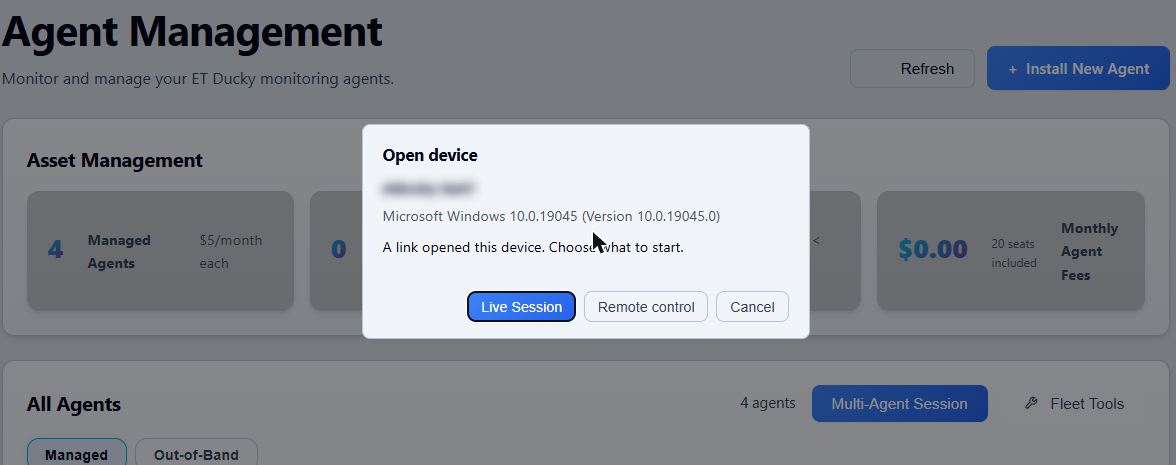
A link carries no credential. The session starts with the same permissions as the Live Session and Remote buttons in the Agents list. When the device belongs to an organization that isn't active in the dashboard, the dialog offers Switch organization, which works only for a member of that organization.
Allowed addresses on API tokens
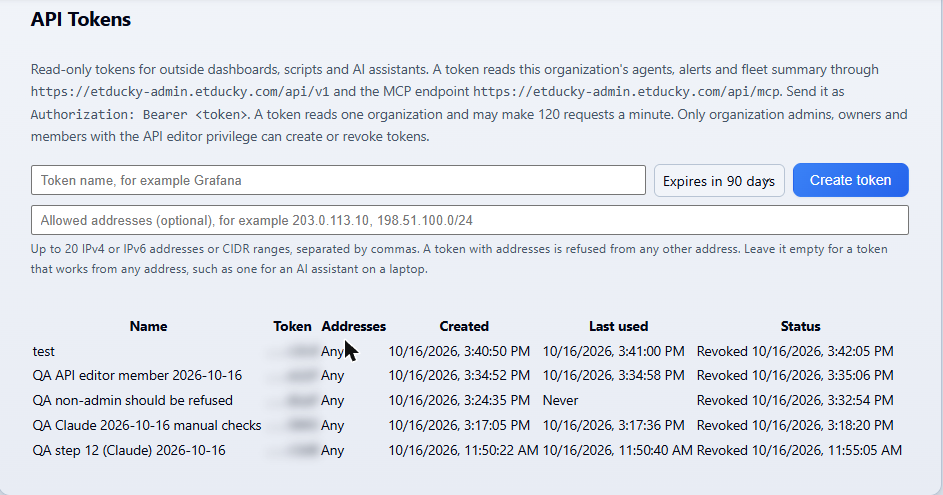
When you create an organization API token in Team, Workspace, API Tokens, you can enter up to 20 IPv4 or IPv6 addresses or CIDR ranges. The token is then refused from any other address with a 401. Set them to the public addresses of your PSA or middleware servers. Leave the field empty for a token that has to work from any address, such as one for an AI assistant on a laptop. The addresses can't be changed after the token is created.
Limits
A token reads one organization, so a PSA that serves several client organizations stores one token per client. Scripts, automations, reports, and ticket and time sync are not reachable from inside a PSA with this change. Approved time reaches a PSA through the signed webhook described in PSA Integrations and Billing, which also covers this setup.
The Public API and MCP Server documentation has the full field list, the errors, and the rate limits.
Read the full reference
The Public API and MCP Server documentation covers the device-context request, its fields and errors, the session links, and allowed addresses on API tokens.
Open the documentation