Installed-app inventory now shows install paths, per-user apps, and Microsoft Store apps
The installed-application inventory now records where each app is installed, which user installed it, and Microsoft Store (MSIX) packages. The change is live for Windows agents on version 2.8.1.0, released October 13, 2026. The screenshots are from a production host; host names, account names, and ids are blurred.
What changed
- Install path. The folder each app runs from, for machine-wide and per-user installs. Shown in the inventory drawer and in the Patch Management Installed apps table.
- Installed for. "All users" for machine-wide apps, or the account name for apps installed in one user's profile. Patch Management has a filter by user.
- Microsoft Store and MSIX apps. Store apps are listed per user with their package family name and a MSIX label.
- Refresh on demand. A Refresh button in the drawer asks the agent for a new inventory now instead of waiting for the daily report.
On the host in the screenshots, the inventory grew from machine-wide rows only to 157 rows: 105 machine-wide, 17 installed for one user, 29 Store apps for that user, and 6 hotfixes. 110 rows carry an install path.
Install path
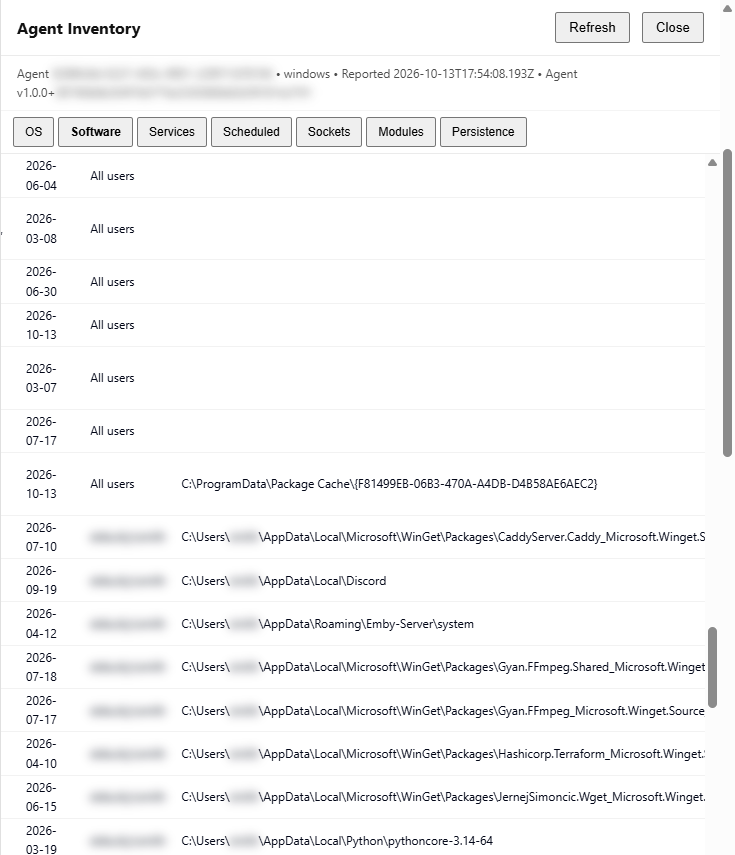
The Software tab of the inventory drawer has a new Install path column. Machine-wide apps show their Program Files folder, per-user apps show the folder inside that user's profile, and Store apps show their WindowsApps folder. Linux agents report the snap mount for snap packages. Rows with no recorded path (hotfixes, some redistributables) leave the cell empty. The drawer keeps its width, so the table scrolls sideways to reach the two new columns.
Apps installed for one user
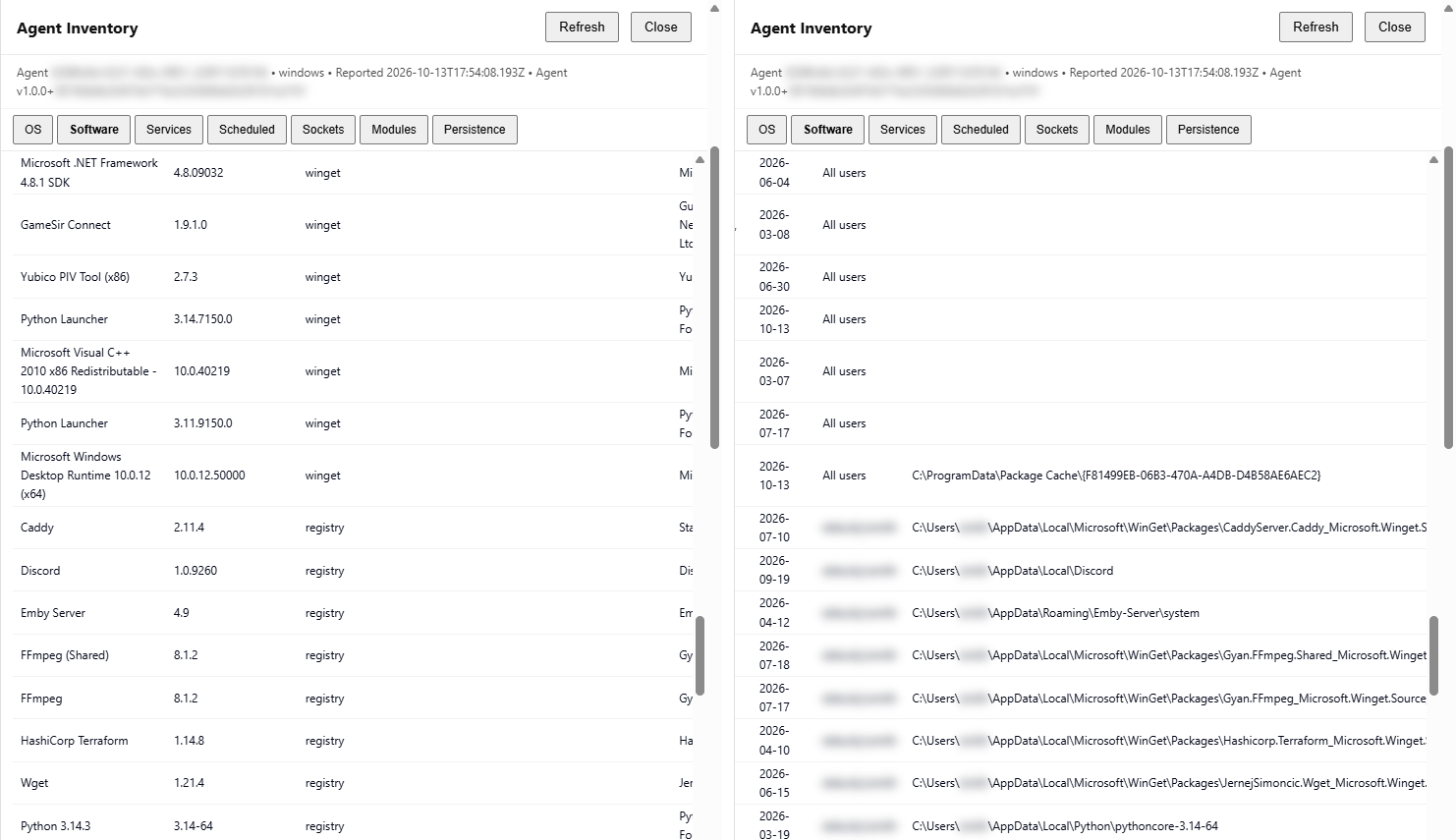
The Windows agent now reads each signed-in user's own registry hive, not only the machine-wide uninstall keys. Apps that live in a user profile (winget user-scope installs, Discord, Cursor, Ollama, per-user Python) appear with the account name in the Installed for column and the profile folder in Install path. Machine-wide apps say "All users".
When a user signs out, the agent keeps that user's last list and re-sends it marked as stale. The drawer shows the name with "signed out, list as of" and the date, so the row is not mistaken for a live read. The list is read again at the next sign-in.
Microsoft Store and MSIX apps
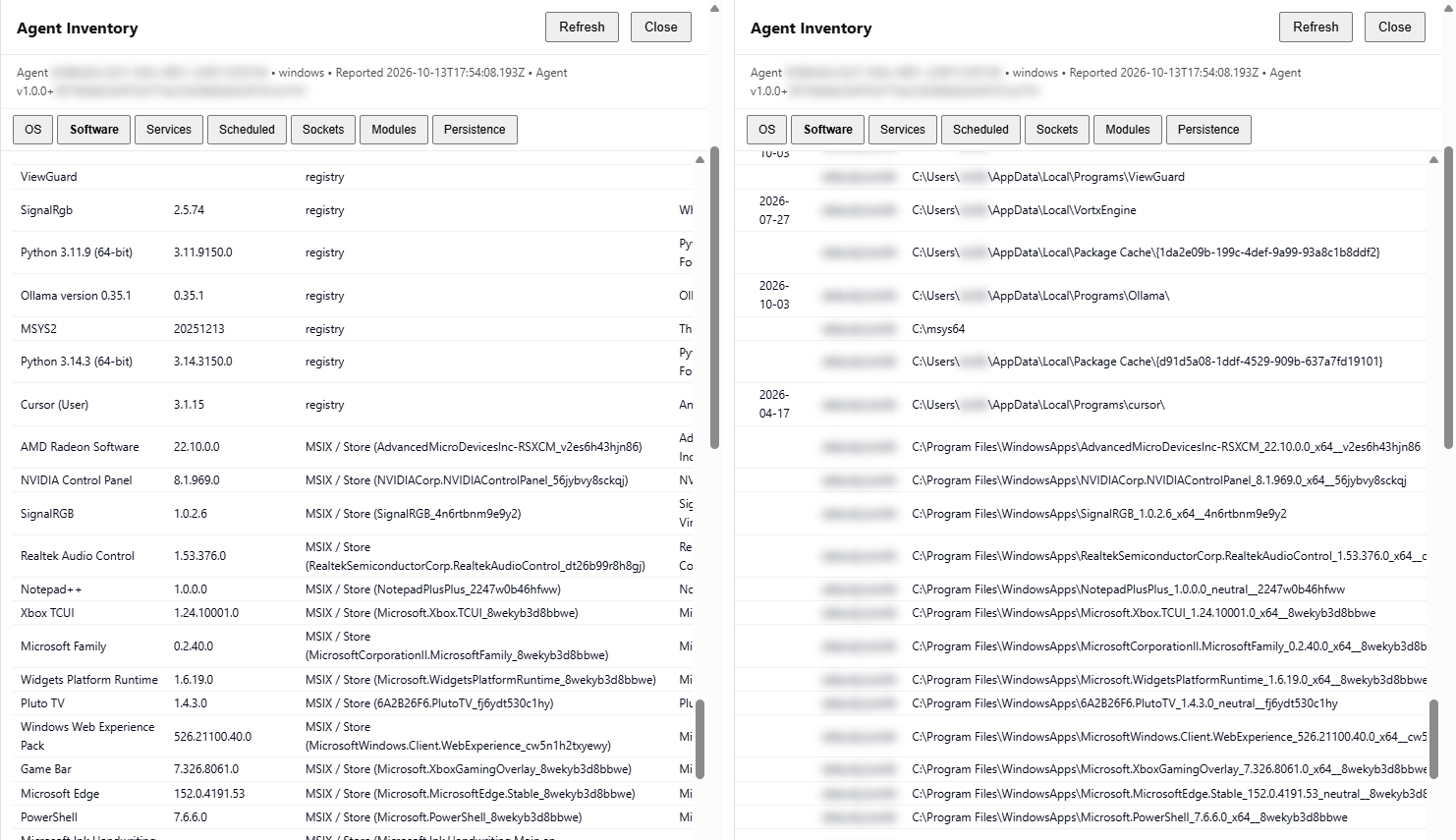
Store apps are not in the uninstall registry keys, so earlier inventories did not list them. The agent now lists each signed-in user's MSIX packages. The Source column reads "MSIX / Store" followed by the package family name, and the Install path points at the package folder under WindowsApps. The list keeps Store-signed and developer or enterprise signed main packages. Frameworks, resource packages, bundles, and system inbox apps are left out. Store apps are not hashed, because signed packages have no single primary executable to check.
Refresh on demand
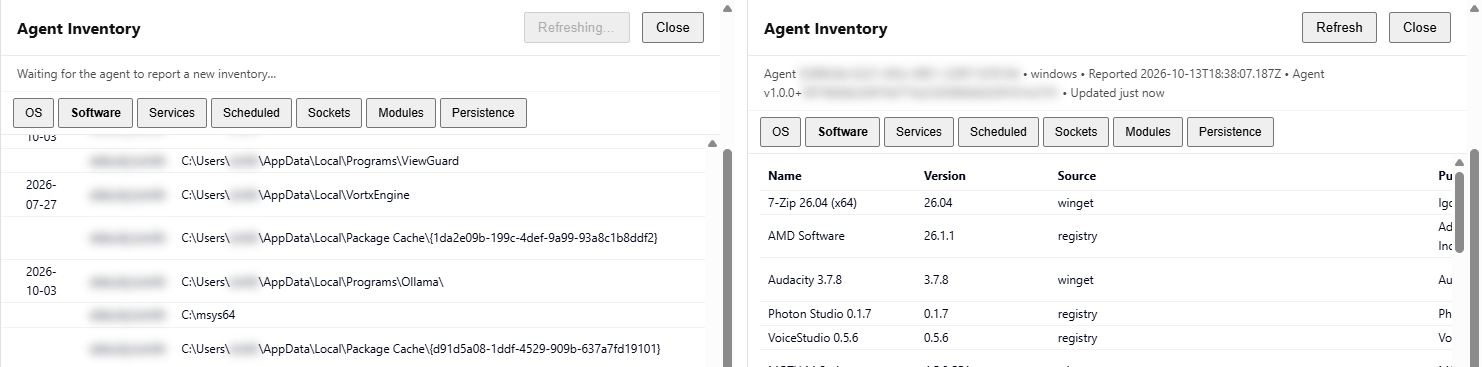
The agent reports inventory at boot and every 24 hours. The Refresh button in the drawer asks the agent to collect now. The button reads "Refreshing..." while it waits, then the header shows the new report time and the table reloads. On the host above, a new report arrived about 25 seconds after the click. If no report arrives within two minutes, for example because the host is offline, the drawer says so and keeps the previous report.
Patch Management view
The Installed apps table under Systems, Patch Management, Agents shows the same rows with the install path under each app name and an Installed for column. A filter above the table switches between Everyone, All users (machine-wide), and each signed-in user. Store apps carry a MSIX badge in the Managed by column.
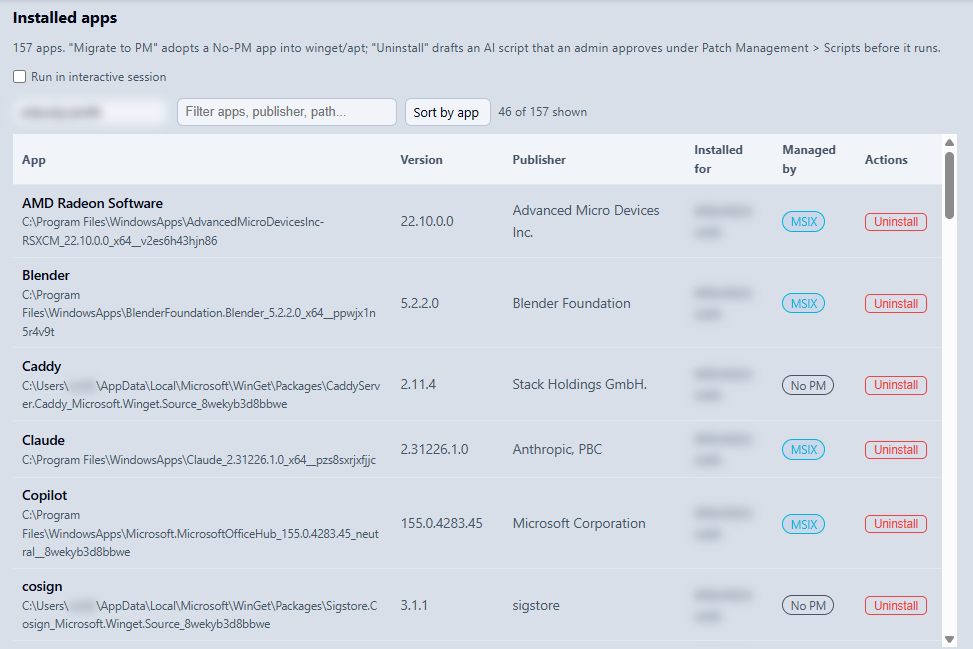
Uninstall on a per-user row drafts a script that removes that user's copy only. The script runs under the usual approval under Patch Management, Scripts, and the user has to be signed in when it runs. Fleet views (hosts with an app, migrate by name, bulk uninstall, Approved Applications) mark hosts where an app exists only as a per-user copy, because a machine-wide action does not reach those copies.
Where to find it
- Agents, tick one host, then Inventory on the bar at the bottom. The drawer opens on the OS tab; pick Software.
- Agents, Configure on the host, View Health, then Inventory. Same drawer.
- Systems, Patch Management, Agents, then pick the host. The Installed apps table is below Pending updates.
What to expect
- Windows agents on 2.8.1.0 or later send the new fields. Older agents keep sending the machine-wide list; their rows show "All users" and no path until they update.
- Linux agents report the install path for snap packages. Per-user and Store rows do not apply on Linux.
- Per-user rows are read only for users who are signed in. A user who has never signed in while the agent was running has no rows yet.
- Per-user rows share a cap of 1,500 rows per host, and the whole snapshot stays under 900 KB. A host with many profiles drops whole users from the list rather than truncating one user's list part way.
- The installed and removed change log ignores per-user rows unless that user's list was read live in both snapshots, so a sign-out does not show up as a removal.
Read the documentation
The Agent Management page covers the inventory drawer. The Patch Management page covers the Installed apps table, the user filter, and per-user uninstall.
Agent Management documentation